
 Facebook
  Twitter
  LinkedIn
 How to Revise Rates in Arez
Update Pay Rates and Charge Rates for multiple Rota shifts at once
Revise Rates allows you to update the Pay Rate, Charge Rate, or both across multiple shifts in one action. You can filter the shifts by Client, Site, Role and week, preview the proposed changes, review any shifts that need attention, and then apply the new rates.
Overview
The Revise Rates feature in Arez allows you to update the Pay Rate, Charge Rate, or both for multiple shifts at the same time.
Instead of opening and editing each shift individually, you can select the required Client, Site, Role and week, review the matching shifts, and apply the new rates in one go.
Before applying the change, Arez shows the current and proposed rates for each shift and separates them into Requires Review and No Change, so you can check the impact before confirming.
How Revise Rates works
You open Revise Rates from the Rota Actions menu, select the shifts you want to update using the available filters, then click Run to load the matching shifts.
You can then choose how the Pay Rate and Charge Rate should be updated, review the proposed changes, select a Reason for change, and click Apply to Shifts.
Once applied, the new rates are saved against the selected shifts and can be checked from the shift details on the main Rota.
1. Open the Rota
From the left-hand menu, click Rota/Schedules to open the main Rota.
If you need to change the rates for several shifts, Revise Rates lets you update them together instead of opening each shift separately.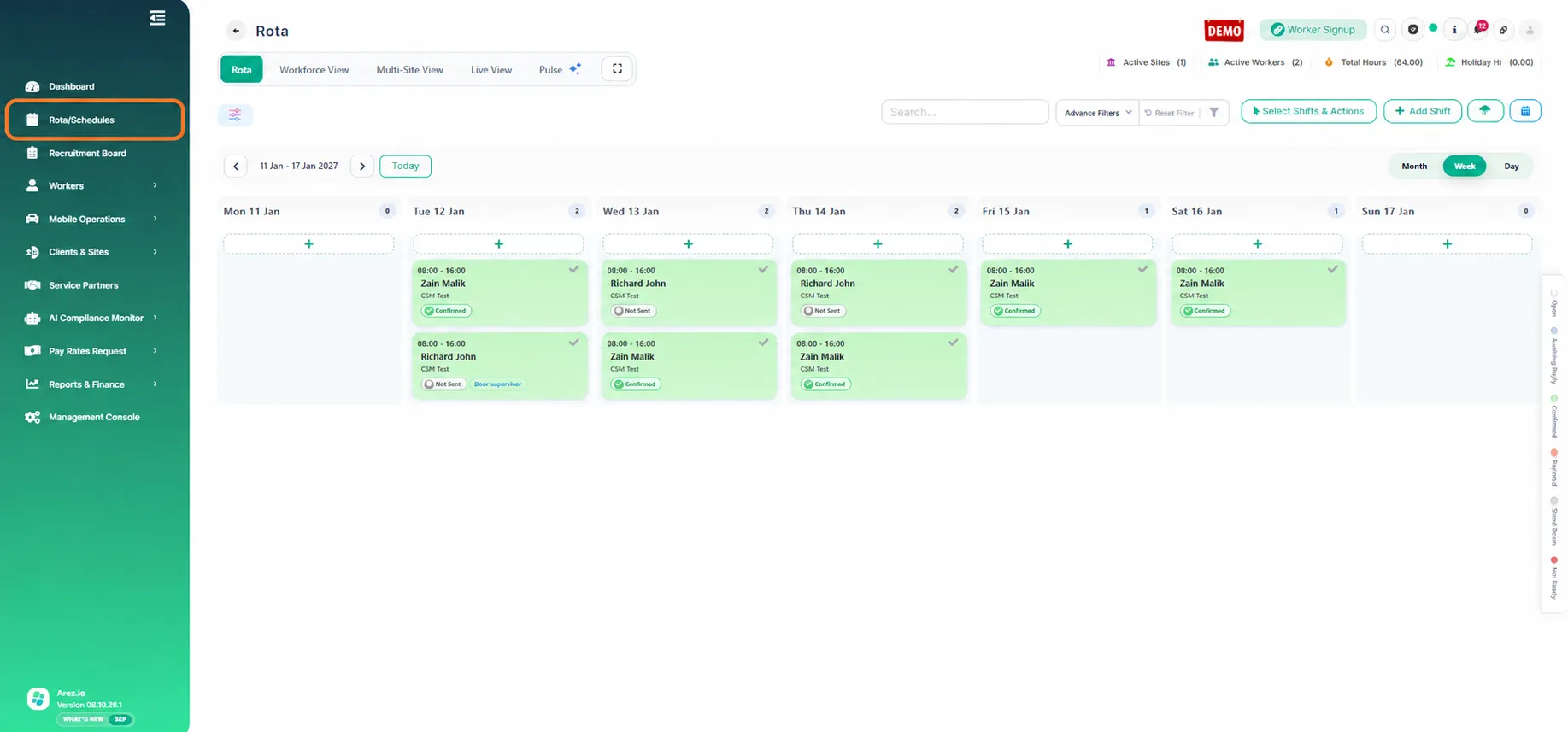
2. Open Revise Rates
On the Rota, click the Actions button in the top-right corner. From the menu, select Revise rates.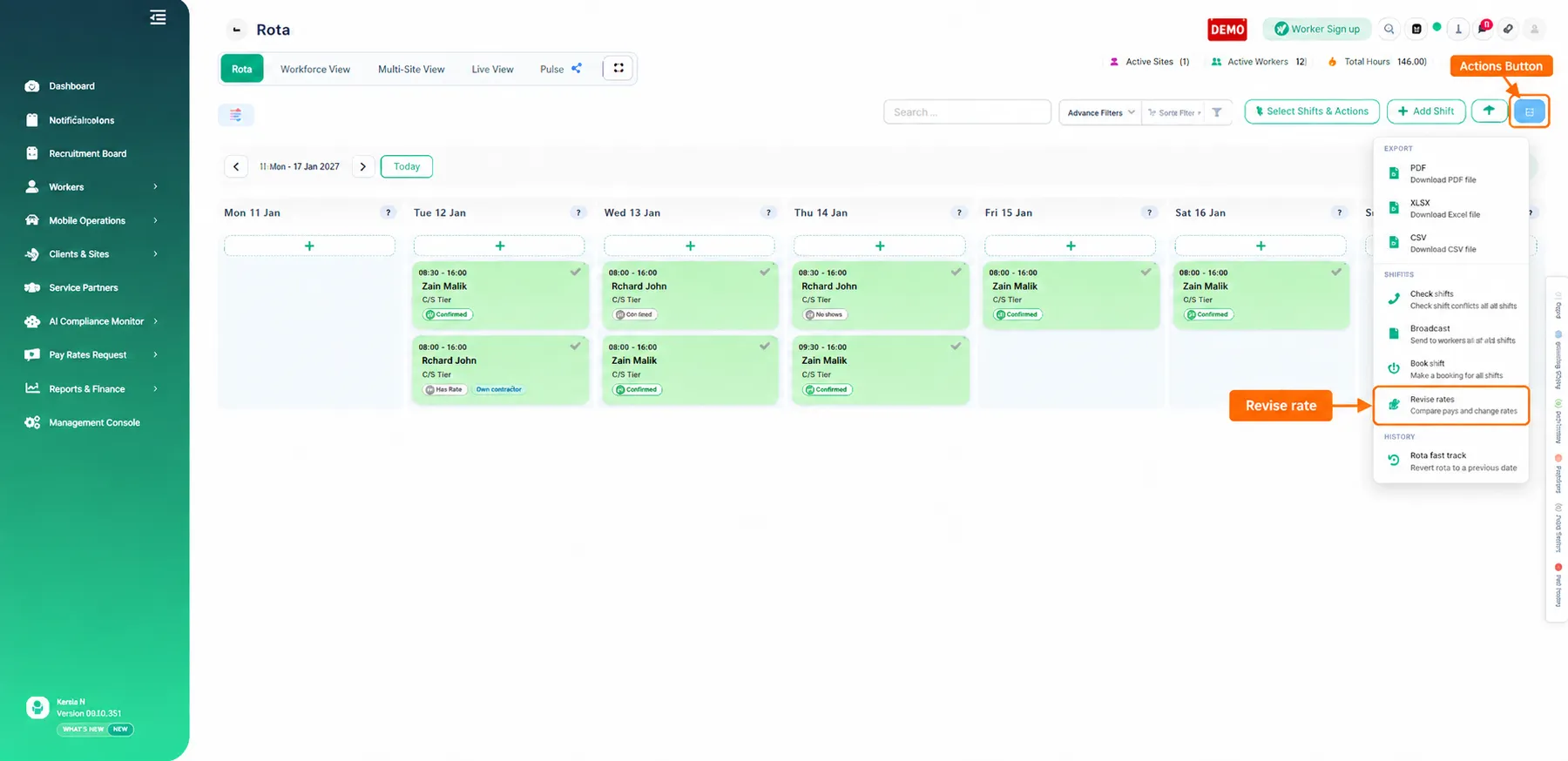
3. Choose the shifts you want to revise
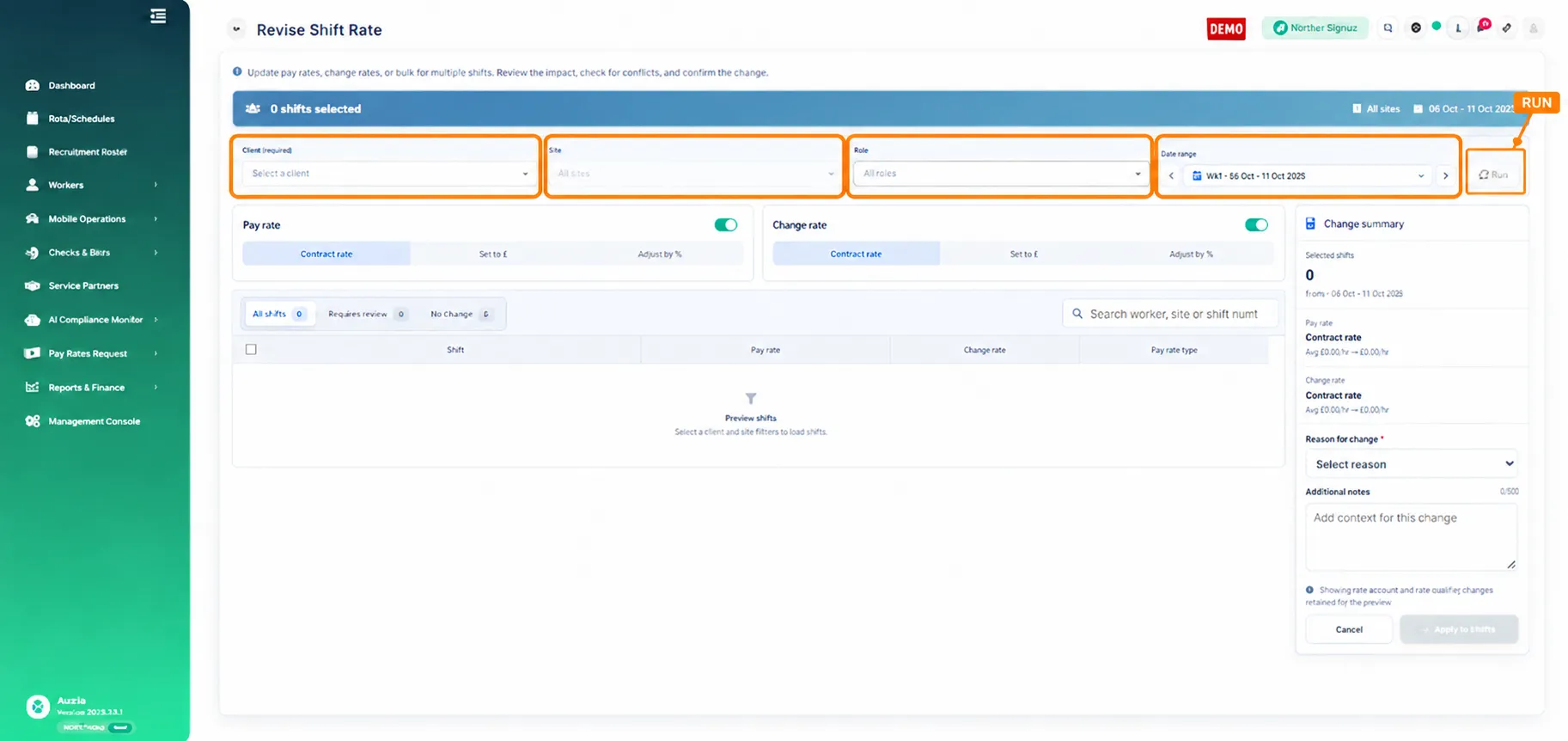
Use the filters at the top of the Revise Shift Rate screen to choose the shifts you want to work with.
Client: Select All clients or choose one client. All clients loads matching shifts across all clients for the selected week. A single client limits the results to that client.
Site: Narrow the results to a specific site if required.
Role: Narrow the results to a specific role if required.
Date range: Revise Rates works week by week. In this example, Week 2 - 11 Jan to 17 Jan 2027 is selected.
Once the required filters are selected, click Run.
4. Review the loaded shifts
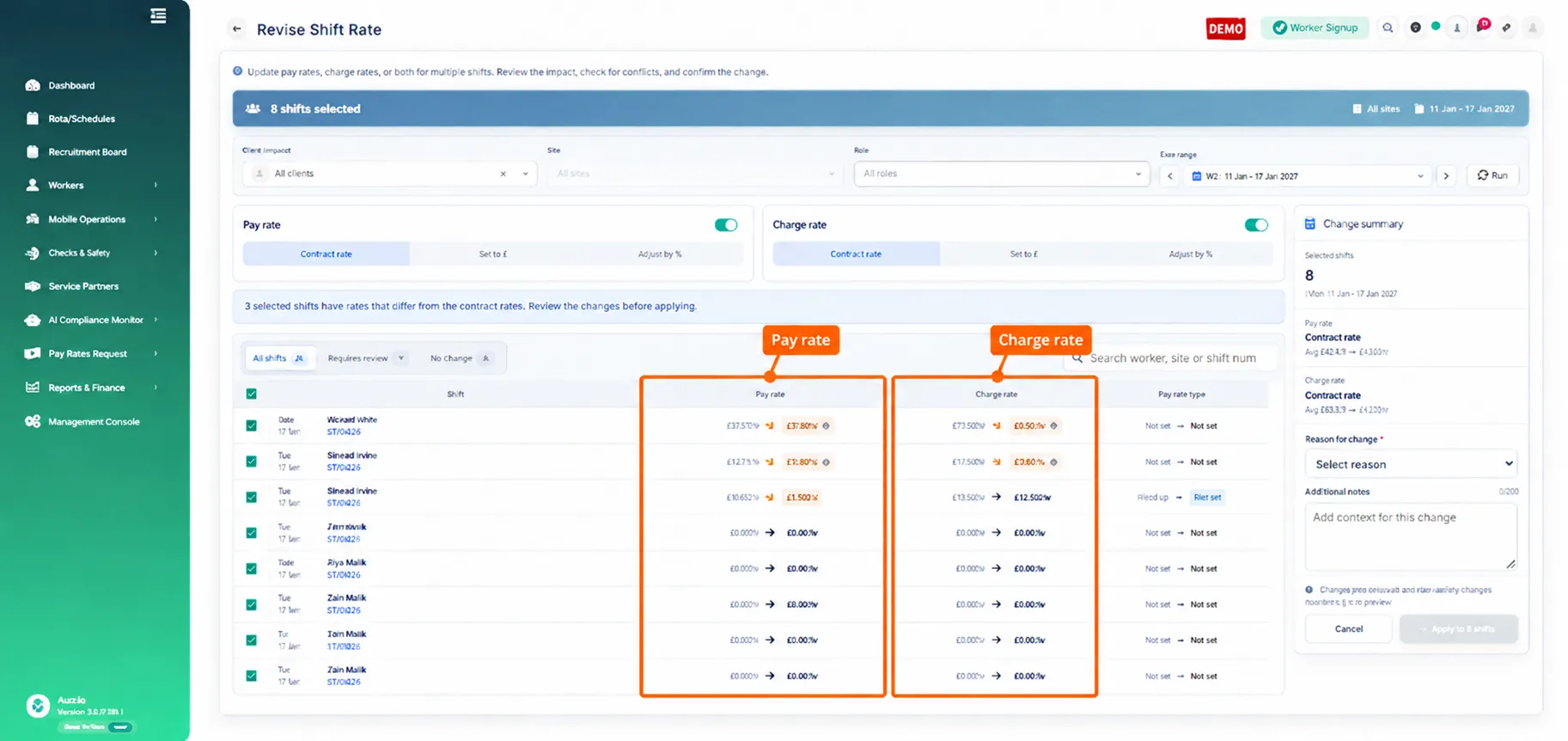
After you click Run, Arez loads the matching shifts for the selected filters and week.
For each shift, you can see the current Pay Rate, Charge Rate and Pay Rate Type. The Change summary on the right shows the number of selected shifts and the overall rate change that will be applied.
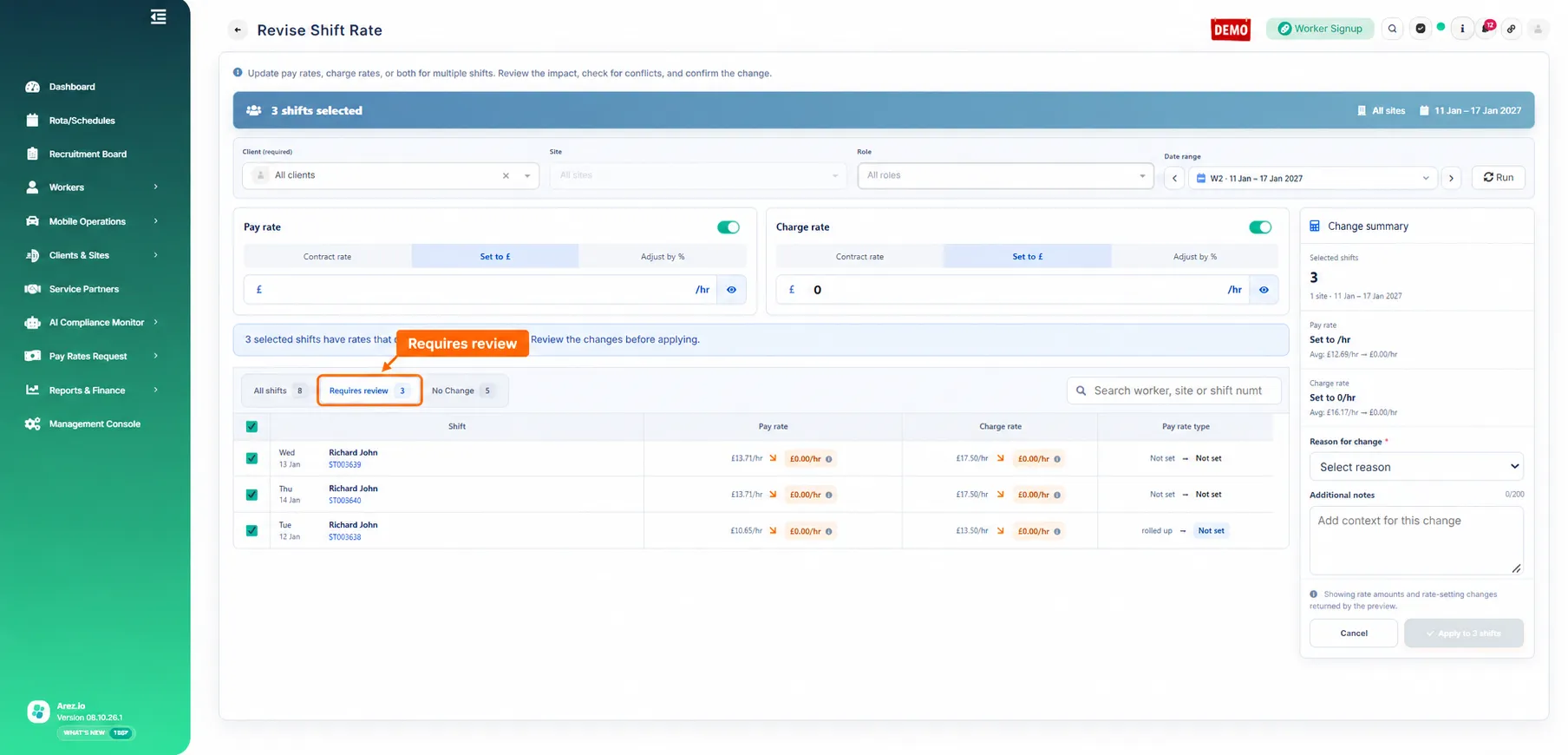
5. Review shifts that require attention
Use the Requires review tab to check shifts where the proposed rate would change the existing rate and needs your attention before applying the update.
In this example, three shifts are in Requires review because applying the Contract rate would change their Pay Rate and/or Charge Rate to £0.00/hr.
6. Check shifts with no change
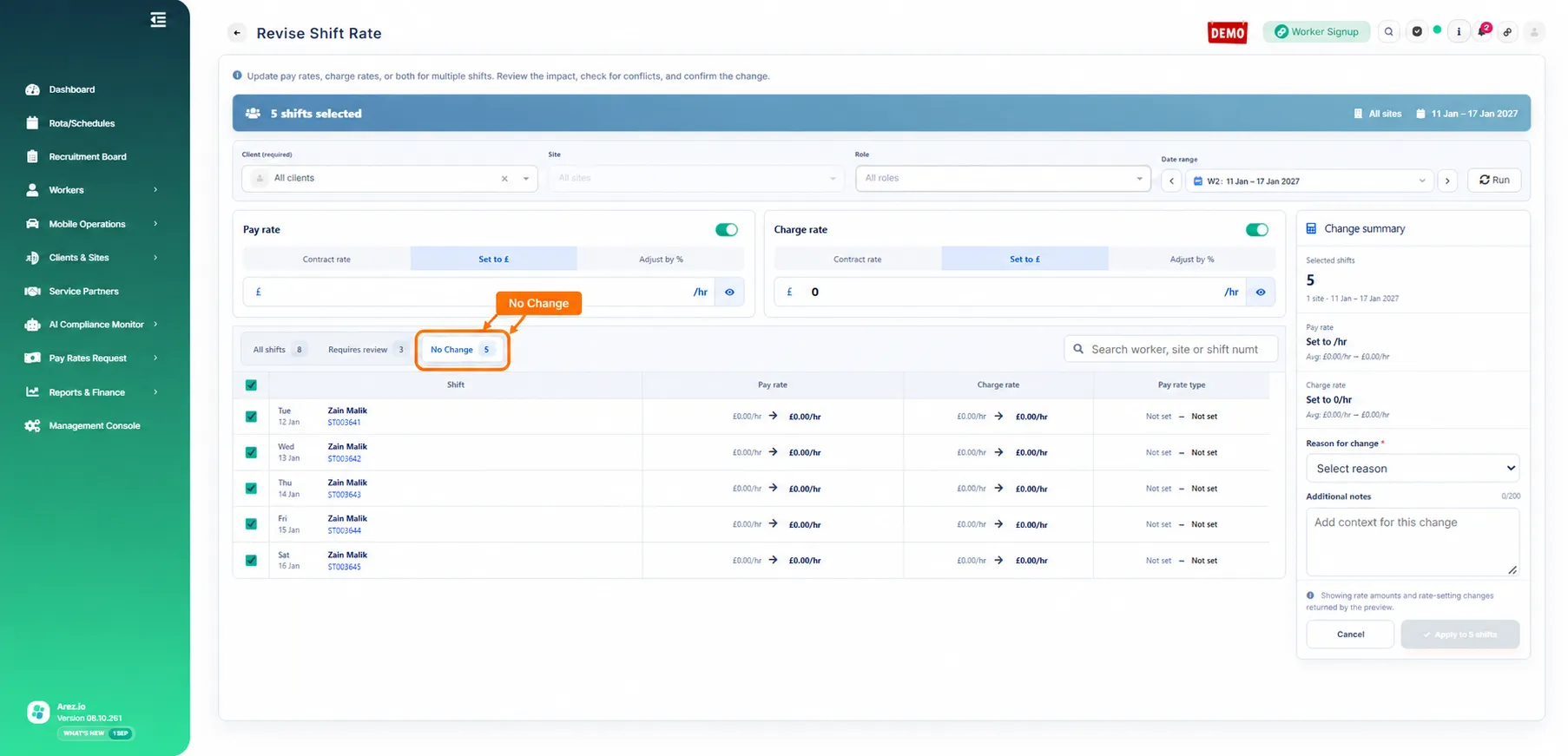
The No Change tab shows shifts where the proposed rate would remain the same as the current rate.
In this example, five shifts currently have a £0.00/hr worker pay rate, and there is also no contract rate set for those shifts. Because there is no different rate available to apply, the rate remains unchanged at £0.00/hr.
7. Enter the new Pay Rate and Charge Rate
To enter a specific rate, select Set to £ under Pay rate and/or Charge rate and enter the new amount.
In this example, the Pay Rate is set to £15/hr and the Charge Rate is set to £25/hr.
Click the eye icon beside the rate field to preview the change. Review the shift rows below to confirm the current rate and the new proposed rate before continuing.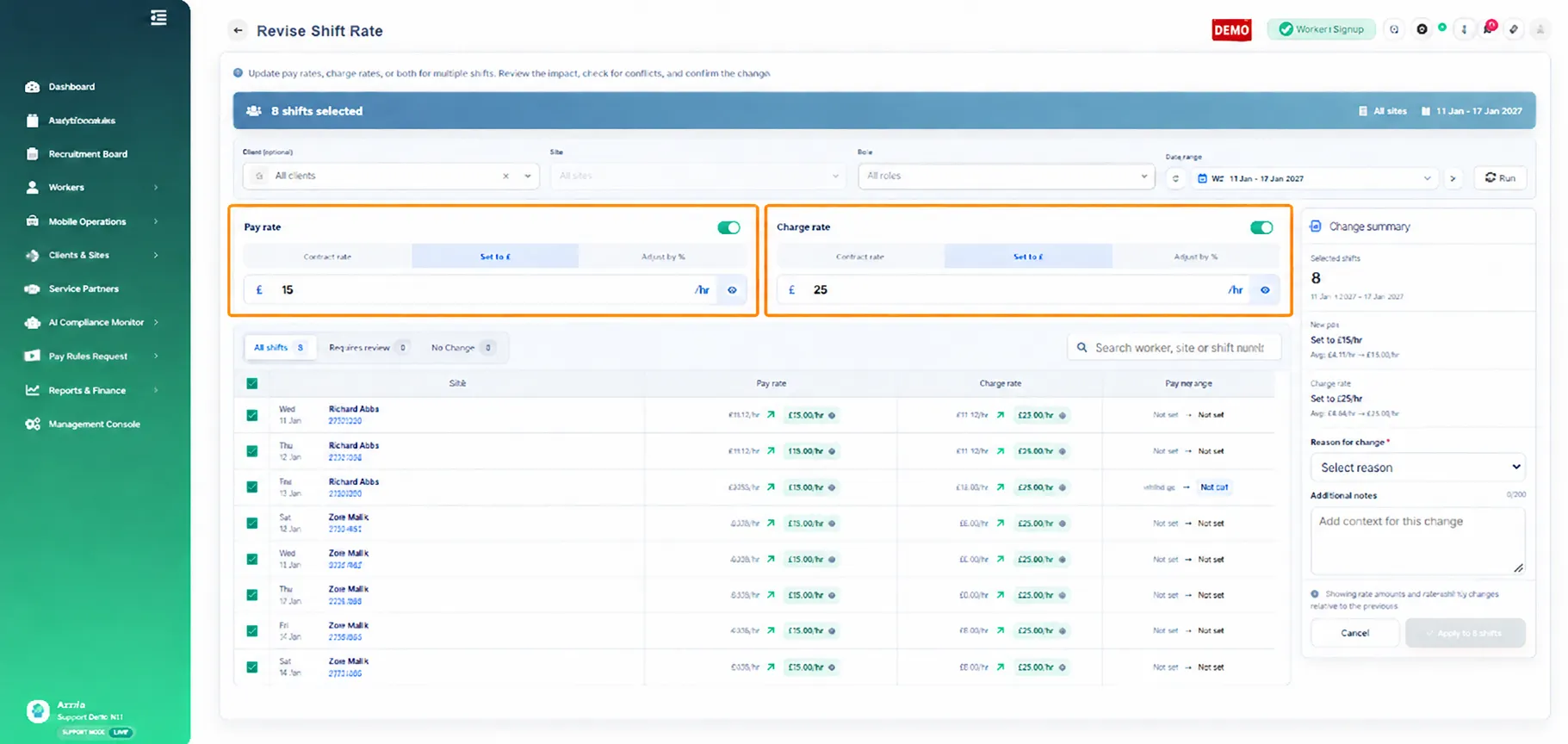
8. Select a reason and apply the change
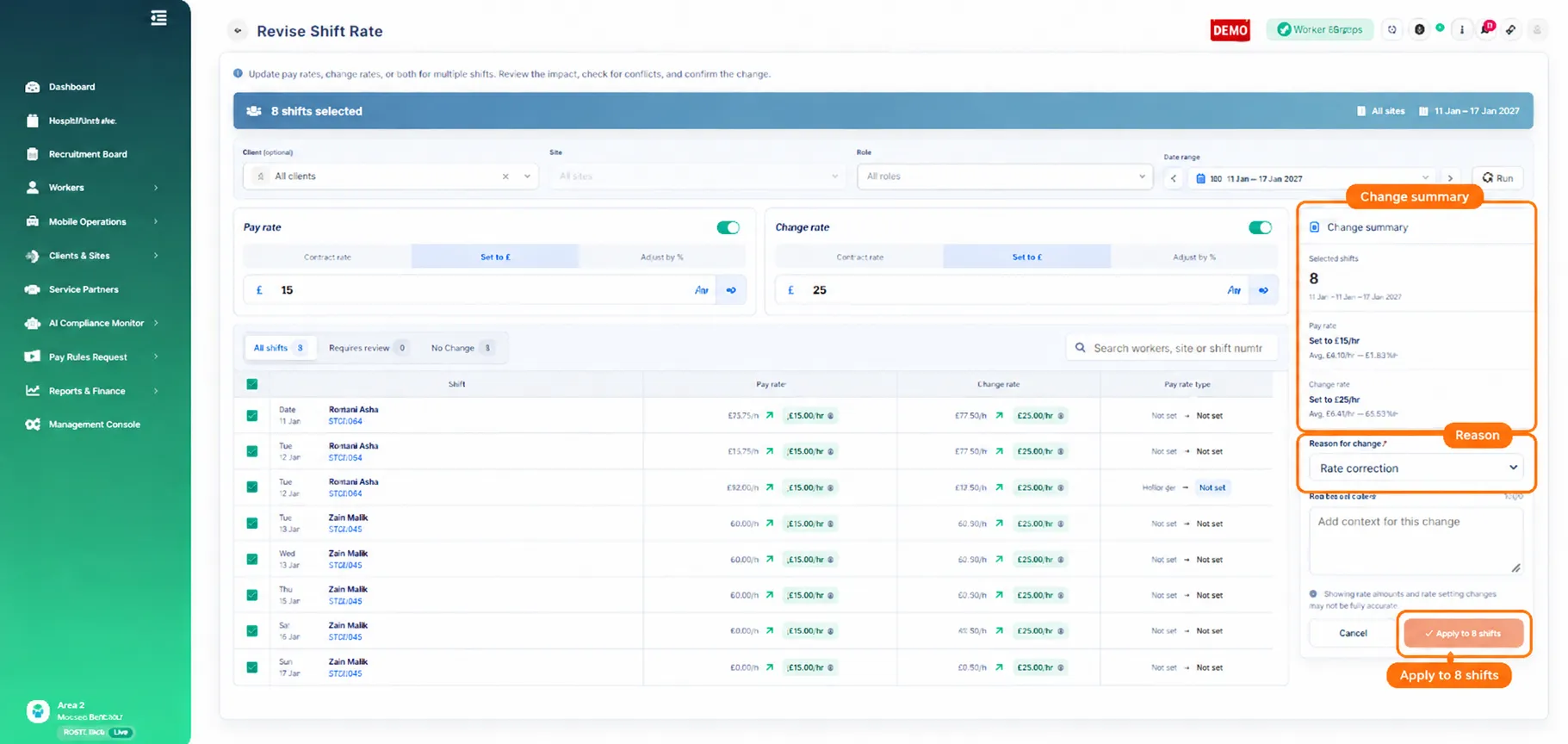
Check the Change summary on the right, then select a Reason for change. If none of the listed reasons apply, select Other and continue.
Once you are happy with the preview, click Apply to 8 shifts. The button will show the number of shifts currently selected.
9. Confirm the updated rate on the Rota
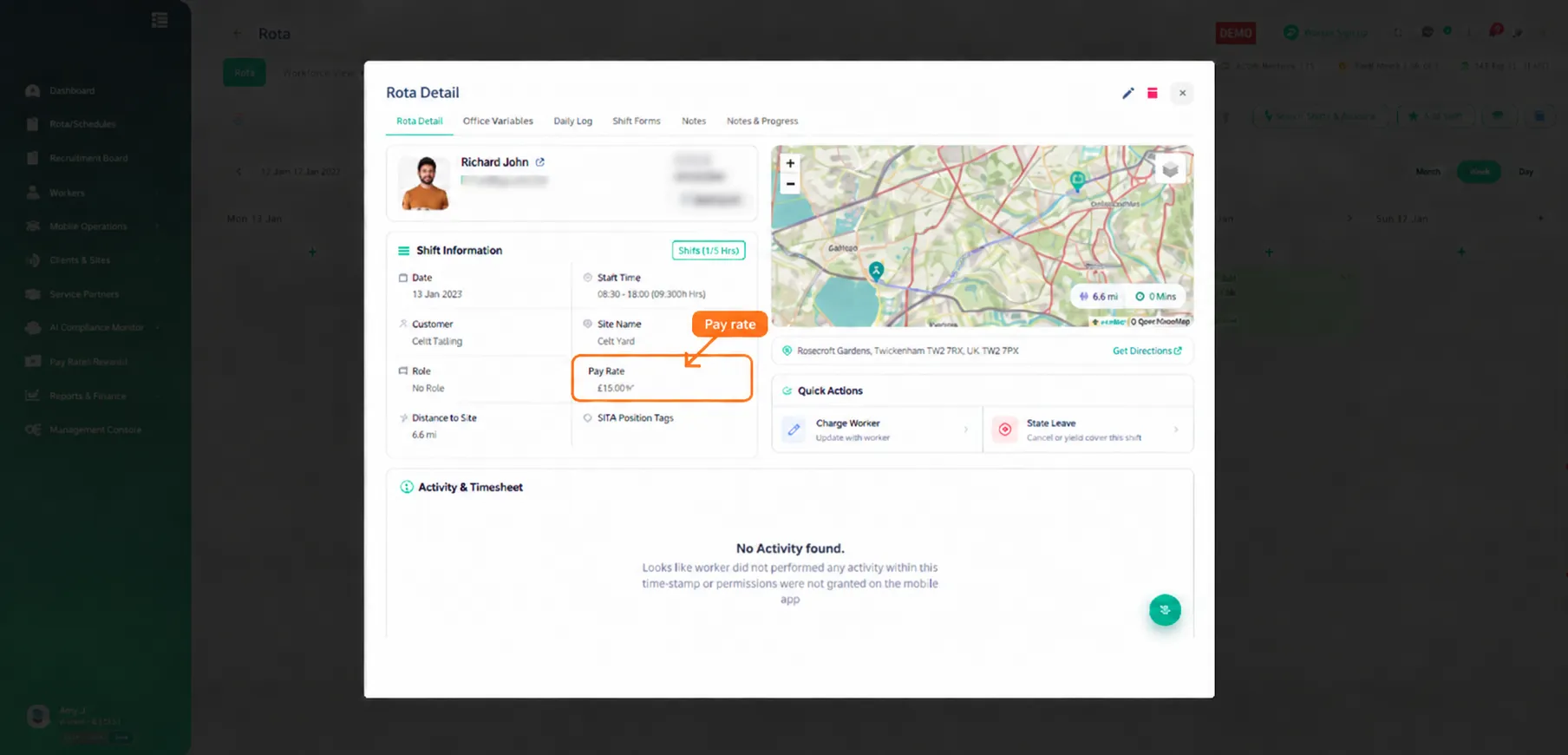
After the update is applied, return to the main Rota and open a shift to check the updated rate in Rota Detail.
In this example, Richard John's Pay Rate now shows £15.00/hr, confirming that the bulk rate update has been applied correctly.
10. Key points
Revise Rates updates multiple shifts in one action.
Use Client, Site, Role and week filters to control which shifts are loaded.
Always review Requires review and No Change before applying a bulk update.
Use the preview and Change summary to check the effect of the new rate.
A Reason for change is required before the update can be applied.
After applying the change, check a shift on the Rota to confirm the new rate.