
 Facebook
  Twitter
  LinkedIn
 How Pay and Charge Rates Work in Arez Operate
Pay Rates, Charge Rates and Worker Overrides Explained
Preface
In facilities management and security operations, rates directly affect worker pay, client billing and operational margins. An incorrectly configured rate can result in payroll discrepancies, invoice disputes or incorrect margin reporting.
Arez Operate keeps Pay Rates and Charge Rates separate while allowing controlled worker-level exceptions.
Standard rates can be configured through client and site contracts, while worker-specific Pay Rates can be used where an individual worker requires a different rate.
This guide explains:
The difference between Pay Rates and Charge Rates
Where rates are configured
The Pay Rate priority used by Arez
How worker-specific rates work
How contract rates work
How rates are applied to shifts
How to make temporary or permanent rate changes
Rolled-up rates and Pay Rate Tags
How to review Rate History
1. Pay Rates and Charge Rates
Arez separates rates into two distinct types.
Pay Rate (£/hr)
The Pay Rate determines how much the worker is paid.
Pay Rates are used for:
Rota calculations
Paysheets
Payroll
Worker cost reporting
Charge Rate (£/hr)
The Charge Rate determines how much the client is charged.
Charge Rates are used for:
Client billing
Invoicing
Revenue calculations
Margin reporting
These rates are deliberately kept separate.
For example:
Rate | Amount |
Worker Pay Rate | £13.00/hr |
Client Charge Rate | £20.00/hr |
The worker is paid £13.00/hr, while the client is charged £20.00/hr.
Changing the worker's Pay Rate does not change the Charge Rate.
2. Contract Rates
provide the standard PaContracts y and Charge Rates used by Arez.
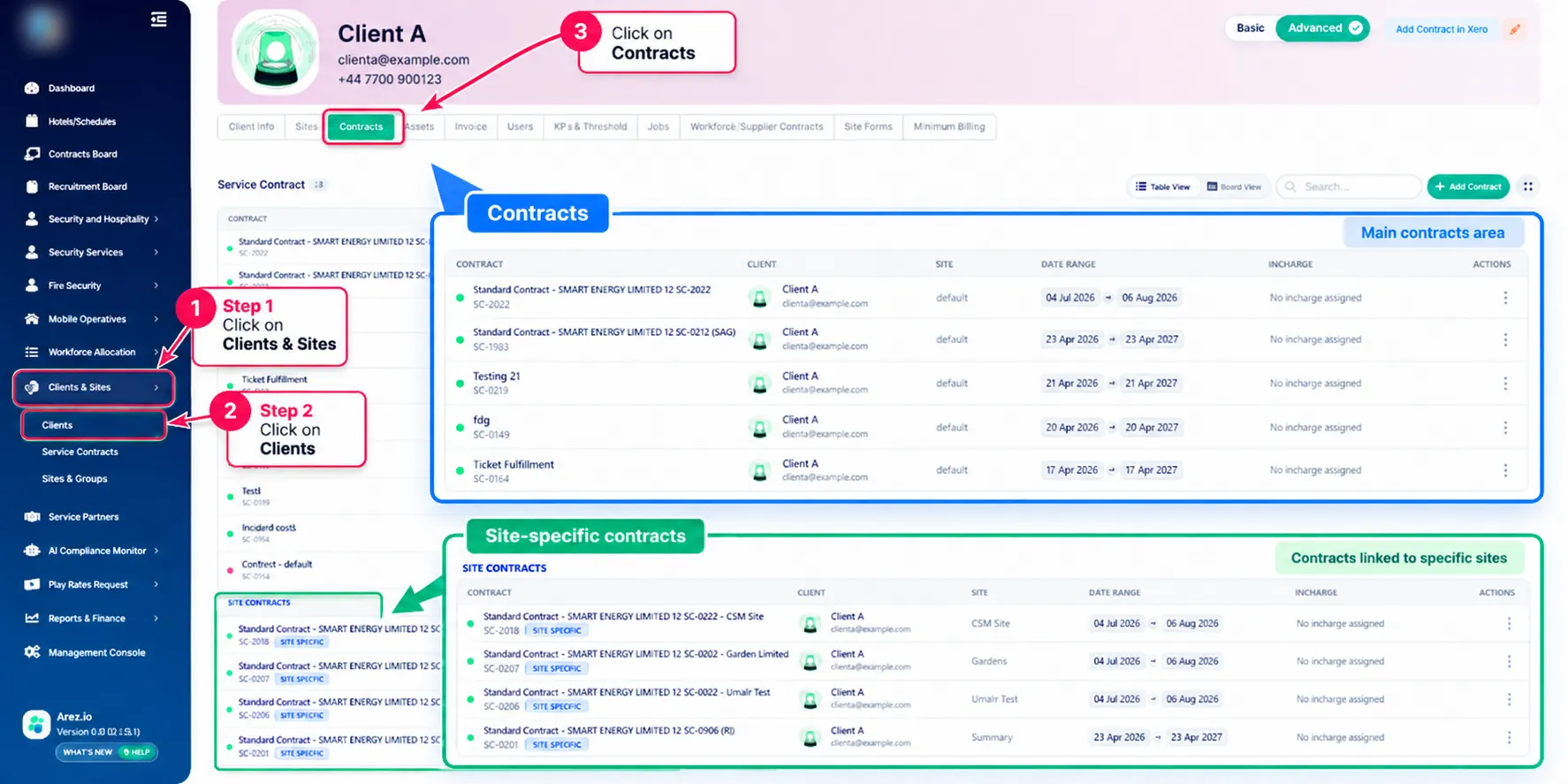
To manage contract rates:
Clients & Sites → Clients → Open Client → Contracts
From the Contracts tab, you can review the contracts associated with the client.
Contracts can be configured at:
Client level – provides standard rates across the client's sites
Site level – provides rates specifically for an individual site
Site-specific contracts can therefore be used where rates differ from the client's standard commercial arrangement.
Configuring Contract Rates
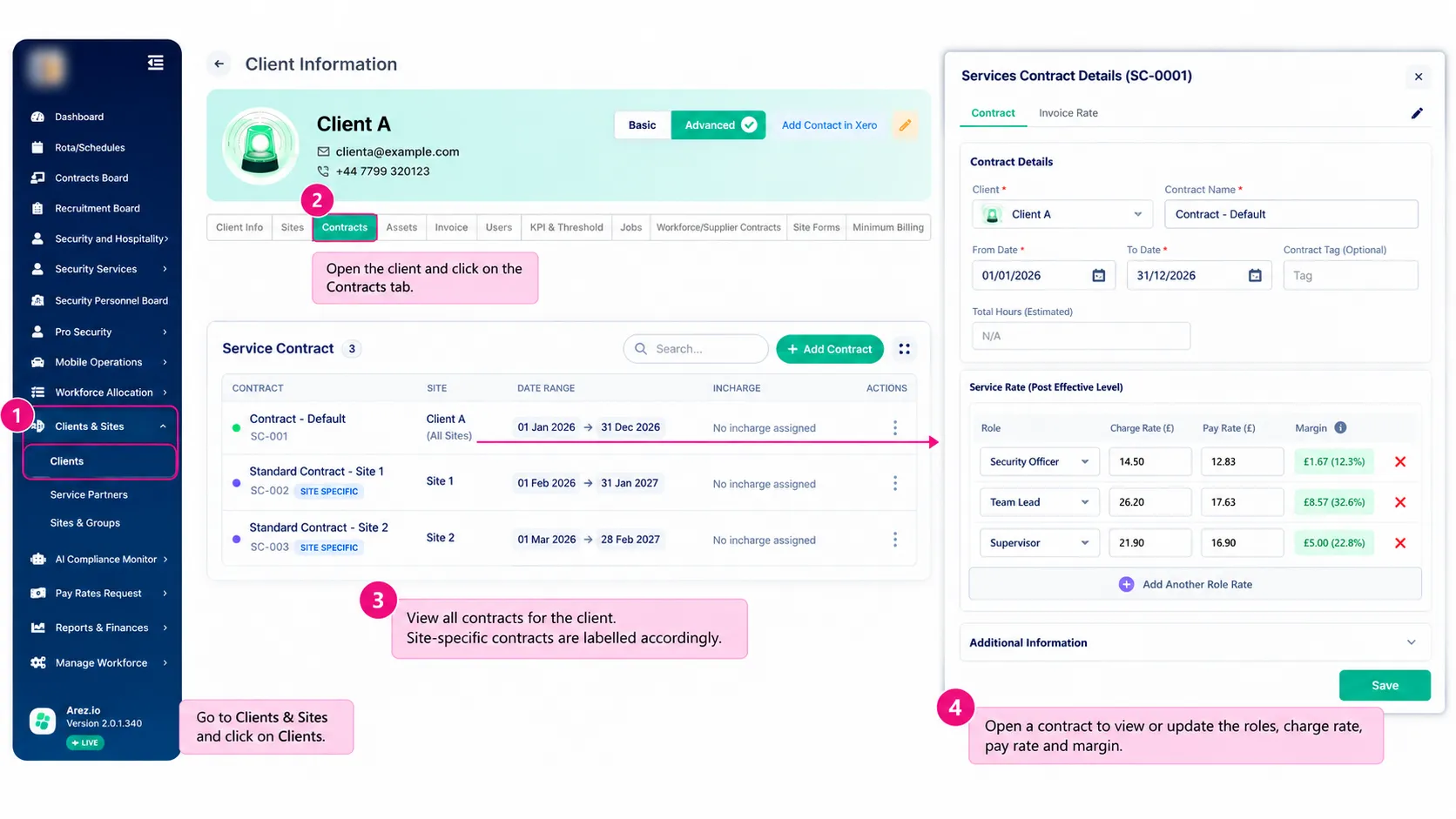
Open the required contract to configure rates against individual roles.
For each role, you can define:
Charge Rate
Pay Rate
Margin
For example:
Role | Charge Rate | Pay Rate | Margin |
Team Lead | £16.00 | £12.00 | £4.00 |
Security Guard | £20.00 | £13.00 | £7.00 |
The Margin shows the difference between the Charge Rate and Pay Rate, providing visibility of the expected commercial margin.
3. Worker Pay Rates
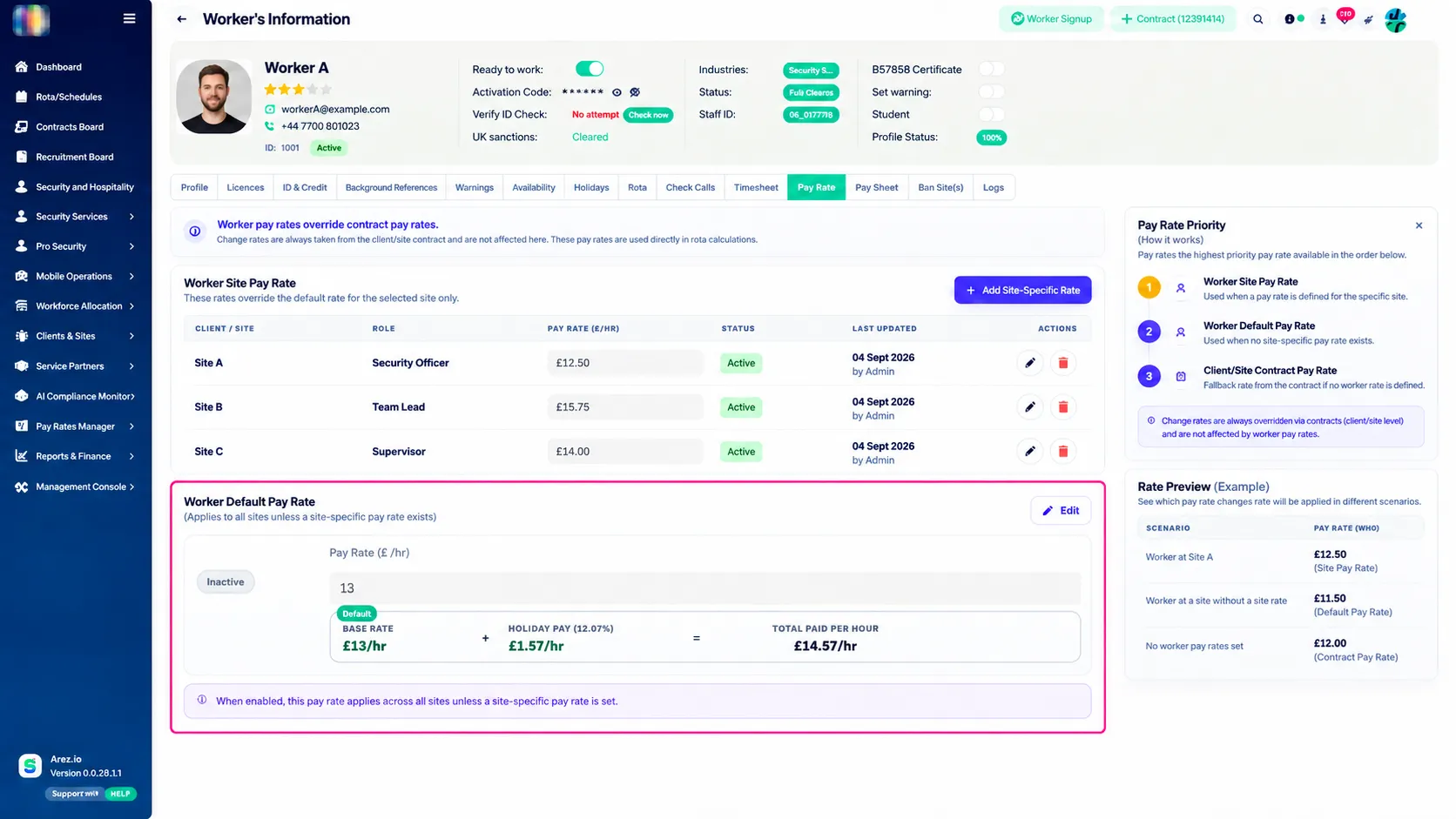
Contracts provide the standard Pay Rate, but Arez also allows individual workers to have their own Pay Rates.
Worker-specific Pay Rates are configured from:
Worker Profile → Pay Rate
These rates are useful where the worker's agreed Pay Rate differs from the standard contract rate.
Examples include:
Specialist workers
Experienced workers receiving a higher rate
Site-specific agreements
Individually negotiated Pay Rates
Worker Pay Rates override the Pay Rate held against the contract.
They do not affect the contract Charge Rate.
4. Pay Rate Priority
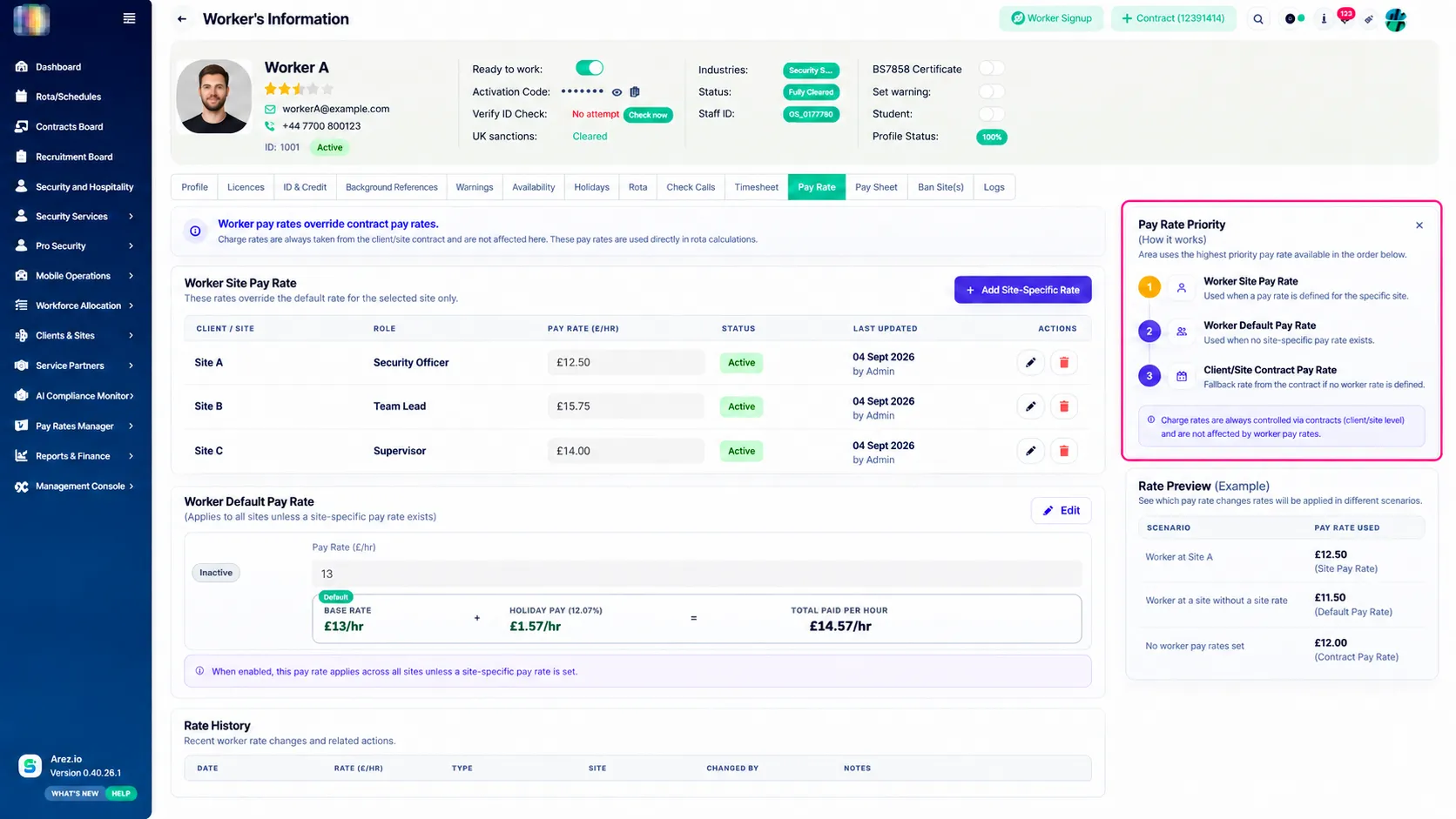
Arez automatically selects the highest-priority active Pay Rate available for the worker.
The priority is:
1. Worker Site Pay Rate
Used when an active Pay Rate has been configured for the worker at the specific site.
↓
2. Worker Default Pay Rate
Used when there is no active Site-Specific Pay Rate.
↓
3. Client/Site Contract Pay Rate
Used as the fallback when the worker has no active Site Pay Rate or Default Pay Rate.
Pay Rate hierarchy
Worker Site Pay Rate → Worker Default Pay Rate → Client/Site Contract Pay Rate
Arez automatically follows this order when determining which Pay Rate should apply.
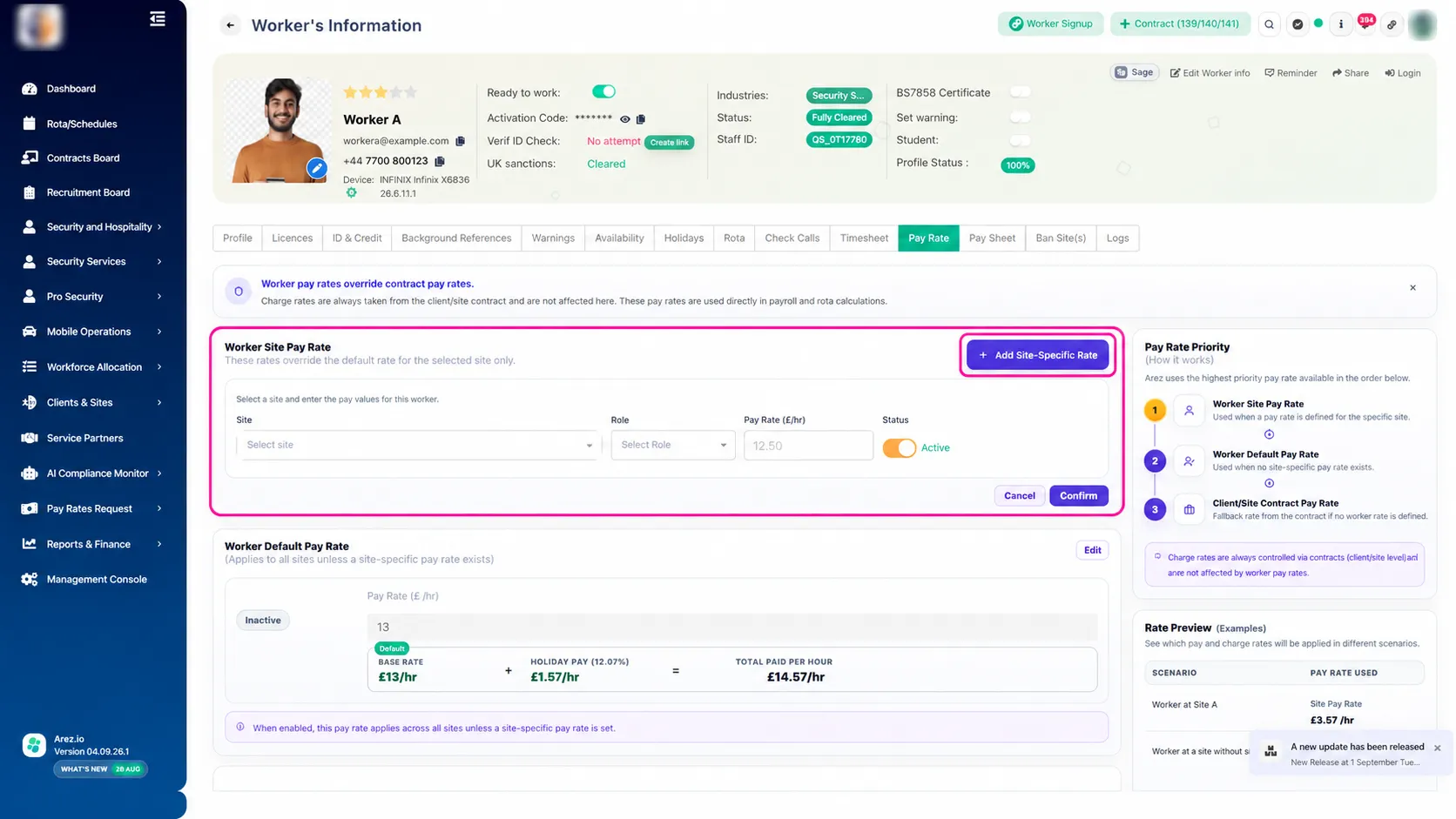
5. Worker Site Pay Rate
A Worker Site Pay Rate allows a worker to have a different Pay Rate at a specific site.
To add one:
Open the Worker Profile.
Select the Pay Rate tab.
Select Add Site-Specific Rate.
Select the required Site.
Select the applicable Role.
Enter the Pay Rate (£/hr).
Set the status to Active.
Select Confirm.
Once active, Arez will use this Pay Rate when the worker is assigned to applicable shifts at that site.
Example
A worker has:
Site Pay Rate: £14.00/hr
Default Worker Pay Rate: £13.00/hr
Contract Pay Rate: £12.00/hr
When the worker works at the site where the £14.00 rate is configured:
Pay Rate used = £14.00/hr
This is because the Site Pay Rate has the highest priority.
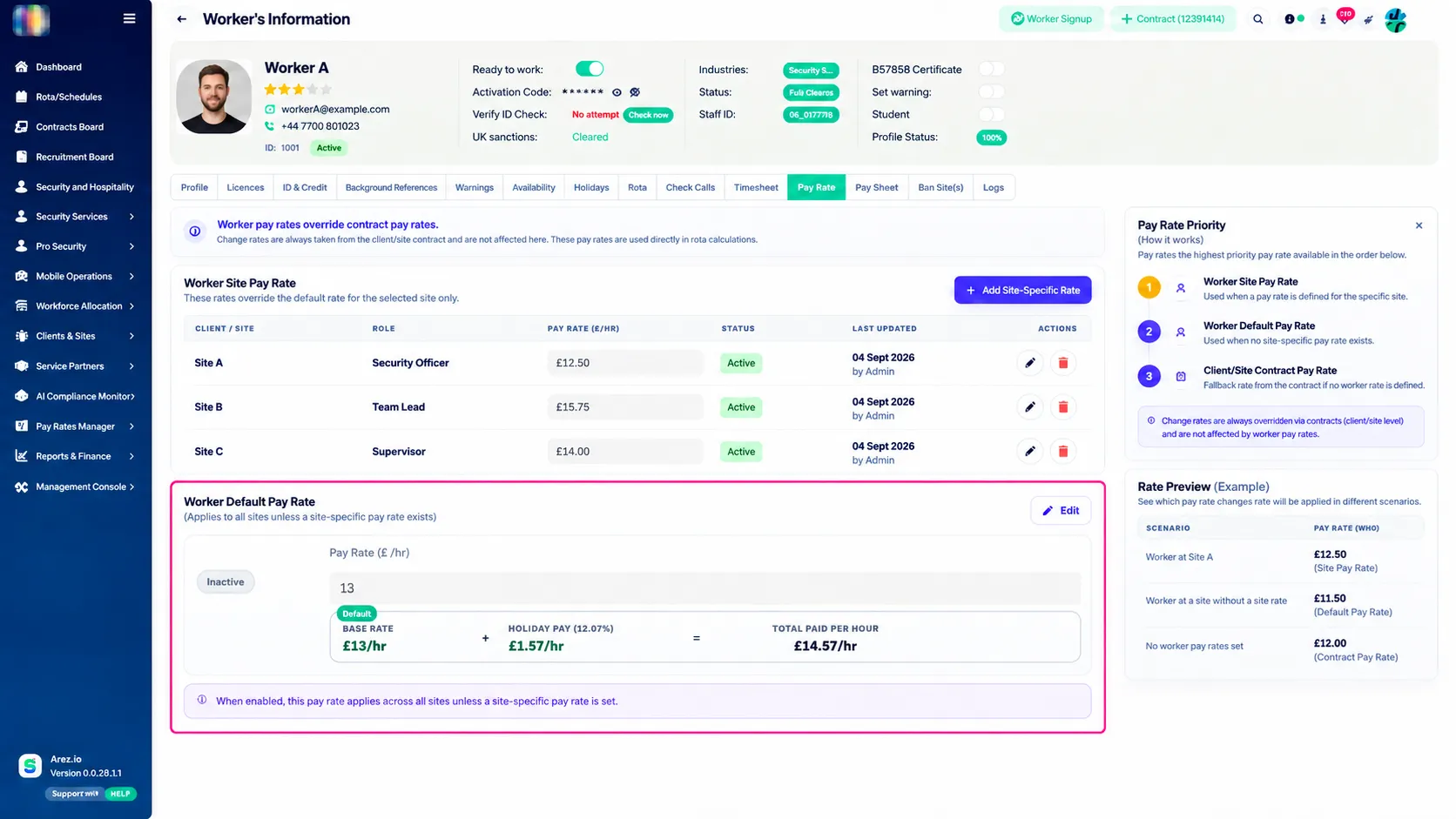
6. Worker Default Pay Rate
A Worker Default Pay Rate can be configured where a worker normally receives the same Pay Rate across multiple sites.
From:
Worker Profile → Pay Rate
locate the Worker Default Pay Rate section and select Edit.
Enter the required Pay Rate and set the rate to Active.
Once enabled, the rate applies across all sites unless an active Site-Specific Pay Rate exists.
.
Example
A worker has:
Default Pay Rate: £13.00/hr
Site A Pay Rate: £15.00/hr
Arez will use:
Site A → £15.00/hr
Other sites → £13.00/hr
The Site Pay Rate takes priority at Site A, while the Default Pay Rate applies elsewhere.
7. Contract Pay Rate as a Fallback
If a worker has:
No active Site Pay Rate, and
No active Default Pay Rate
Arez uses the Pay Rate defined in the applicable client or site contract.
This provides a fallback so that the standard contractual Pay Rate can still be applied where no worker-specific rate has been configured.
8. How Charge Rates Work
Charge Rates follow a different rule.
Charge Rates are always controlled through client or site contracts.
Worker Pay Rate settings do not override or change the Charge Rate.
For example:
Rate | Amount |
Contract Charge Rate | £20.00/hr |
Contract Pay Rate | £12.00/hr |
Worker Site Pay Rate | £14.00/hr |
Arez will use:
Worker Pay Rate = £14.00/hr
Client Charge Rate = £20.00/hr
The worker override changes what the worker is paid but does not change what the client is charged.
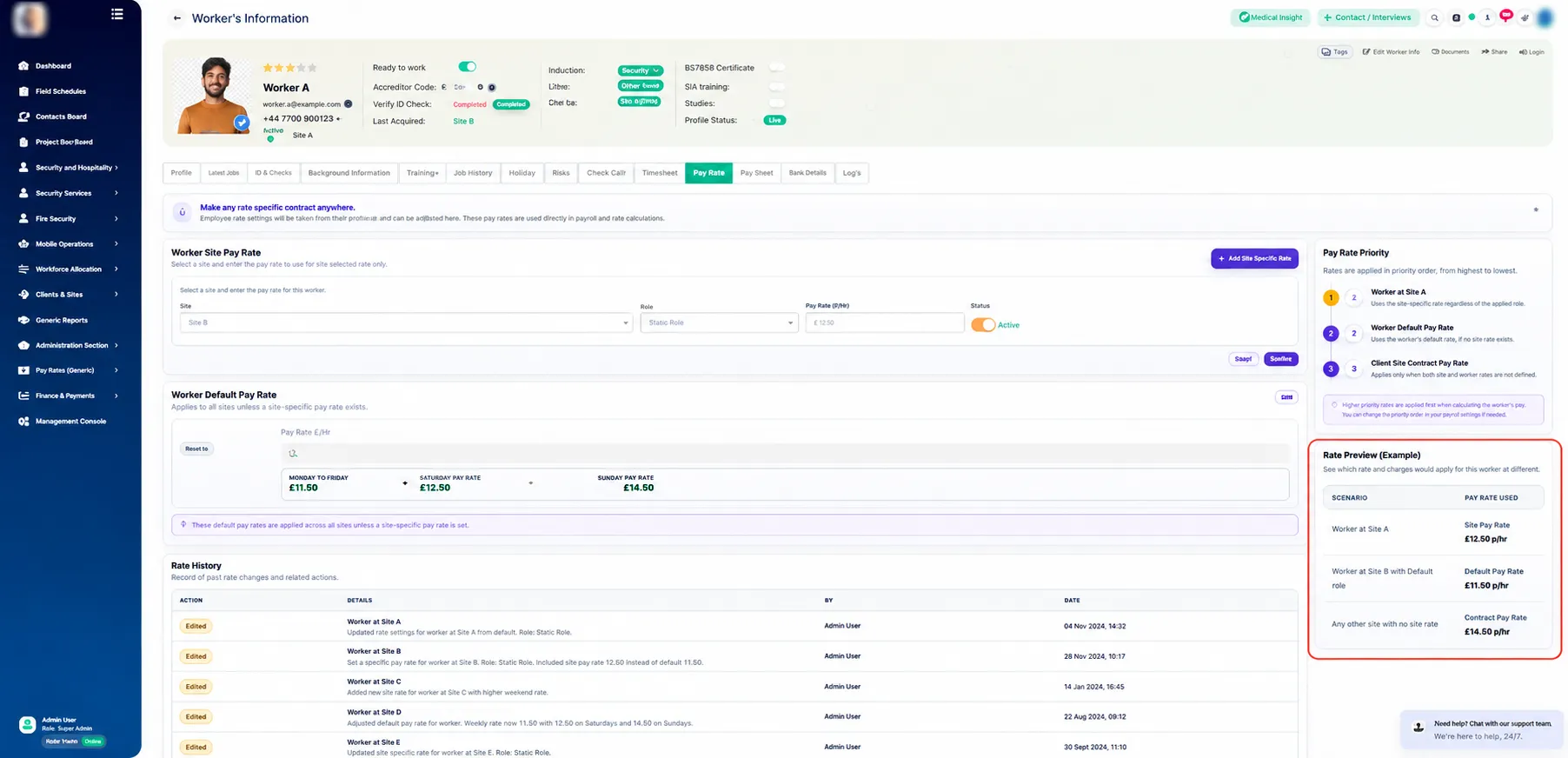
9. Rate Preview
The Worker Pay Rate screen includes a Rate Preview.
This provides examples of which Pay Rate Arez will use under different circumstances.
For example:
Scenario | Pay Rate Used |
Worker at a site with an active Site Pay Rate | Site Pay Rate |
Worker at a site without a Site Pay Rate | Worker Default Pay Rate |
Worker with no worker-level Pay Rates | Contract Pay Rate |
This is useful when checking which rate is expected to apply before reviewing individual shifts.
10. How Rates Flow Through Arez
Rates configured in Arez are used directly within operational and financial processes.
Rates → Rota → Payroll and Billing
Step 1 – Rates are configured
Rates can be defined through:
Client contracts
Site contracts
Worker Default Pay Rates
Worker Site Pay Rates
Step 2 – Rates are applied to the shift
When a worker is assigned to a shift, Arez determines:
The applicable Pay Rate using the Pay Rate priority
The applicable Charge Rate from the contract
Step 3 – Shift rates drive financial calculations
The applicable shift rates are then used for:
Payroll calculations using the Pay Rate
Client billing using the Charge Rate
This is why it is important that rates are configured correctly before payroll or invoicing is processed.
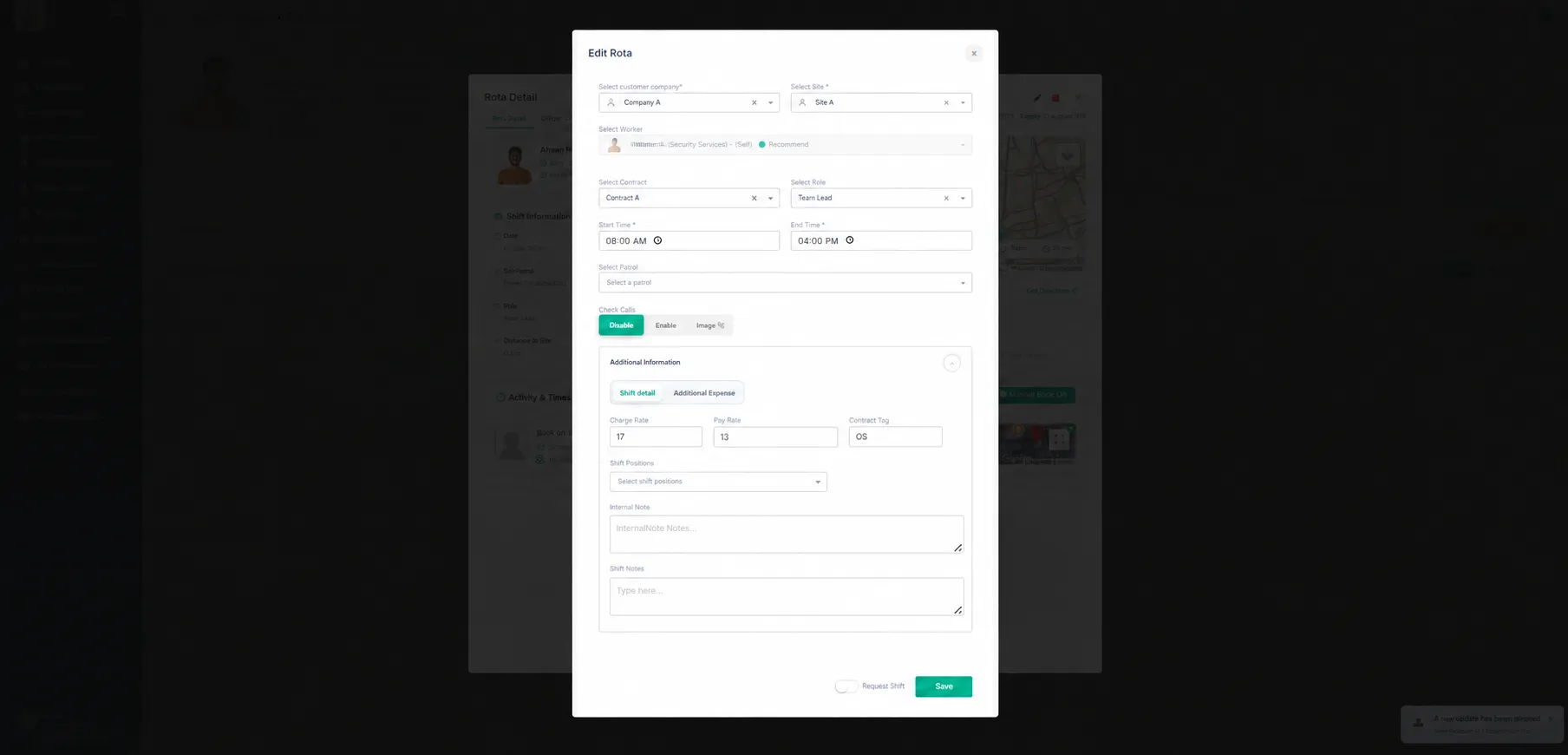
11. Viewing and Changing Rates on a Shift
Rates can also be reviewed from an individual worker shift.
Open the shift and navigate to:
Edit Rota → Additional Information → Shift Detail
The shift displays:
Charge Rate
Pay Rate
Authorised users can update the Pay Rate directly from here where required.
12. Saving a Shift Pay Rate
When a Pay Rate is changed from a shift, Arez provides additional options for how the rate should be saved.
Apply to this shift only
Select this option where the rate should only apply to the current shift.
The worker's permanent Site Pay Rate remains unchanged.
This is useful for one-off circumstances such as:
Bank holiday work
Emergency cover
Overtime
Night work
Temporary agreed rates
Apply Permanently
Select Apply Permanently where the new rate should become the worker's Pay Rate for that site.
Arez saves the rate for future applicable shifts at that site.
This should be used where the change represents an ongoing agreement rather than a one-off exception.
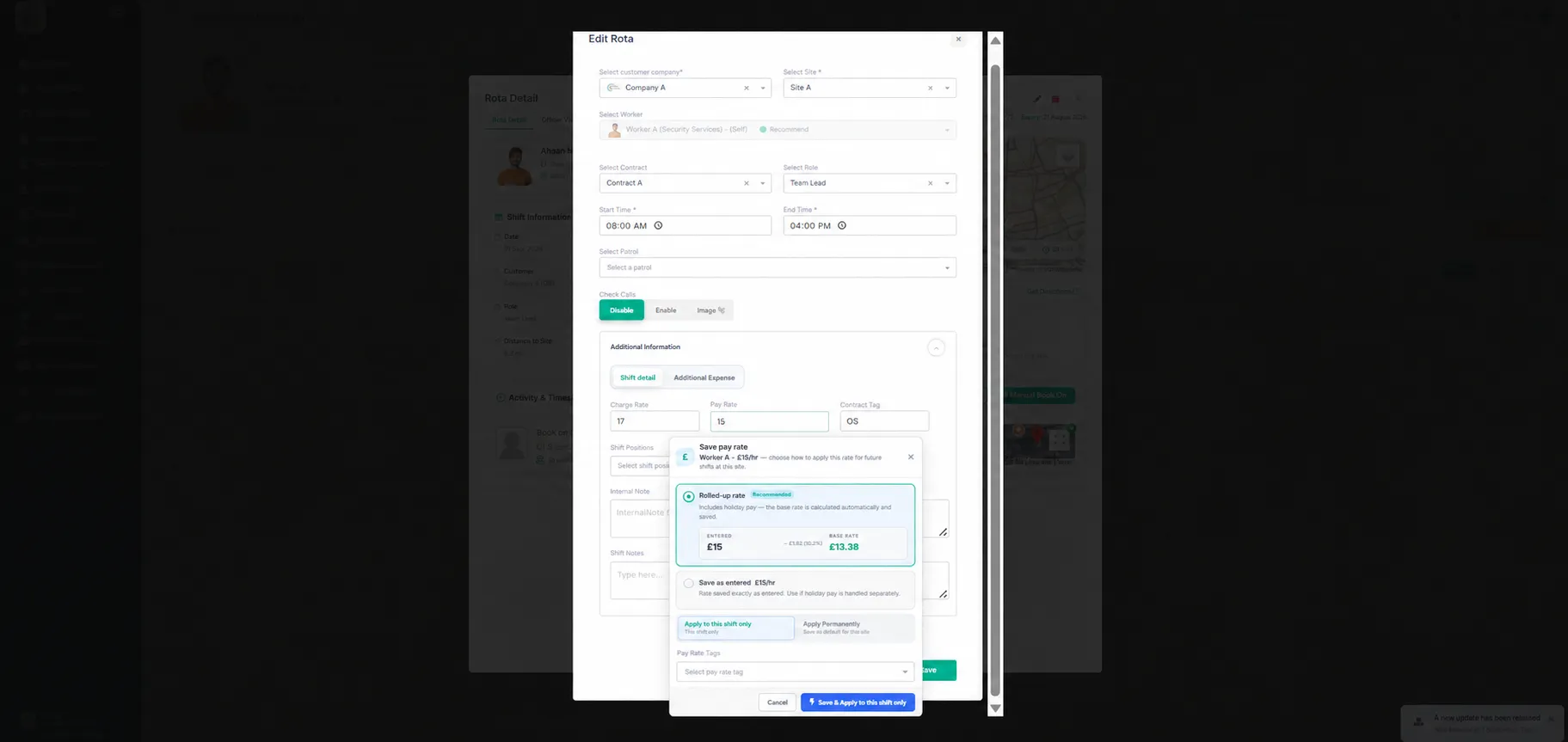
13. Rolled-Up Pay Rates
When entering a Pay Rate from a shift, Arez provides a Rolled-up rate option.
A rolled-up rate includes the worker's holiday pay within the overall hourly amount.
When selected, Arez automatically calculates the underlying base rate and separates the holiday pay element.
For example, the screen may show:
Entered Rate
£13.99/hr
↓
Calculated Base Rate
£12.48/hr
The calculation is handled automatically by Arez.
This provides visibility of both:
The total rolled-up amount
The underlying base Pay Rate
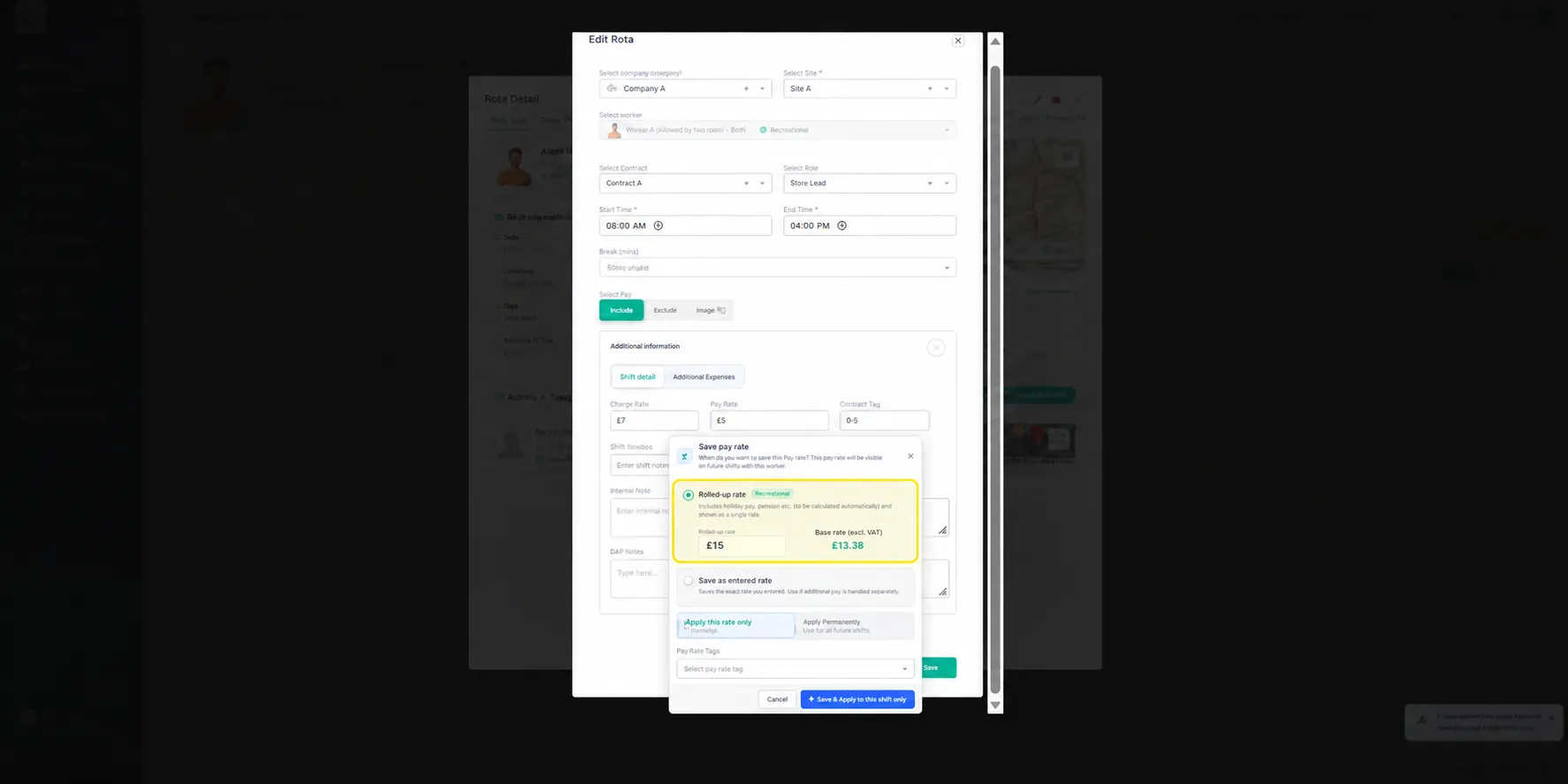
14. Save as Entered
Where holiday pay is handled separately, the Pay Rate can instead be saved using Save as entered.
In this case, Arez saves the entered value as the Pay Rate without treating it as a rolled-up rate.
Select the option that matches how the worker's rate has been agreed and how holiday pay is managed by your organisation.
15. Pay Rate Tags
When updating a Pay Rate from a shift, you can also apply a Pay Rate Tag.
Available tags may include:
Bank Holiday Rate
Emergency Cover Rate
Night Shift Rate
Overtime Rate
These tags help identify why a different Pay Rate has been applied.
For example, if a worker receives an enhanced rate because they covered an emergency shift, the Emergency Cover Rate tag can be selected.
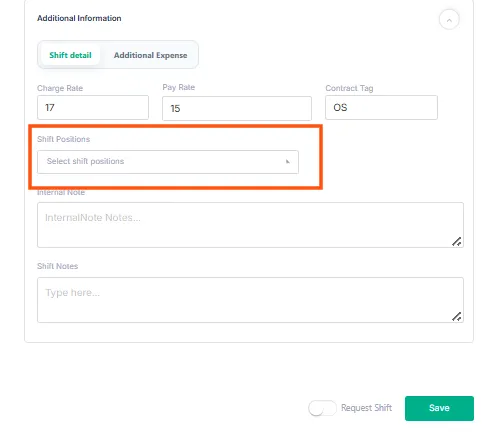
16. Holiday Pay
Where applicable, Arez displays the worker's Pay Rate as a breakdown.
For example:
Base Rate + Holiday Pay = Total Paid Per Hour
Example:
£12.00/hr Base Rate
£1.45/hr Holiday Pay
= £13.45/hr Total Paid Per Hour
This helps users distinguish between the worker's base hourly rate and the overall amount payable once holiday pay is included.
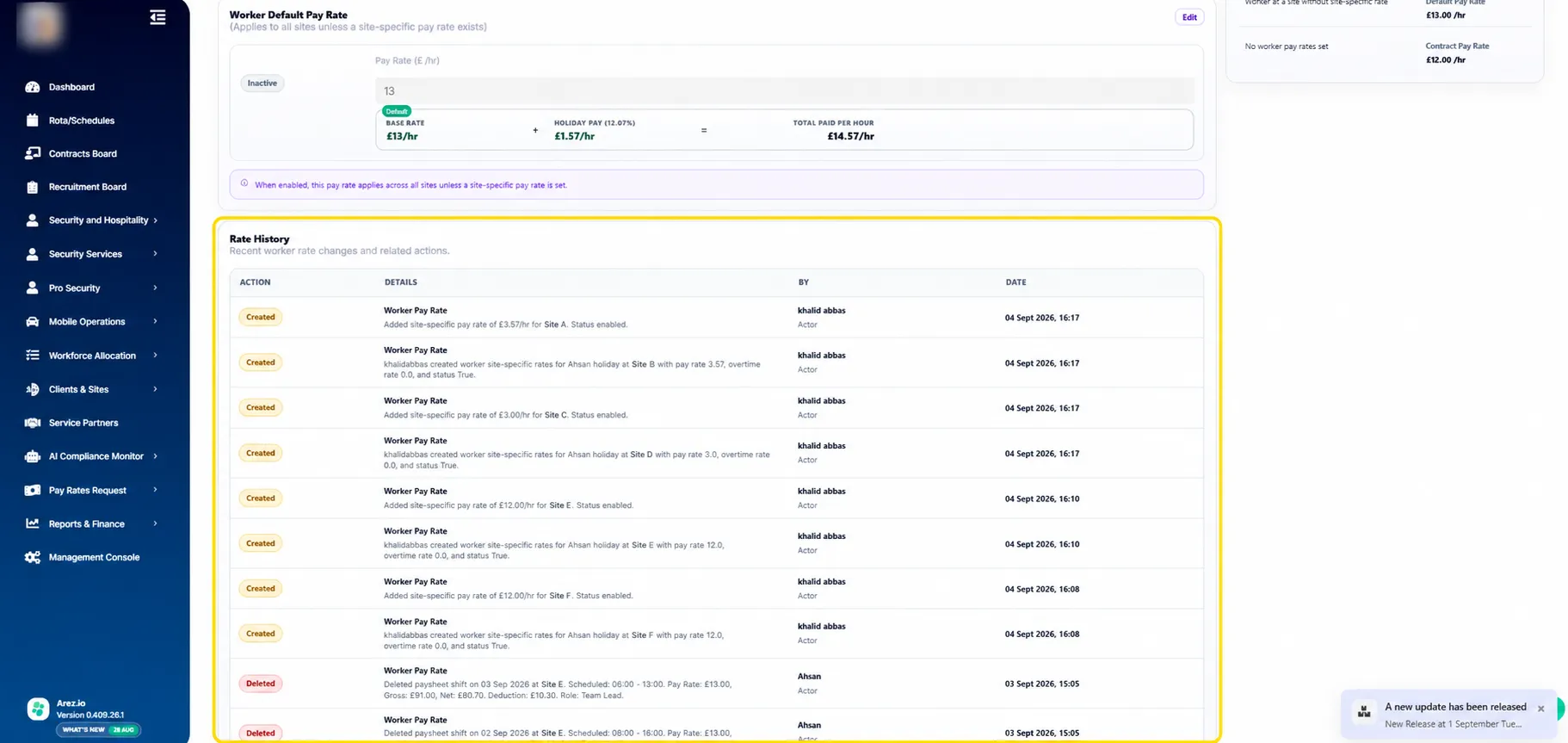
17. Rate History
The bottom of the Worker Pay Rate page contains the Rate History.
This provides an audit trail of Pay Rate-related changes and actions.
The history can include:
Rates created
Rates updated
Pay Rate change requests
Site-specific rate changes
Relevant shift or paysheet rate changes
The user who performed the action
Date and time of the change
This is particularly useful when investigating why a worker's rate changed or reviewing previous Pay Rate decisions.
18. Example Scenarios
Scenario | Pay Rate Used | Charge Rate Used |
Worker has an active Site Pay Rate | Worker Site Pay Rate | Contract Charge Rate |
No Site Pay Rate, but active Worker Default exists | Worker Default Pay Rate | Contract Charge Rate |
No worker-level Pay Rates exist | Contract Pay Rate | Contract Charge Rate |
One-off shift Pay Rate entered | Shift-specific Pay Rate | Contract Charge Rate |
Rate permanently updated for the site | Worker Site Pay Rate | Contract Charge Rate |
19. Important Points
Worker Pay Rates override Contract Pay Rates
Where an active worker-level Pay Rate exists, Arez uses it according to the configured priority.
Site Pay Rates have the highest priority
An active Worker Site Pay Rate takes priority over both the Worker Default Pay Rate and Contract Pay Rate.
Default Pay Rates apply across sites
A Worker Default Pay Rate is used across sites unless an active Site Pay Rate exists.
Contract Pay Rates provide the fallback
If no active worker-specific Pay Rate exists, Arez uses the applicable Contract Pay Rate.
Charge Rates are controlled through contracts
Worker Pay Rate changes do not alter the Charge Rate.
Shift-level changes can be temporary or permanent
When changing a Pay Rate from a shift, check whether the rate should apply only to that shift or become the worker's ongoing Site Pay Rate.
20. Best Practice
To keep your rate configuration accurate and manageable:
Use contracts for your standard Pay and Charge Rates.
Use Worker Default Pay Rates where an individual has a standard agreed rate across sites.
Use Worker Site Pay Rates only where the worker requires a different rate at a particular site.
Use shift-only changes for genuine one-off exceptions.
Use Pay Rate Tags to clearly identify enhanced or exceptional rates.
Review the Rate Preview before investigating an unexpected Pay Rate.
Review Rate History when auditing rate changes.
Ensure configured Pay Rates comply with any applicable minimum wage requirements.
Review rates before processing payroll or invoicing.
Summary
Arez separates worker pay from client billing so that both can be controlled independently.
The Pay Rate priority is:
1. Worker Site Pay Rate
↓
2. Worker Default Pay Rate
↓
3. Client/Site Contract Pay Rate
Charge Rates remain controlled through the applicable client or site contract.
Worker Pay Rates can be managed from the worker's profile, while one-off or permanent changes can also be made directly from a shift.
Together, these controls allow Arez to support standard contractual rates while still handling individual worker and site-specific exceptions without affecting client billing.
Need Help?
If you are unsure which rate should be configured or why a particular rate has been applied, review the Pay Rate Priority, Rate Preview and Rate History first.
For further assistance, contact your Arez Support Team.