
 Facebook
  Twitter
  LinkedIn
 How to Create, Assign, and Publish a Rota Using Arez Pulse
What is Arez Pulse?
Arez Pulse is an AI-powered rota creation and workforce assignment tool designed to help users create, manage, and publish schedules more efficiently.
Pulse helps managers:
Create shifts across multiple sites
Generate rotas in bulk
Automatically suggest suitable workers
Match workers based on clearance status, previous experience, role, and distance
Assign workers manually or using AI
Publish completed schedules directly to the main rota
Using Pulse reduces manual scheduling time and helps ensure shifts are assigned to the most suitable workers.
Introduction
Pulse allows users to create shifts in bulk, automatically assign suitable workers using AI, and publish completed schedules directly to the main rota.
The rota creation process follows three stages:
Create Shifts
Assign Workers
Publish
Step 1: Open Pulse
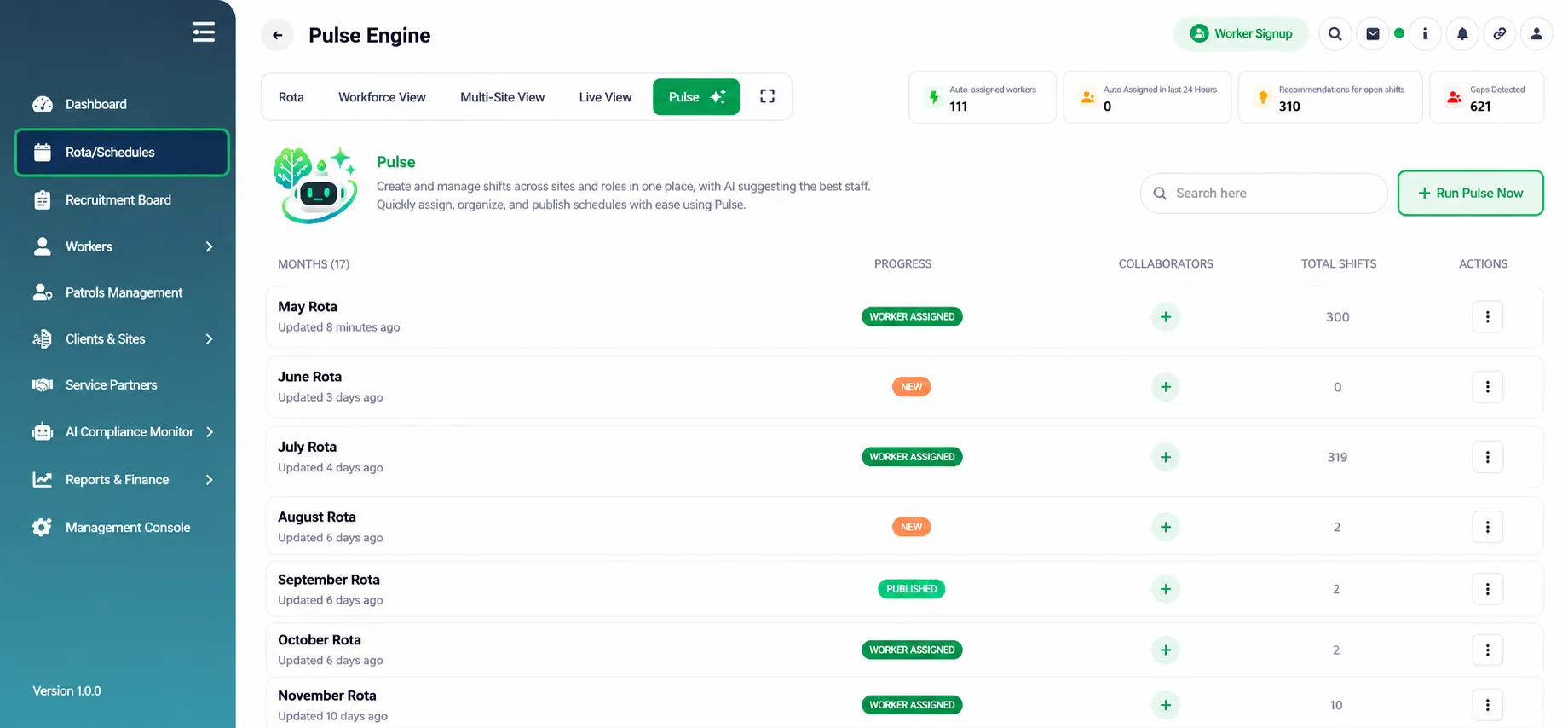
From the left-side menu, click Rota/Schedules.
At the top of the page, select Pulse.
Click Run Pulse Now to create a new Pulse run.
Step 2: Create a New Pulse Run
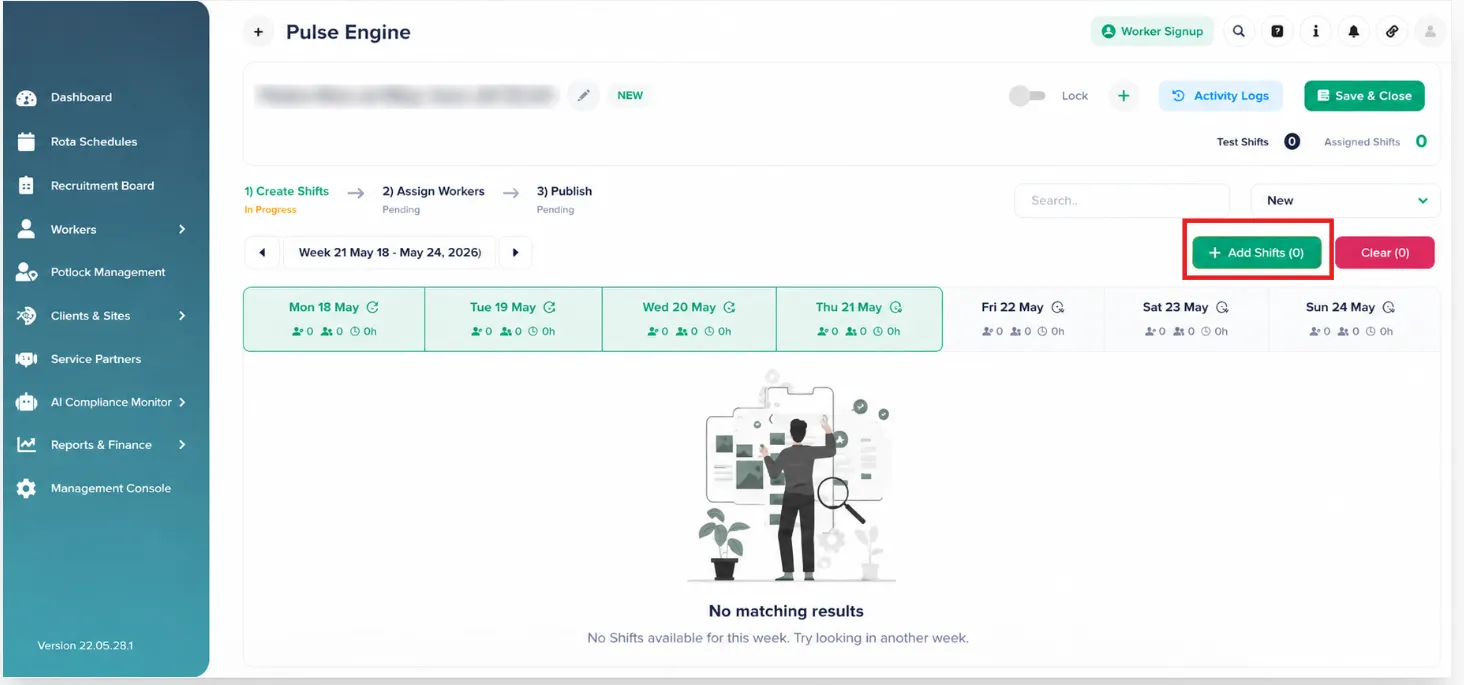
A new Pulse screen will open showing three stages:
Create Shifts
Assign Workers
Publish
The process starts with Create Shifts.
Step 3: Configure Shift Details
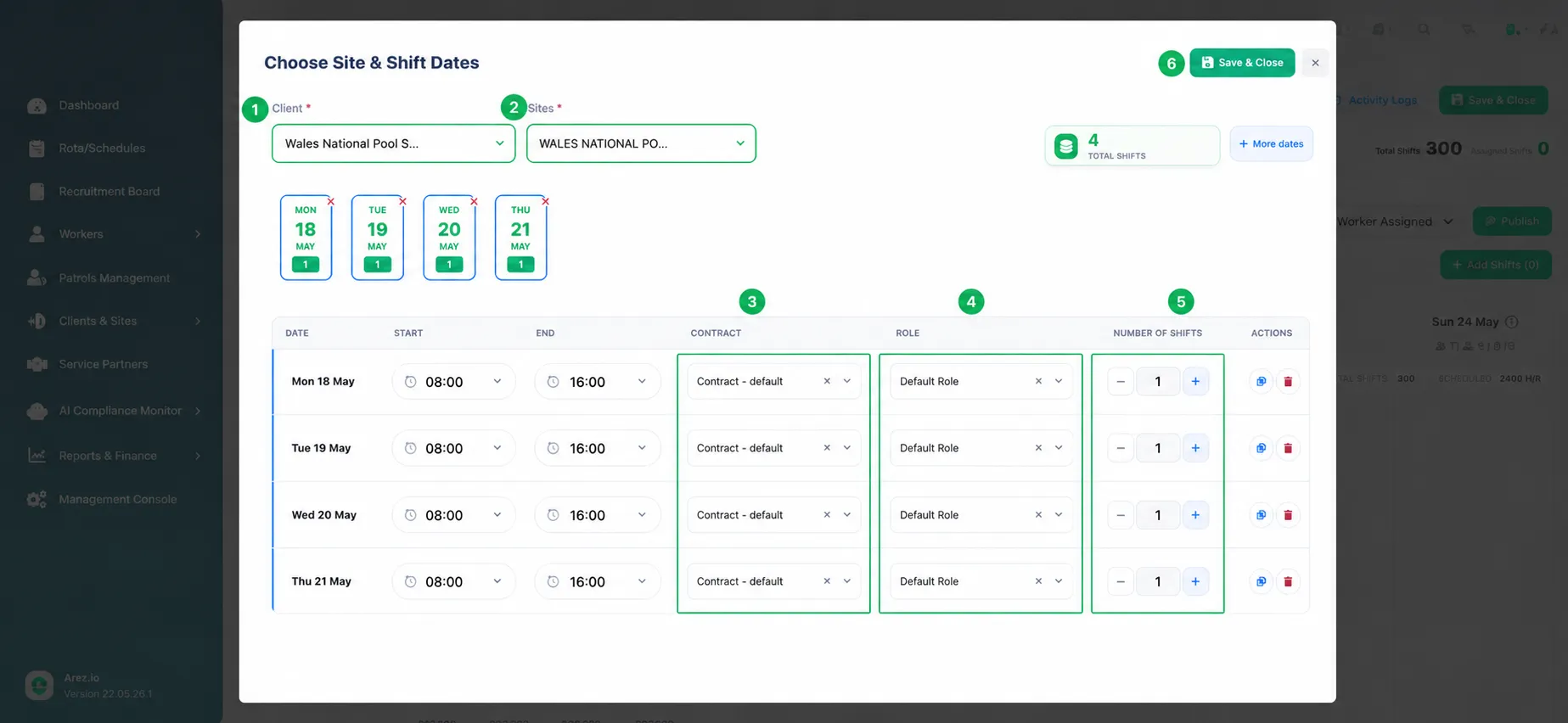
The Choose Site & Shift Dates modal will appear.
Complete the following:
Select Client
Select Site
Set Start Time
Set End Time
Choose Contract
Select Role
Adjust Number of Shifts
Add additional dates if required
You can increase shift quantities to create multiple shifts at once.
After completing details, click Save & Close.
Step 4: Review Created Open Shifts
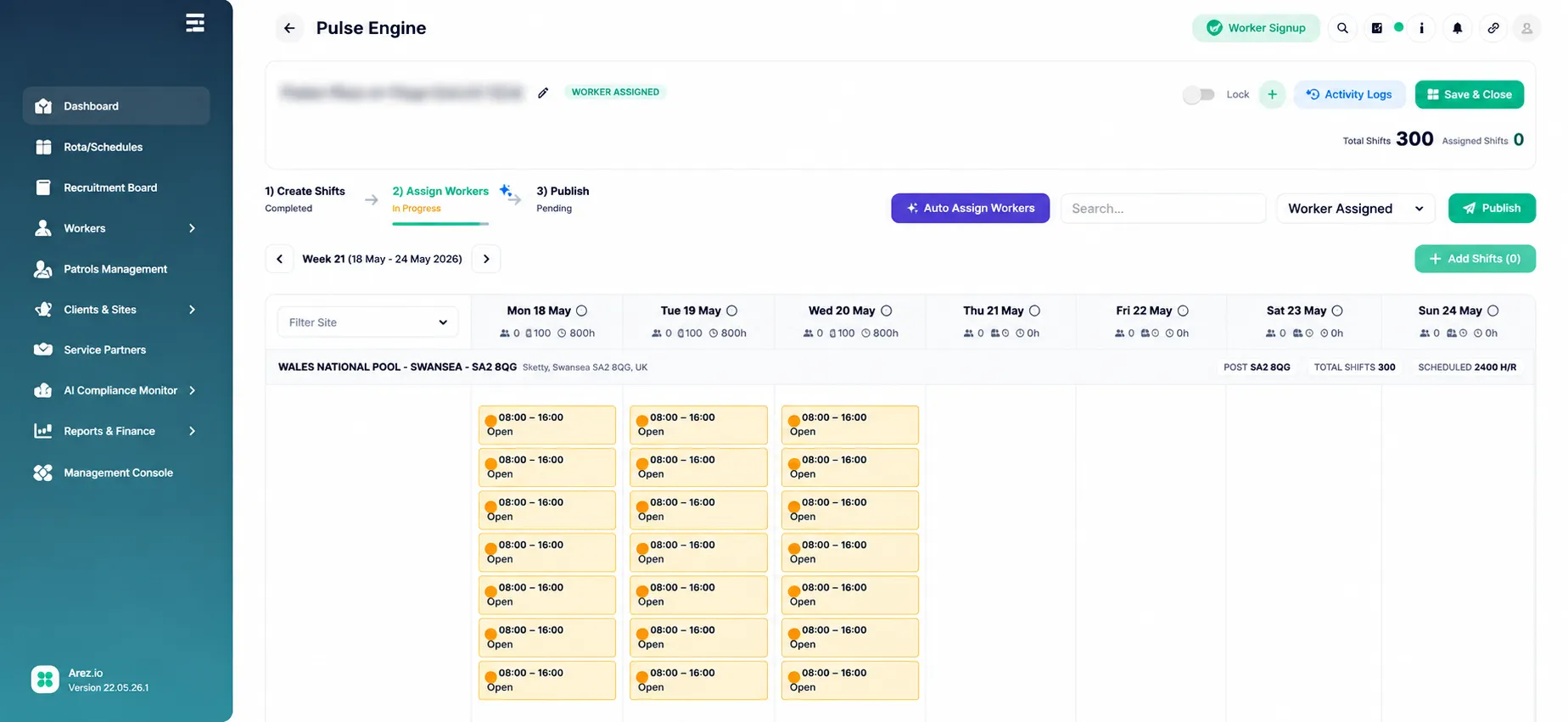
After saving, the created shifts appear as Open Shifts, ready for worker assignment.
You will be able to view:
Total shifts created
Shift timings
Site information
Open shifts grouped by day
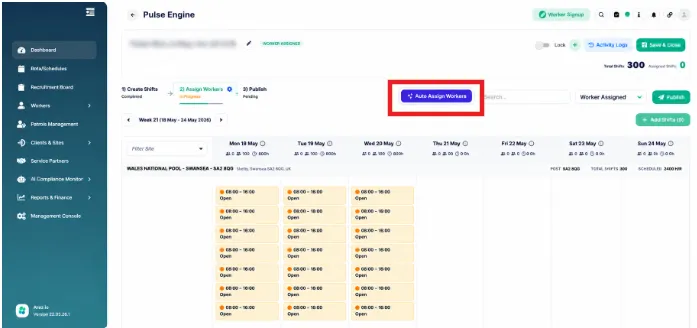
Step 5: Assign Workers Automatically Using AI
Click Auto Assign Workers.
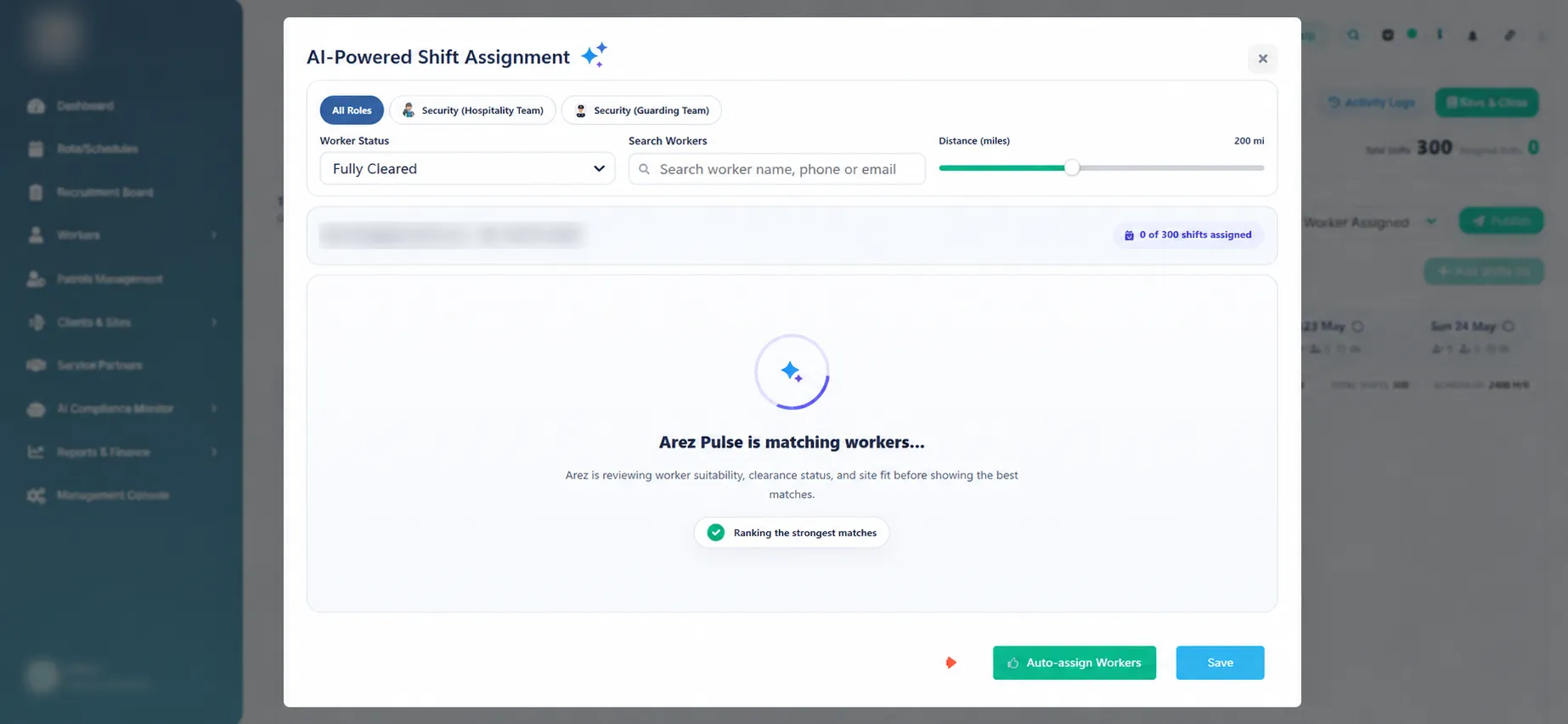
Pulse AI will:
Check worker compliance
Review worker suitability
Match workers based on site requirements
Suggest suitable workers automatically
Review suggested assignments before proceeding to publish.
Step 6: How to Use AI-Powered Shift Assignment
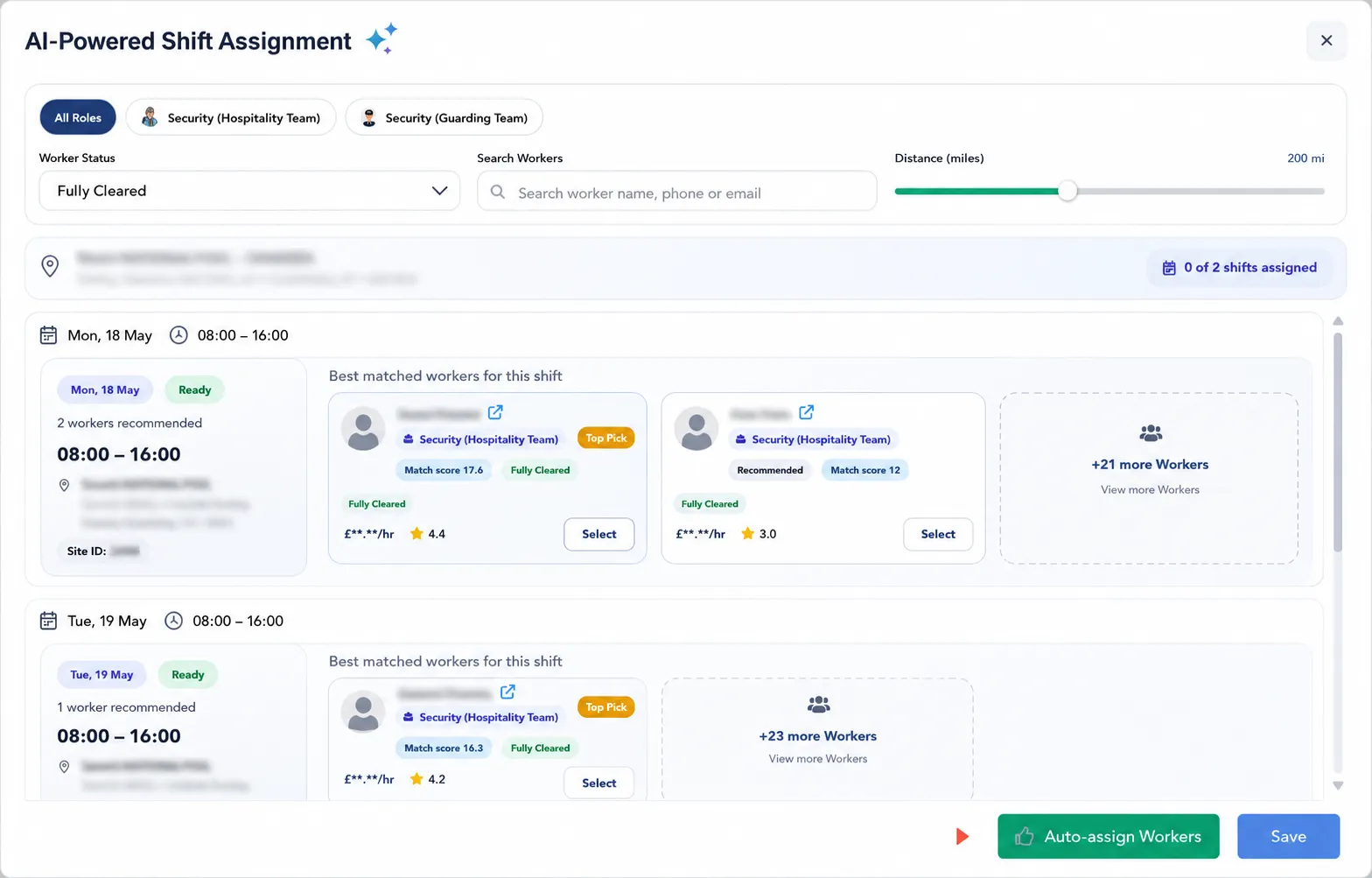
Navigate to Rota and open the AI-Powered Shift Assignment modal.
Select the required Role Category (e.g., Security – Hospitality Team, Security – Guarding Team, or All Roles).
Choose the Worker Status from the dropdown (e.g., Fully Cleared).
Use the Search Workers bar to find a specific worker by name, phone number, or email.
Adjust the Distance (miles) slider to set the maximum distance for recommended workers.
Review the shift details displayed, including date, time, site name, and location.
Check the AI-recommended workers shown under Best matched workers for this shift.
Review worker information, including:
Match score
Clearance status
Role
Hourly pay rate
Rating/recommendation
Click Select to assign a recommended worker to the shift.
To view additional worker options, click View more workers.
Repeat the process for all required shifts shown in the list.
Use Auto-assign Workers to let the system automatically allocate the best-matched workers.
Once all assignments are complete, click Save to confirm and apply the changes.
Step 7: Publish Shifts
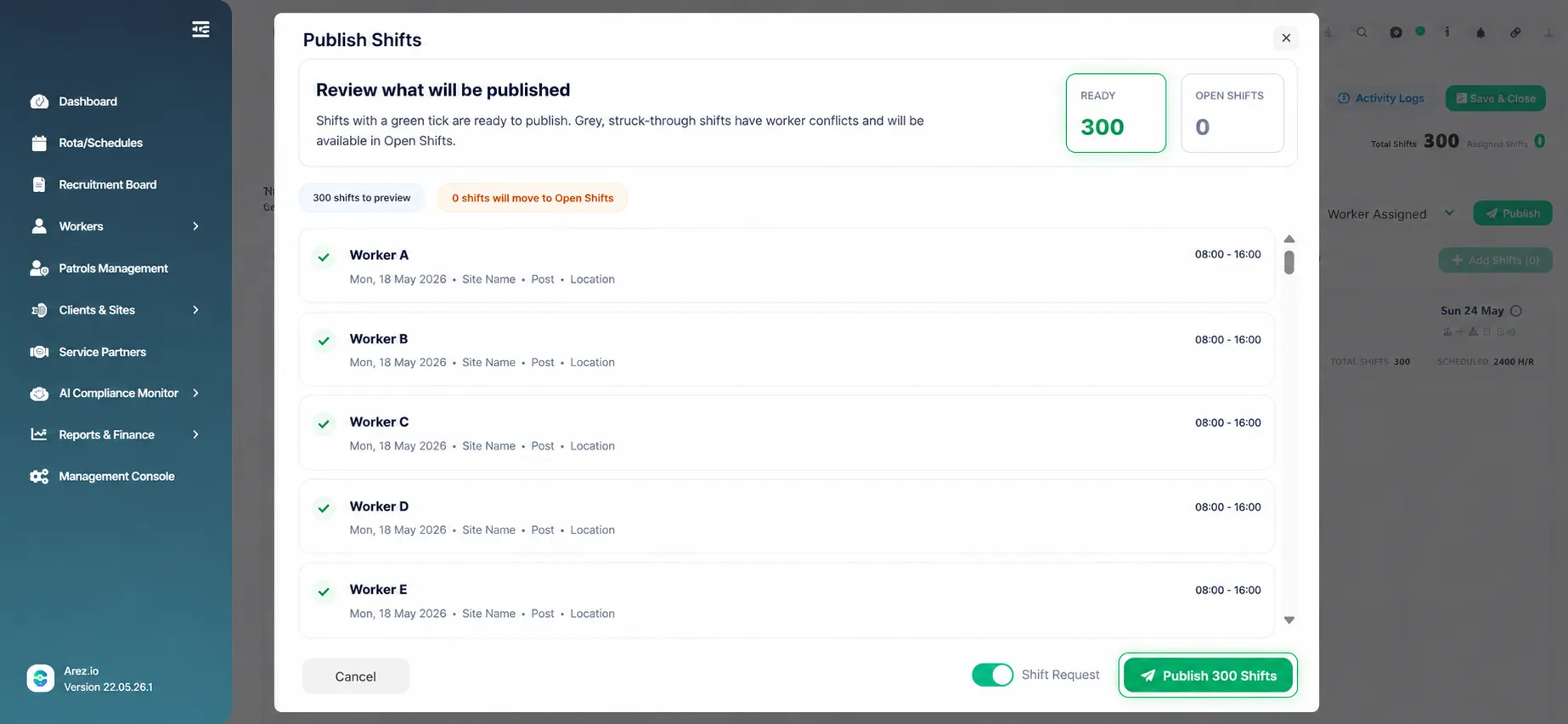
Once workers have been assigned:
Click Publish
Review the shifts ready to publish
Confirm the number of shifts
Click Publish Shifts
Published shifts will move to the Main Rota.
Outcome
After publishing, all created and assigned shifts will appear in the Main Rota, making them visible to users.
Tips for Efficient Rota Creation
✔ Use Auto Assign Workers to speed up scheduling
✔ Use column selection to assign multiple shifts at once
✔ Review shift totals before publishing
✔ Confirm contracts and roles before saving shifts
✔ Check AI recommendations before publishing schedules
Pulse enables managers to create, assign, and publish hundreds of shifts within minutes while improving workforce matching and scheduling efficiency.