
 Facebook
  Twitter
  LinkedIn
 How to Add a Worker as a Supplier/Service Partner
Overview
The Add a Worker feature allows Service Partners to register workers in Arez either by sending a secure Worker Signup invitation link or by manually creating a worker profile. The signup link enables workers to complete their own registration, while the manual option allows Service Partners to enter the worker's details directly into the system. Once added, the worker will appear in the selected industry and can proceed through the onboarding and compliance process.
Step 1: Generate a Worker Signup Link
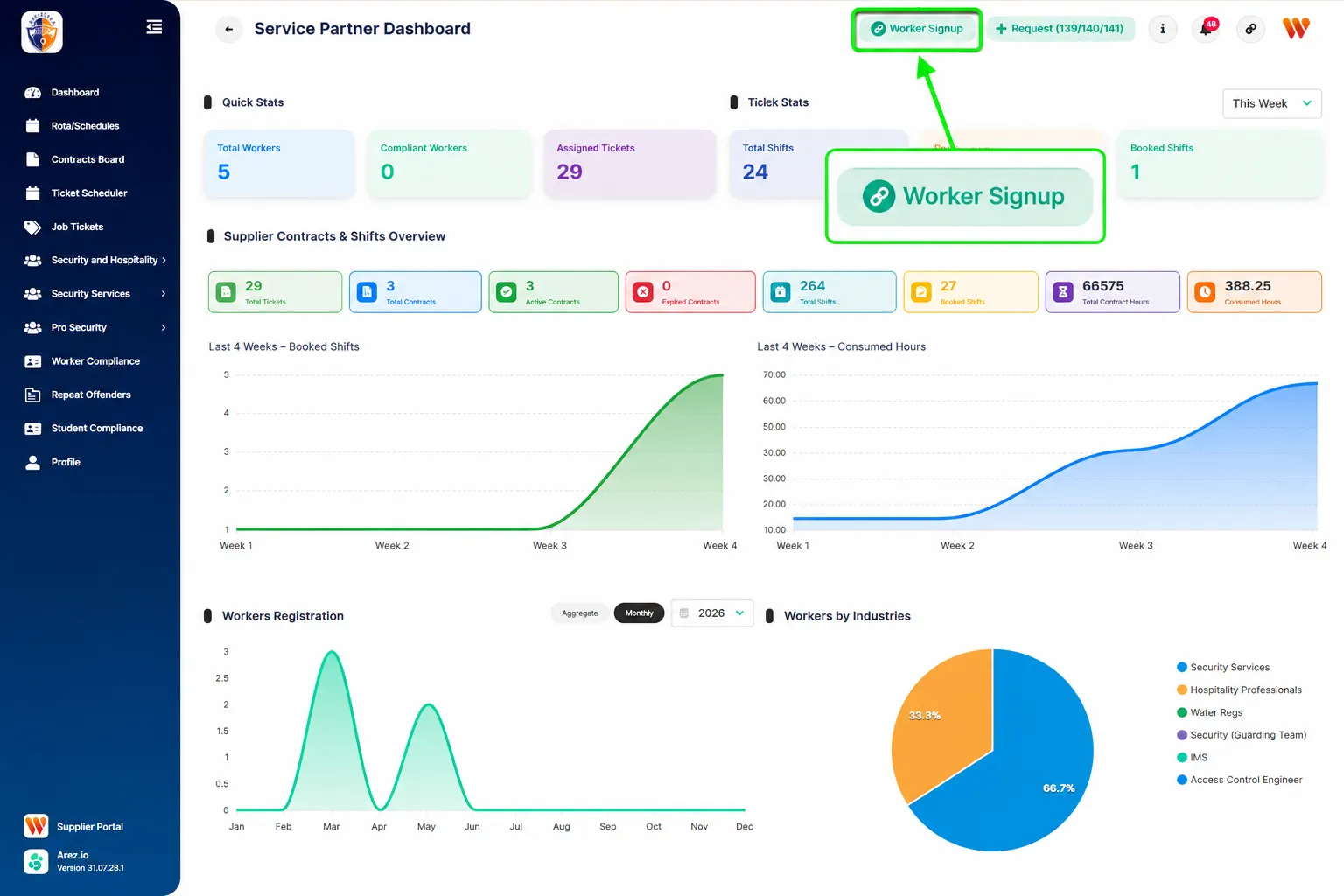
Click the Worker Signup button in the top-right corner.
Step 2: Share the Signup Link
After clicking Worker Signup, an invitation link is automatically generated and copied to your clipboard.
Send this link to the worker and ask them to complete their registration by opening the link.
Step 3: Create an Invitation Link
You can also create a worker invitation link manually.
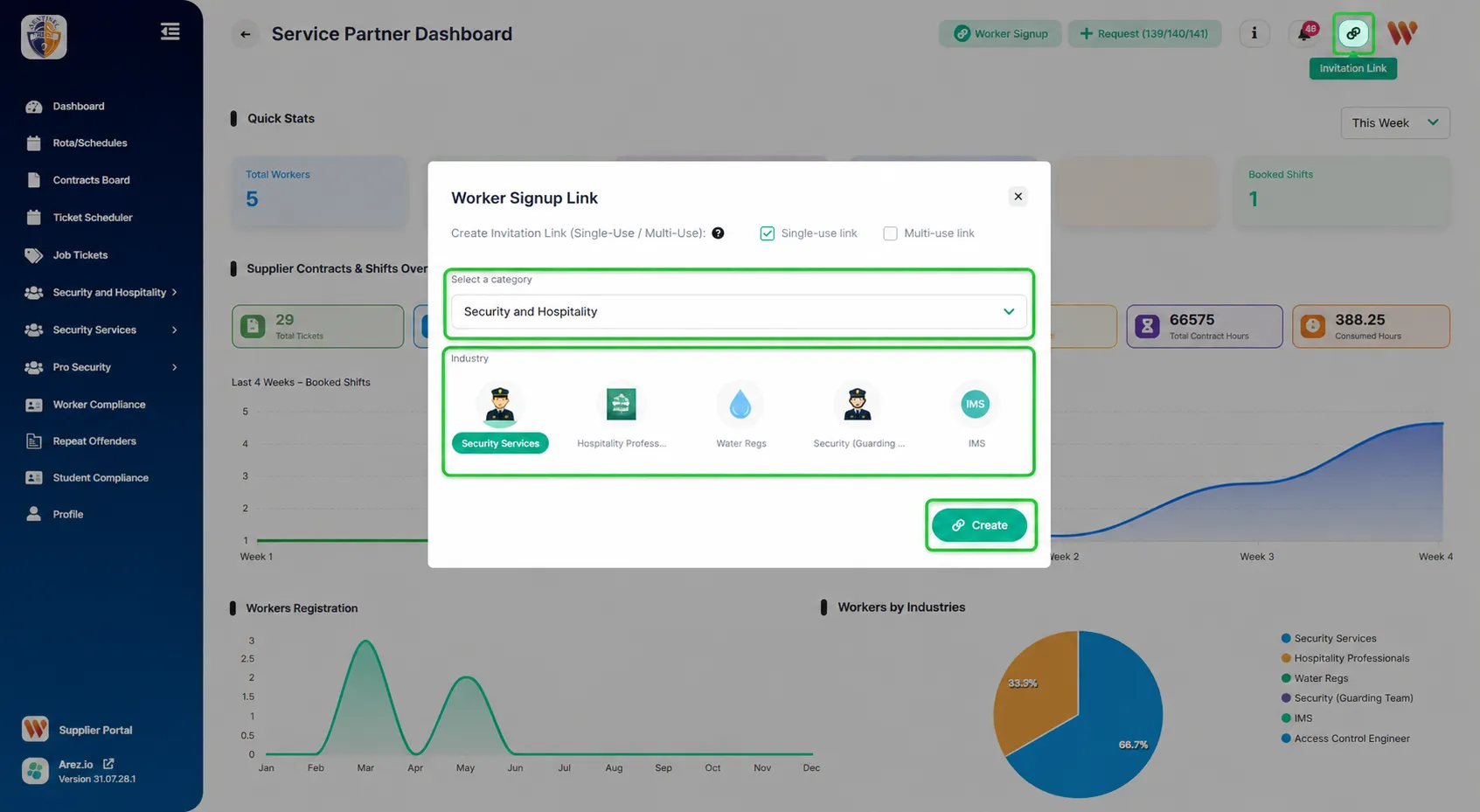
Click the Invitation Link icon in the top-right corner.
Select the required Category.
Choose the appropriate Industry.
Click Create.
A signup link will be generated, which you can send to the worker.
Step 4: Worker Registration
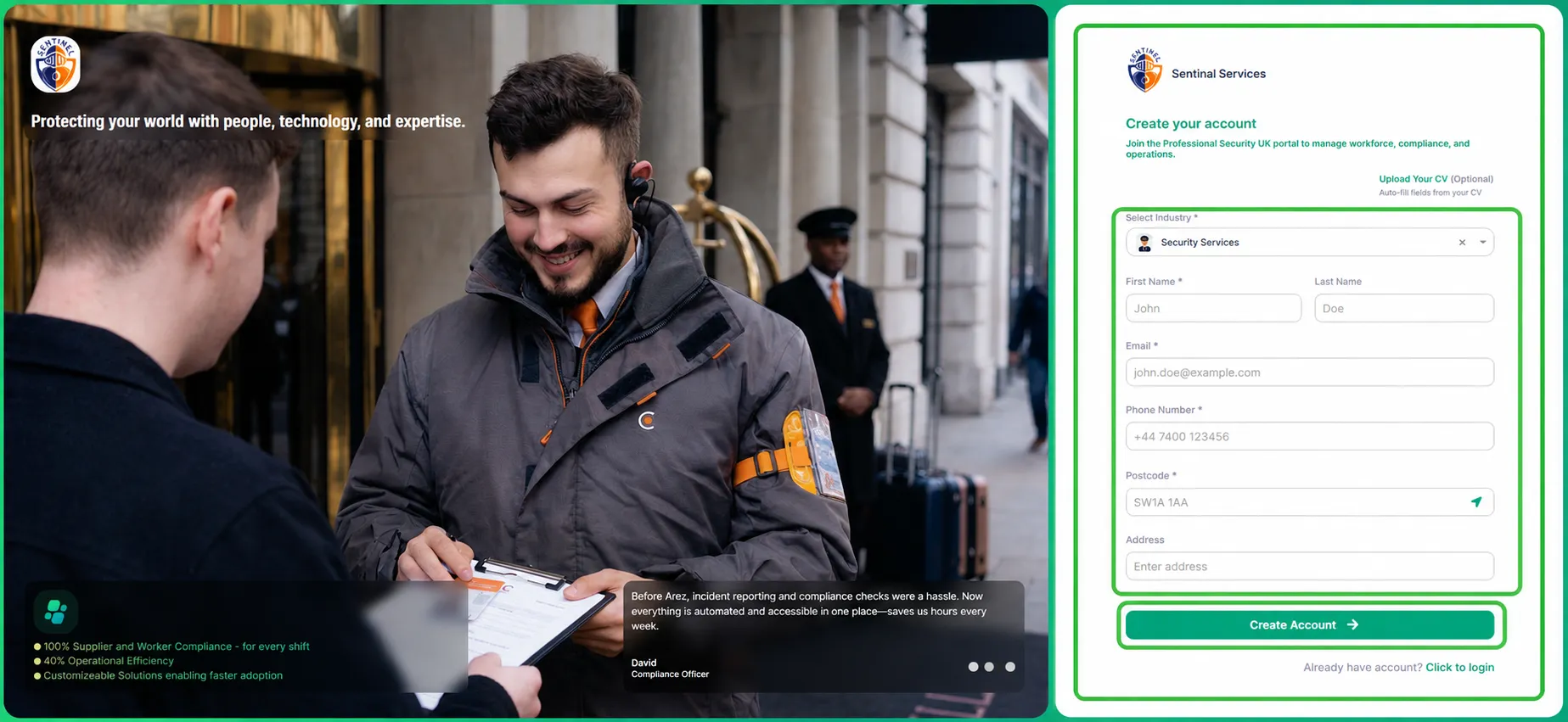
When the worker opens the invitation link, they will be asked to complete their registration by providing the required information, including:
Industry
First Name
Last Name
Email Address
Phone Number
Postcode
Address
After completing the form, the worker should click Create Account to begin the onboarding process.
Manually Add a Worker
If you prefer, you can also add a worker manually from the Supplier Portal.
Step 1: Open the Industry
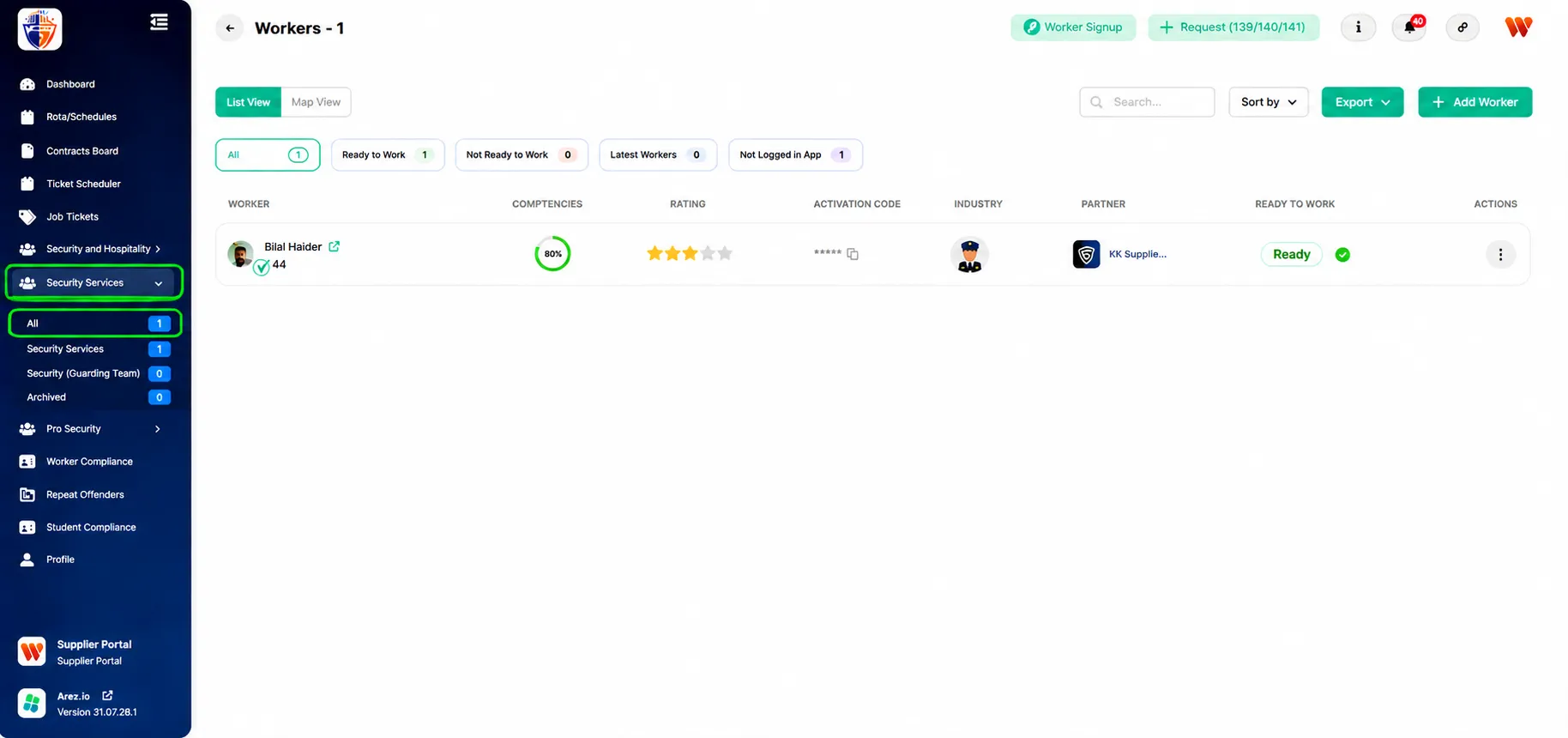
From the left-hand navigation menu, select the industry where you want to add the worker.
For example, to add a worker under Security Services:
Click Security Services.
Select All to view the workers list.
Step 2: Add a Worker
From the Workers page, click the + Add Worker button in the top-right corner.
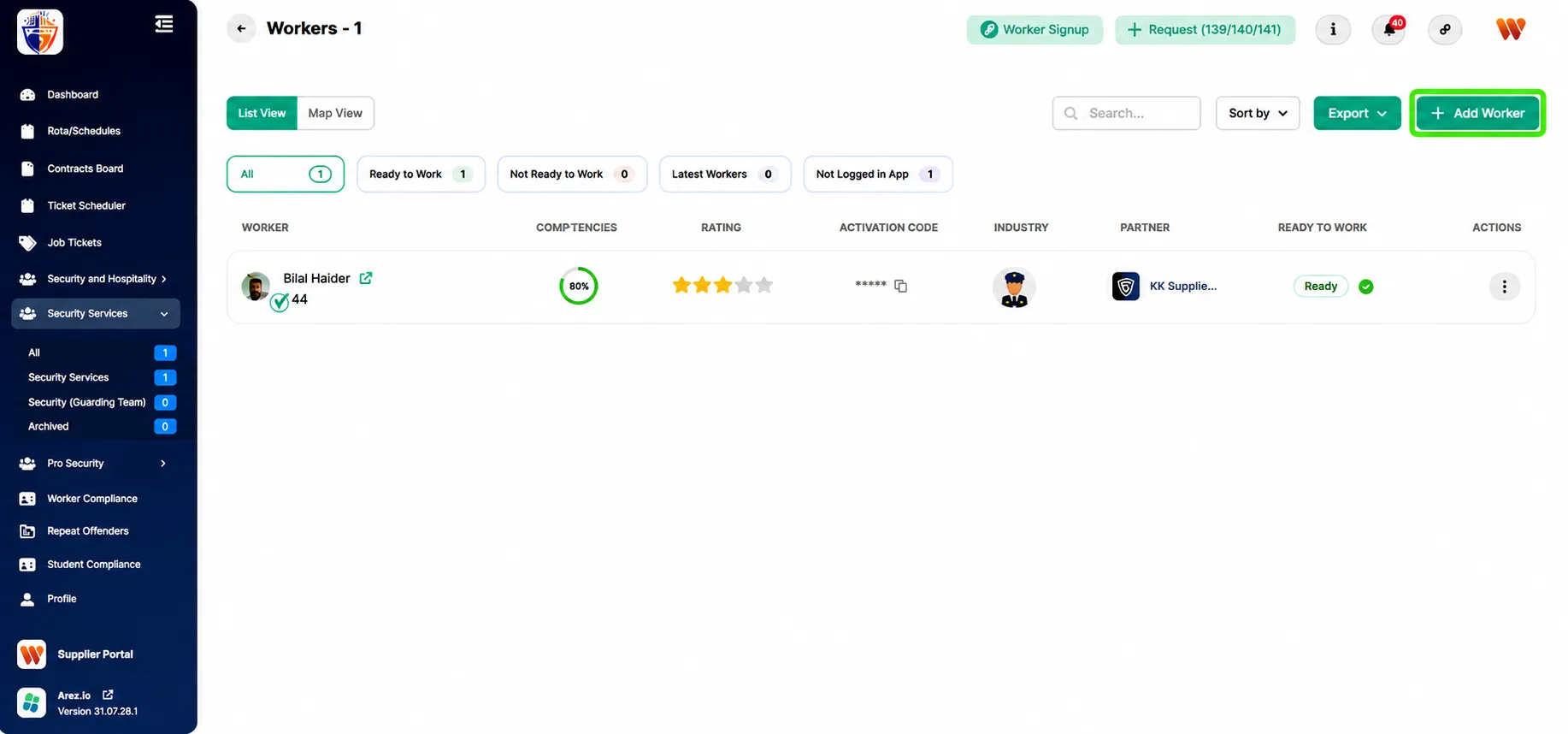
Step 3: Complete Worker Information
Complete all the required worker information, including:
Profile Photo (optional)
First Name
Last Name
Email Address
PIN
Phone Number
Postcode
Address
Region
Category
Industry
Supplier
Staff Number
Pay Rate
Share Code
Date of Birth
Recruitment Status
Area Manager
You can also expand and complete the following optional sections if required:
Operational Information
Next of Kin Information
Additional Information
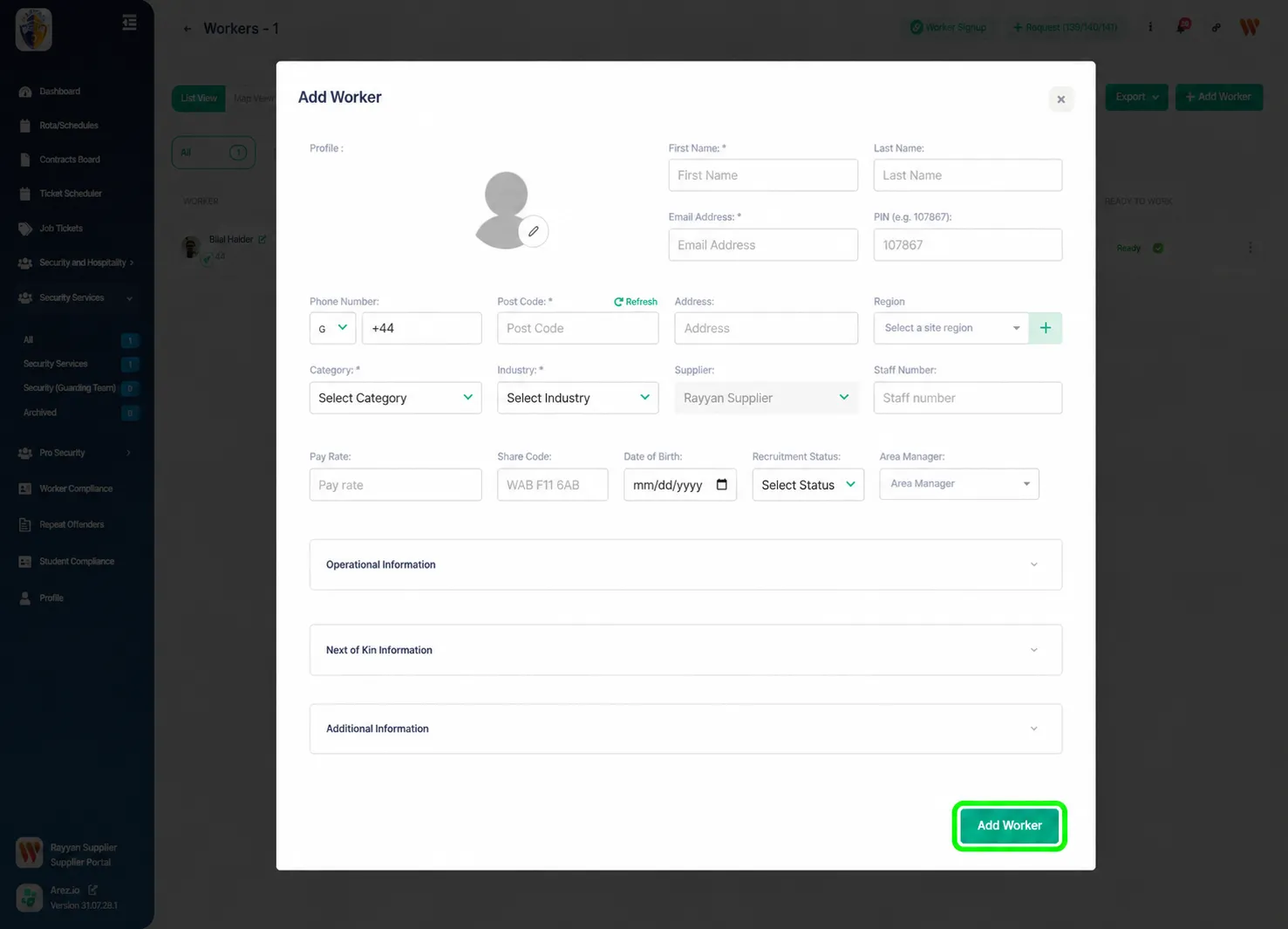
Step 4: Save the Worker
After entering all the required information, click Add Worker at the bottom of the form.
The worker will be added to the selected industry's workers list and will be available for onboarding and compliance.