
 Facebook
  Twitter
  LinkedIn
 Steps to Add a New Partner User
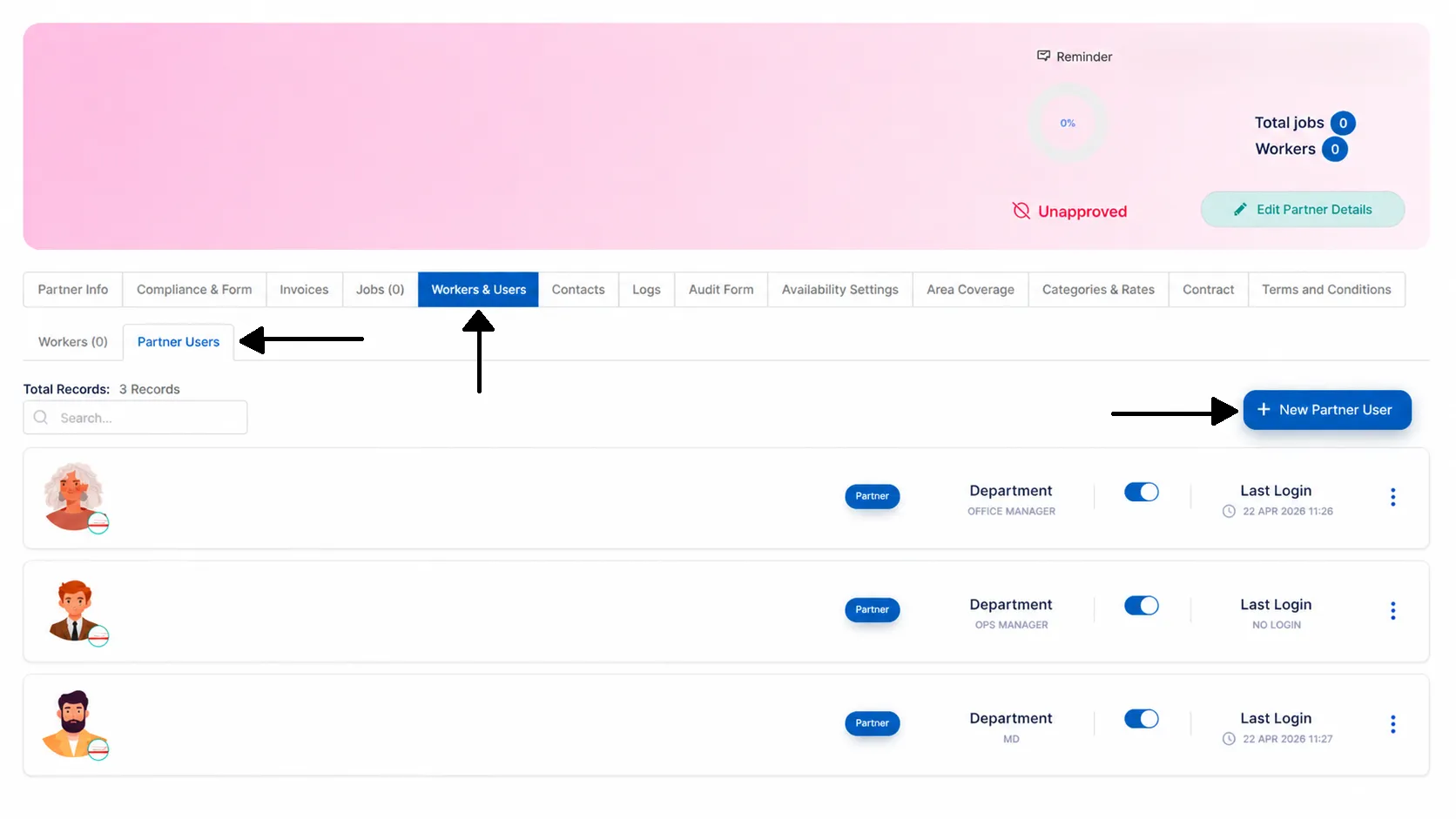
1. Open the Service Partner
Navigate to Service Partners
Select the relevant partner from the list
2. Go to Partner Users
Click Workers & Users
Select Partner Users
Click + New Partner User (top right)
3. Complete User Details
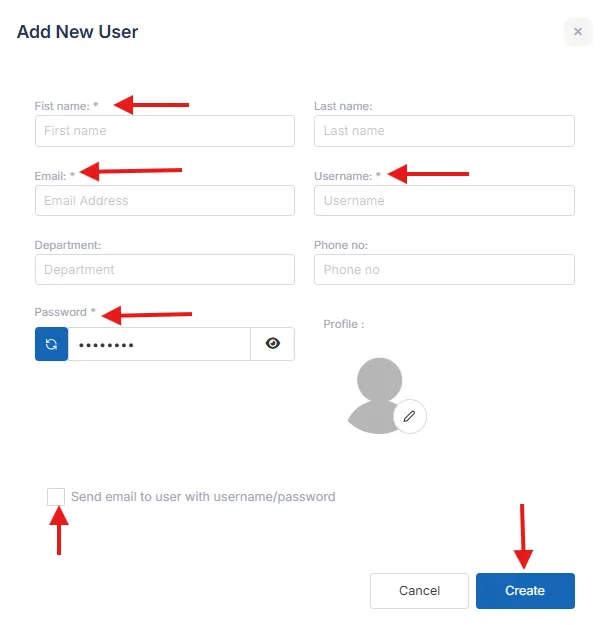
Enter the user’s information.
Mandatory Fields
The following fields are required:
First Name
Email Address
Username
This will auto-populate using the email address
You can amend it if needed
Password
A default password will be generated
No changes are required unless necessary
Send Login Credentials
Tick the Send Email checkbox if you would like the system to email the user their login credentials automatically.
4. Create the User
Click Create in the bottom-right corner to save the new user.
What Happens Next?
Once created:
The user will have access to the partner account based on their permissions.
If Send Email was selected, they will receive login credentials by email.
Troubleshooting
If you encounter issues:
Check all mandatory fields are completed
Ensure the email address is unique and not already in use
Confirm the user appears under Partner Users after creation
If you continue to experience issues, contact support for assistance.