
 Facebook
  Twitter
  LinkedIn
 This article explains how a service partner can add costs to a job in Arez from the service partner portal. Use this guide when you need to record labour, materials, travel, or other charges against a Job you have been assigned.
How to submit Job costs in Arez
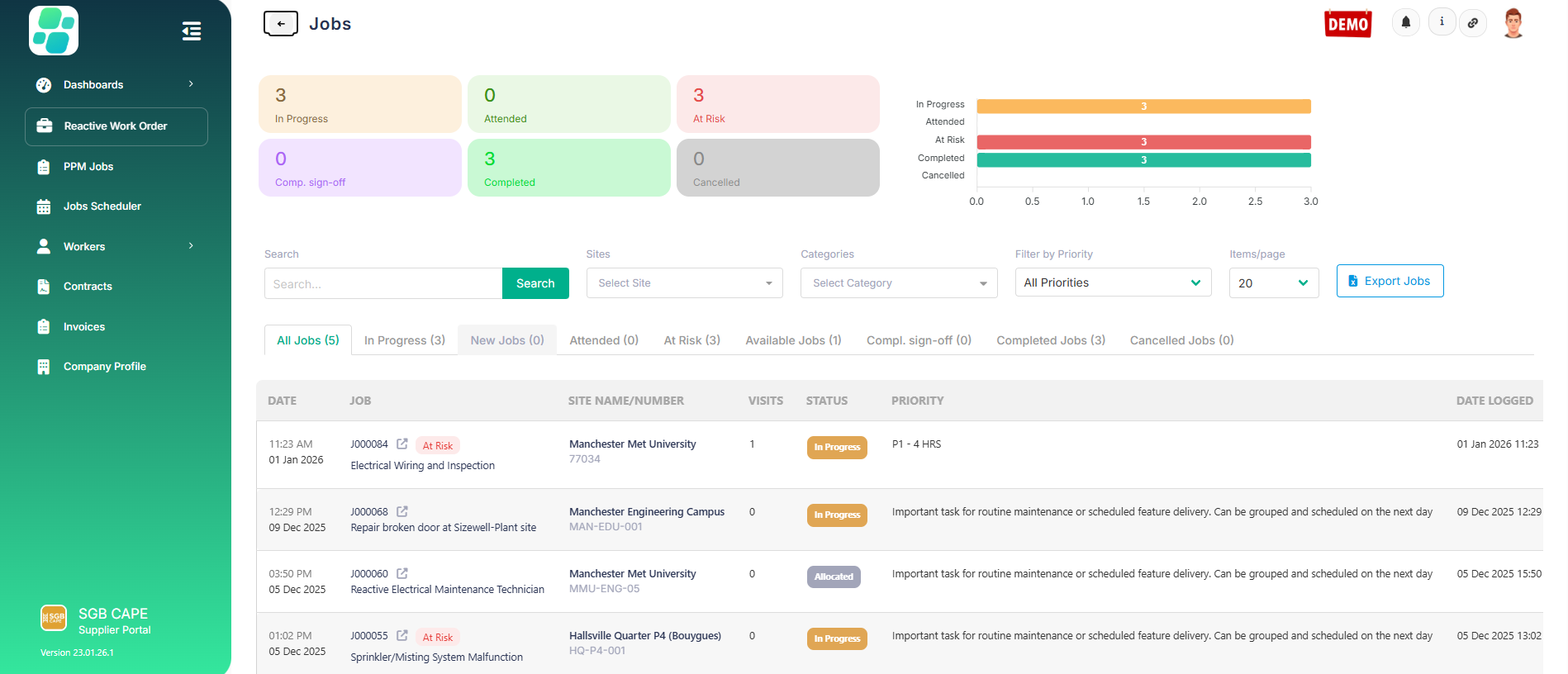
Log in to Arez and click on Reactive Jobs. You will see all jobs assigned to you. Open the job you want to add costs to.
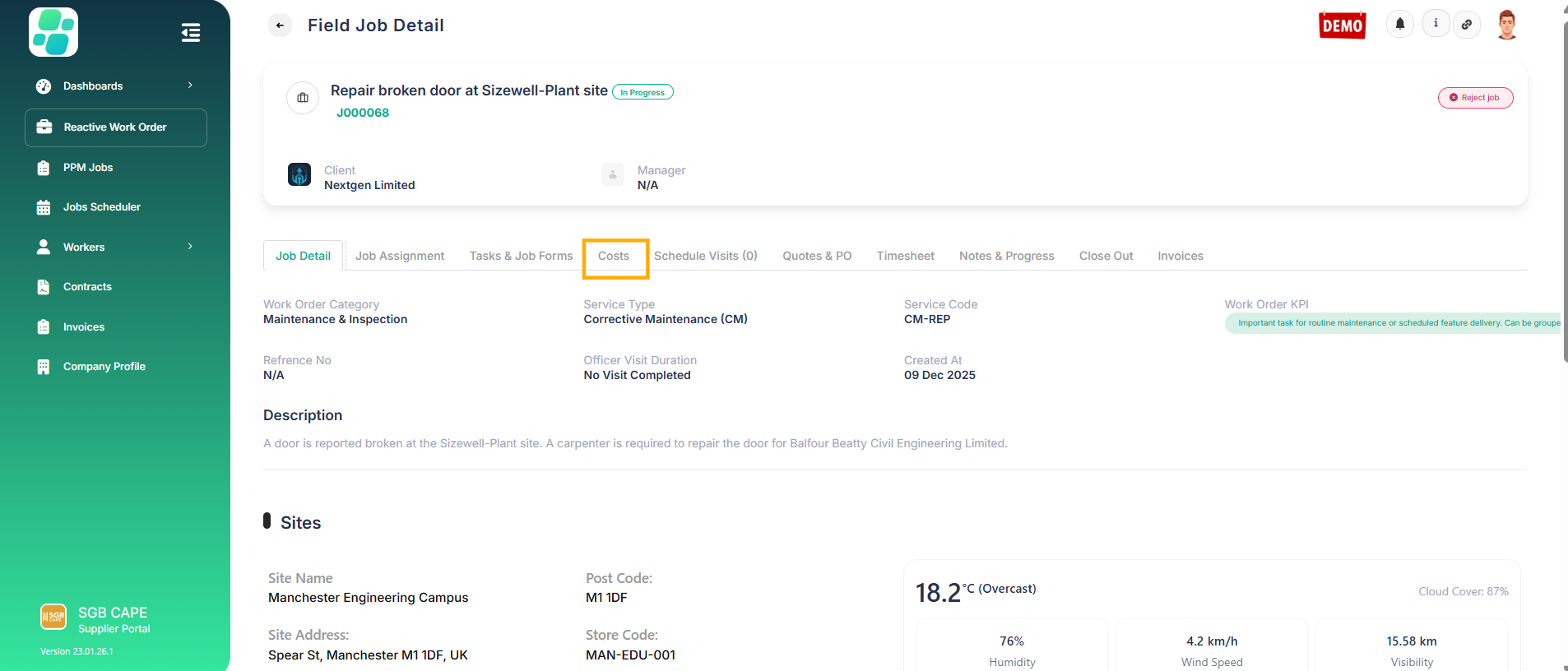
Once the job is open, you can view the full job details. From here, click on the Costs tab to add costs.
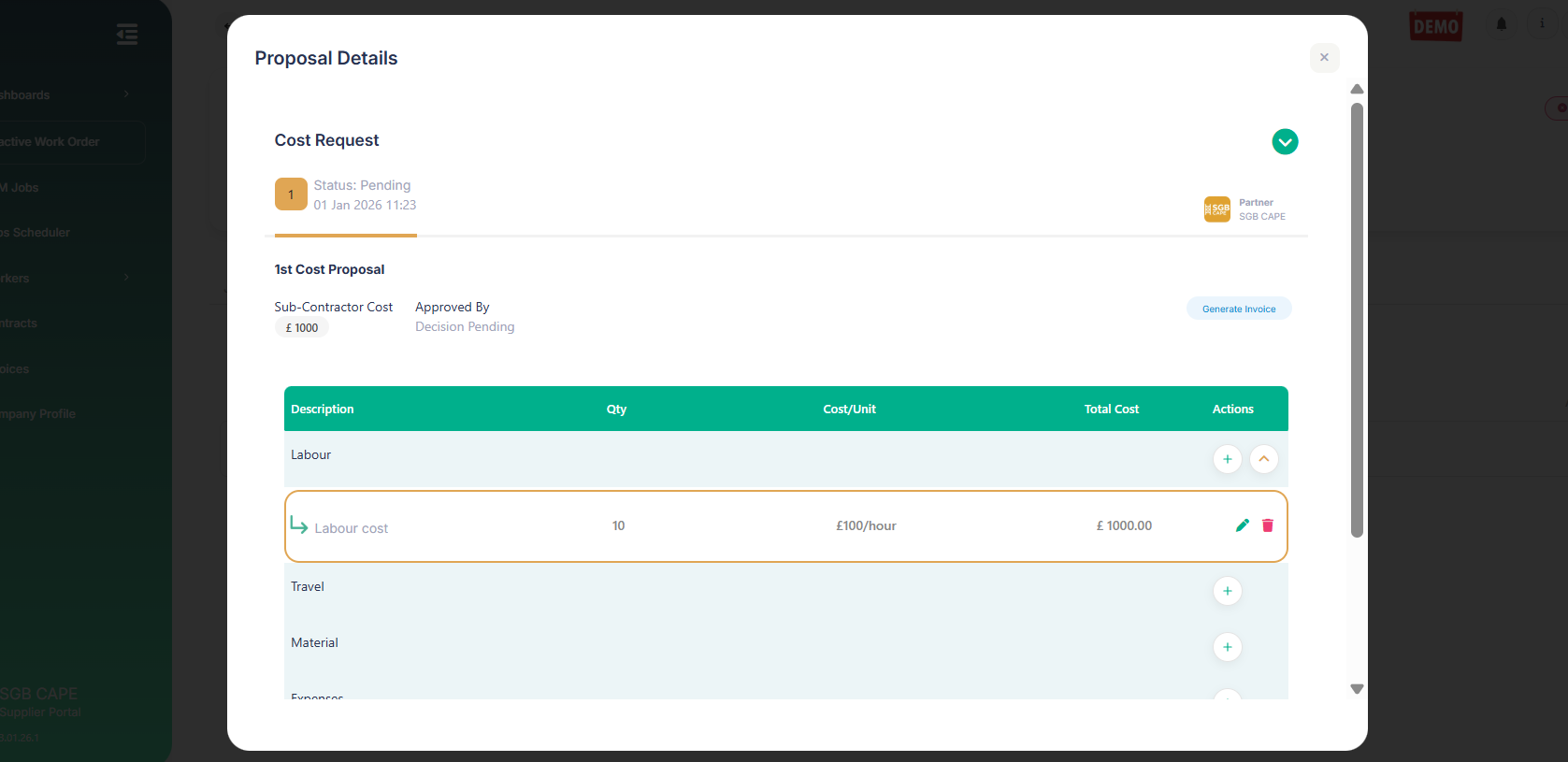
Now select the type of cost you want to add, enter the required details, review the total cost. The costs have now been added and submitted for approval. An admin can view the cost request and take the appropriate action
 .
.
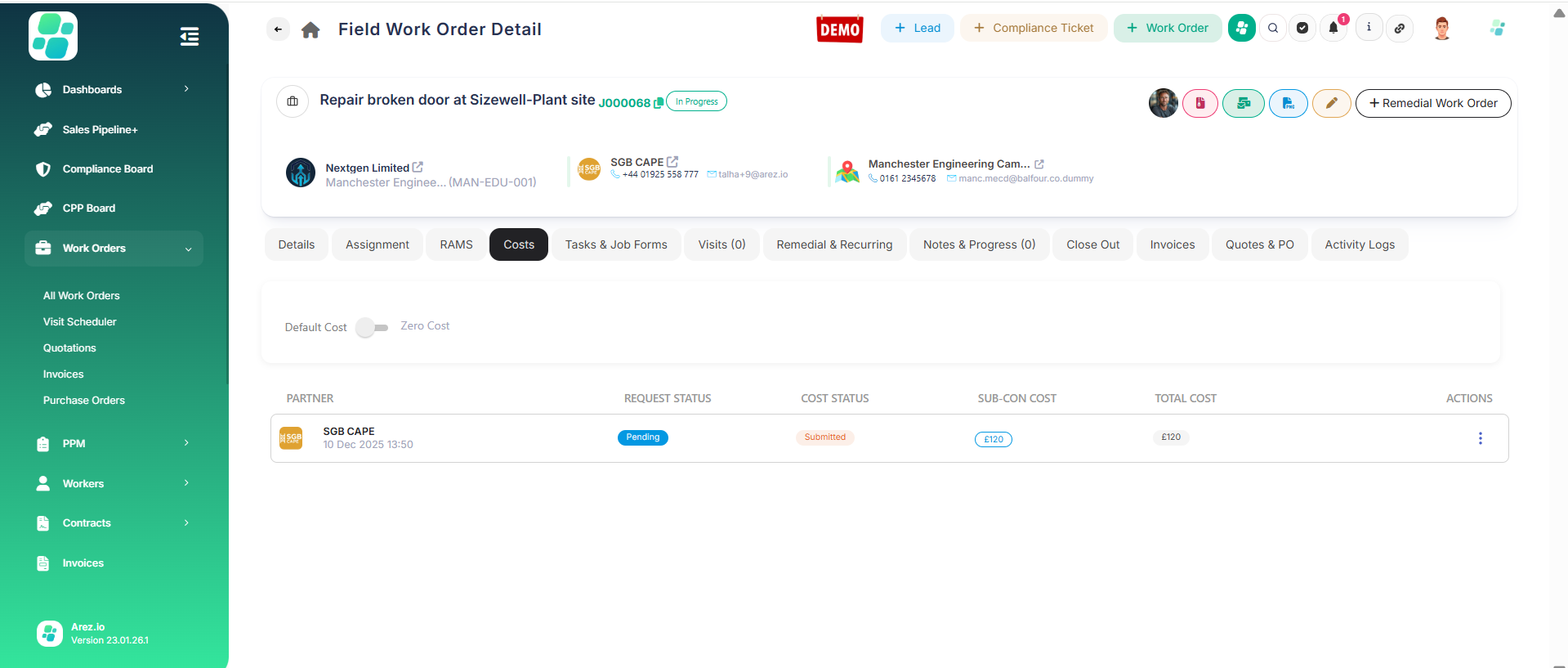
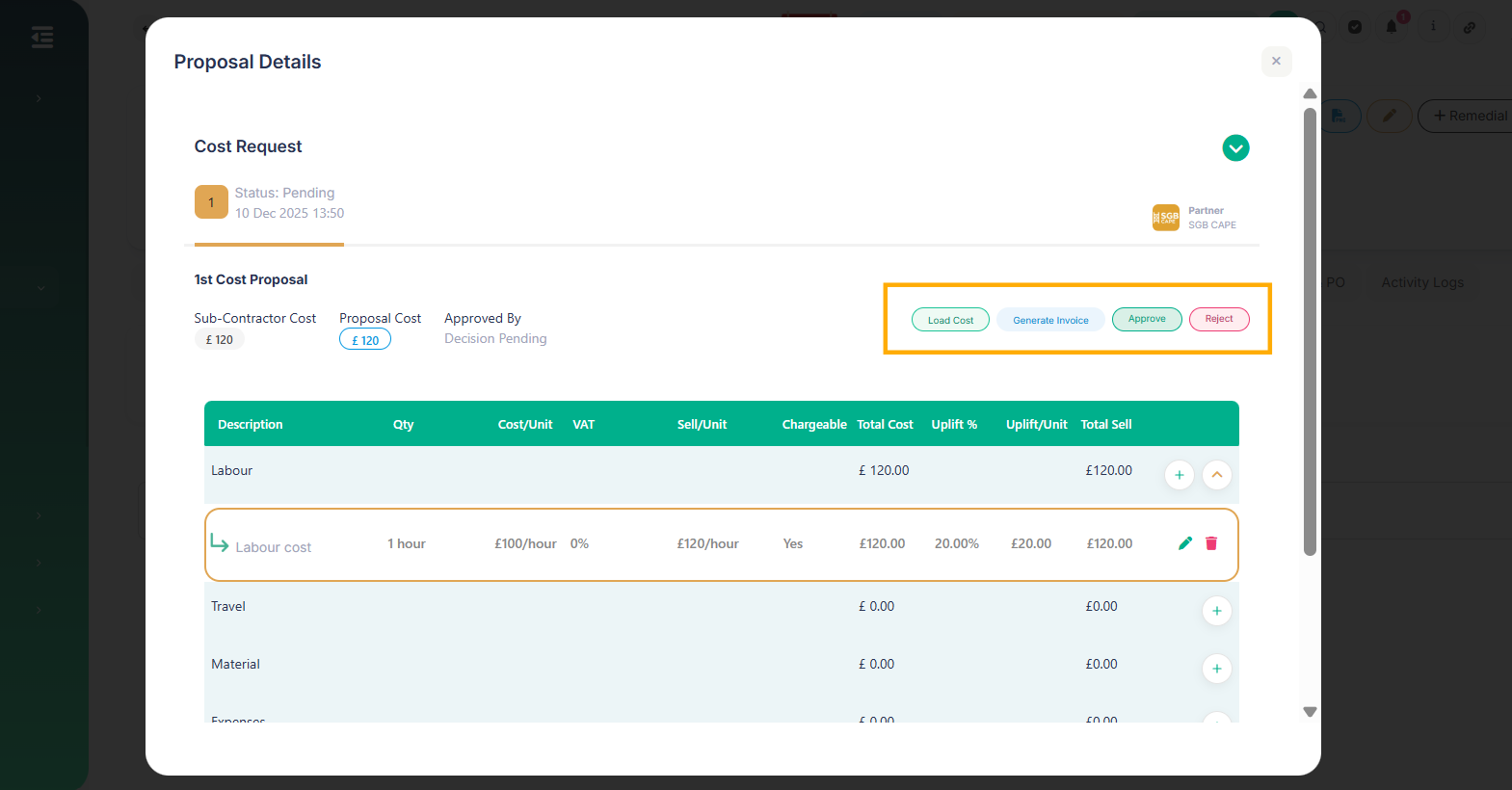
We can now log in via the admin view to review and approve the cost. After logging in, open the same job and click on the Costs tab, the cost status is now Submitted. Open the cost request to review it and take the required action.
Once the cost request is opened, the admin can review the complete cost breakdown, including quantities, unit costs, uplift, VAT, and total sell value. Based on the review, the admin can load the cost, generate an invoice, approve, or reject the cost request. Once an action is taken, the relevant status is updated and reflected to the service partner.
Summary
This article explains how to add and approve costs in Arez. Service partners add costs to a job by selecting the cost type, entering the required details, and submitting them for approval. The costs are then reviewed by an admin, who accesses the same job via the admin view, checks the full cost breakdown, and takes action by approving, rejecting, loading the cost, or generating an invoice. Once an action is taken, the updated status is reflected to the service partner, completing the cost management process in Arez.