
 Facebook
  Twitter
  LinkedIn
 Multi-Tier Management (Parent & Child Supplier Workforce Sharing)
Overview
The Multi-Tier Management feature allows a Parent Supplier to create a network of Child Suppliers, share selected workers with them, and manage workforce allocation across multiple suppliers. This functionality enables Parent Suppliers to utilize workers from linked Child Suppliers while maintaining visibility of the workforce hierarchy and worker ownership.
The Parent Supplier can only assign workers that have been explicitly shared by the Child Suppliers.
Navigate to Service Partners, search for the Parent Supplier, and open the supplier profile.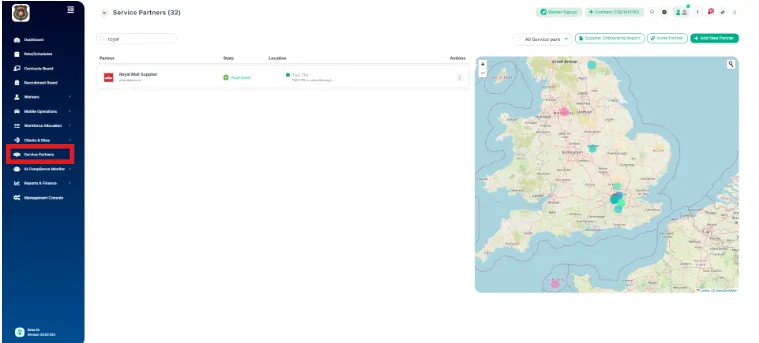
Accessing Multi-Tier Management
From the left navigation menu, click Service Partners.
Search for the supplier that will act as the Parent Supplier.
Open the supplier profile.
Select the Linked Suppliers tab.
The Linked Suppliers page allows you to:
Link new Child Suppliers.
View all linked suppliers.
Monitor the number of workers available across the supplier network.
Share workers with linked suppliers.
Remove supplier links.
View the supplier hierarchy using the Roster Hierarchy Map.
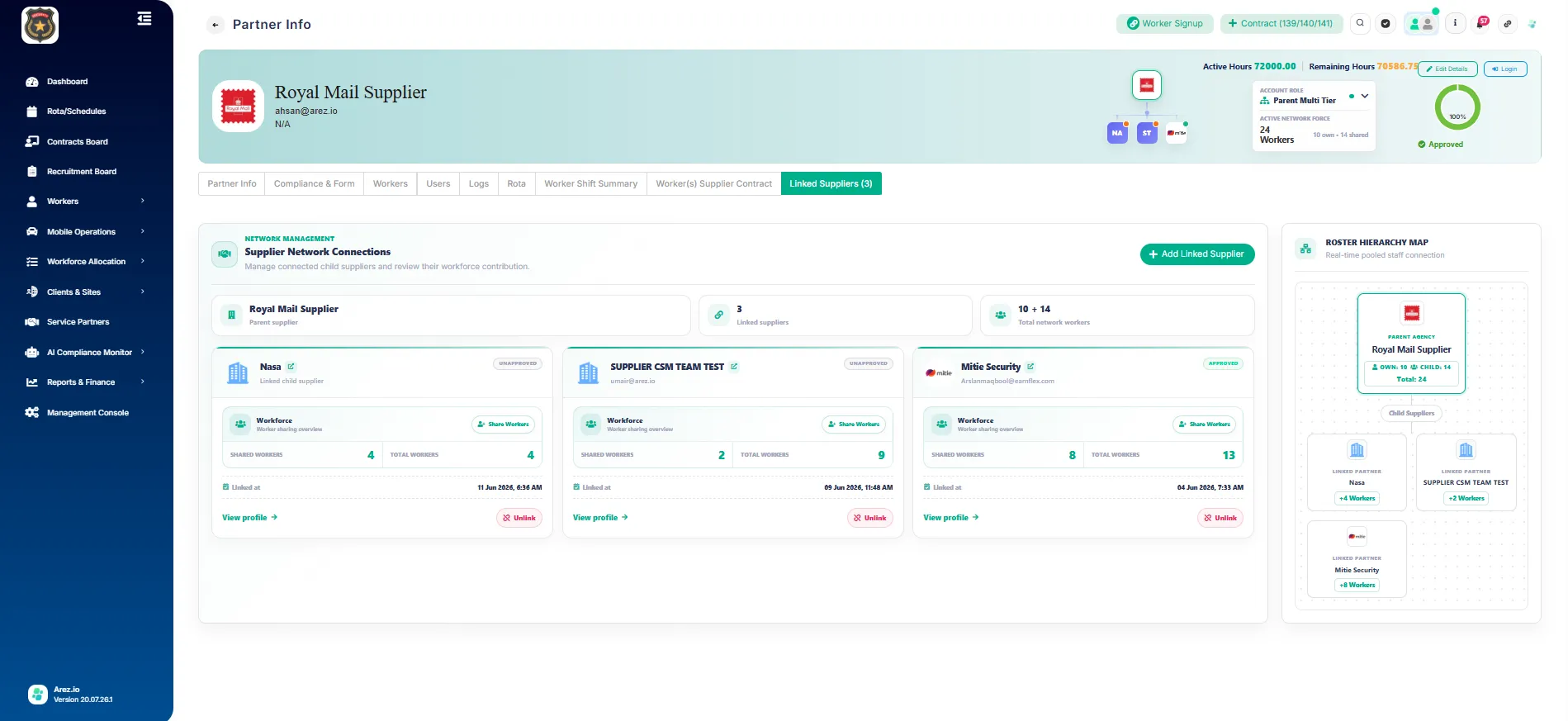
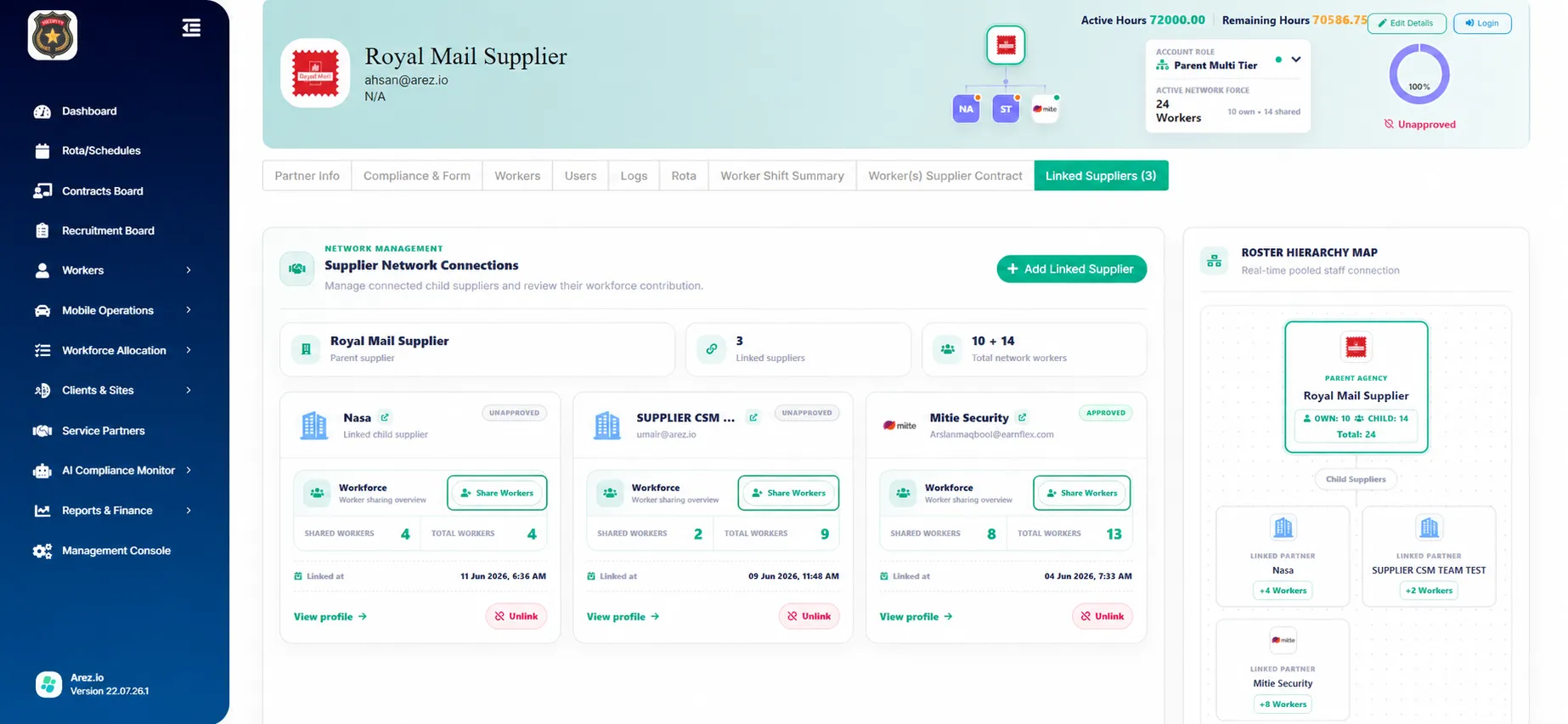
The Linked Suppliers tab displays all connected suppliers, workforce statistics, and the Roster Hierarchy Map.
Linked Suppliers Dashboard
The Linked Suppliers tab provides a complete overview of your supplier network.
Supplier Network Summary
The dashboard displays:
Parent Supplier
Total Linked Suppliers
Total Network Workers
Worker sharing statistics
Each linked supplier card contains:
Supplier Name
Approval Status
Workforce Overview
Shared Workers count
Total Workers count
Link creation date
View Profile
Share Workers button
Unlink button
The Roster Hierarchy Map on the right visually represents the relationship between the Parent Supplier and all linked Child Suppliers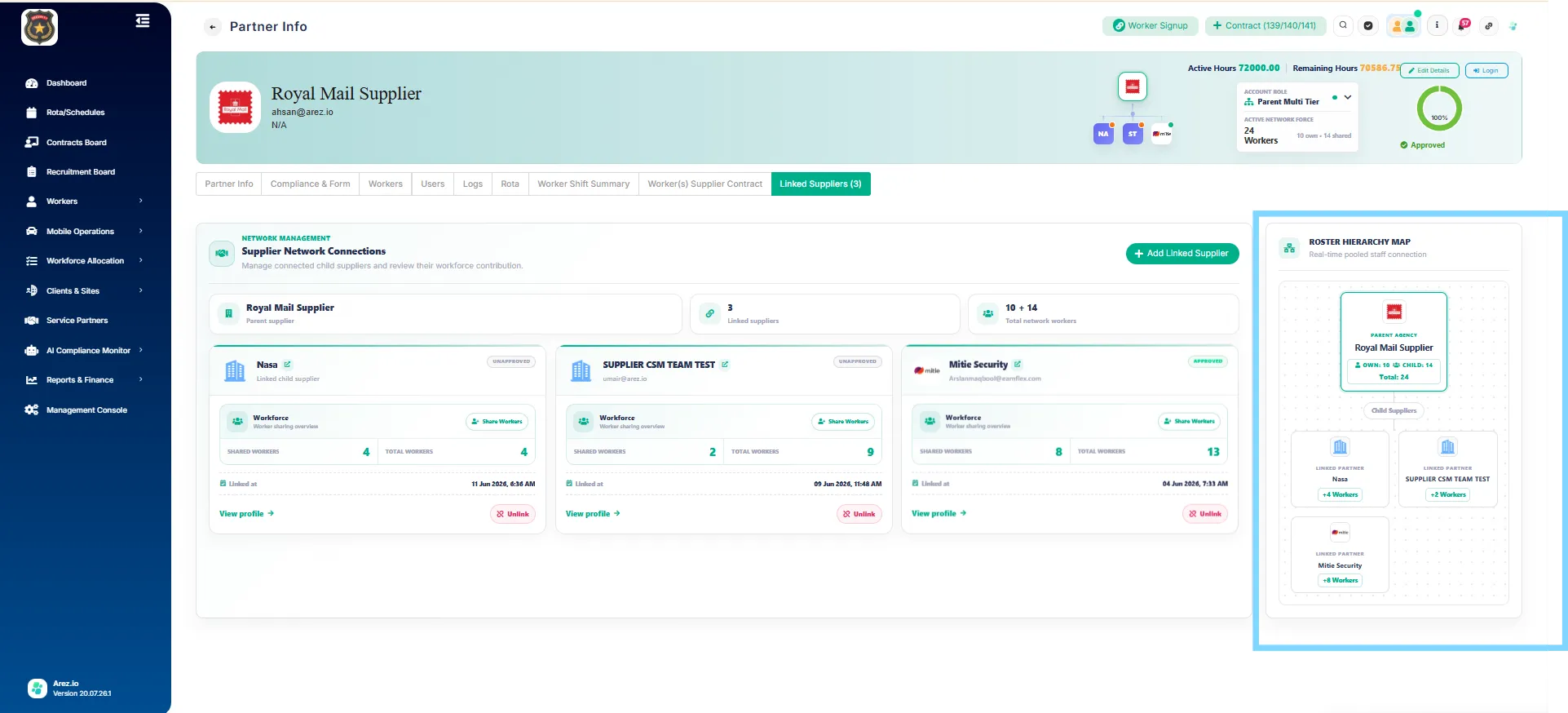
Adding a Linked Supplier
To link a new supplier:
Open the Linked Suppliers tab.
Click Add Linked Supplier.
Select the supplier you want to connect.
Save the relationship.
Once linked, the supplier becomes available for workforce sharing.
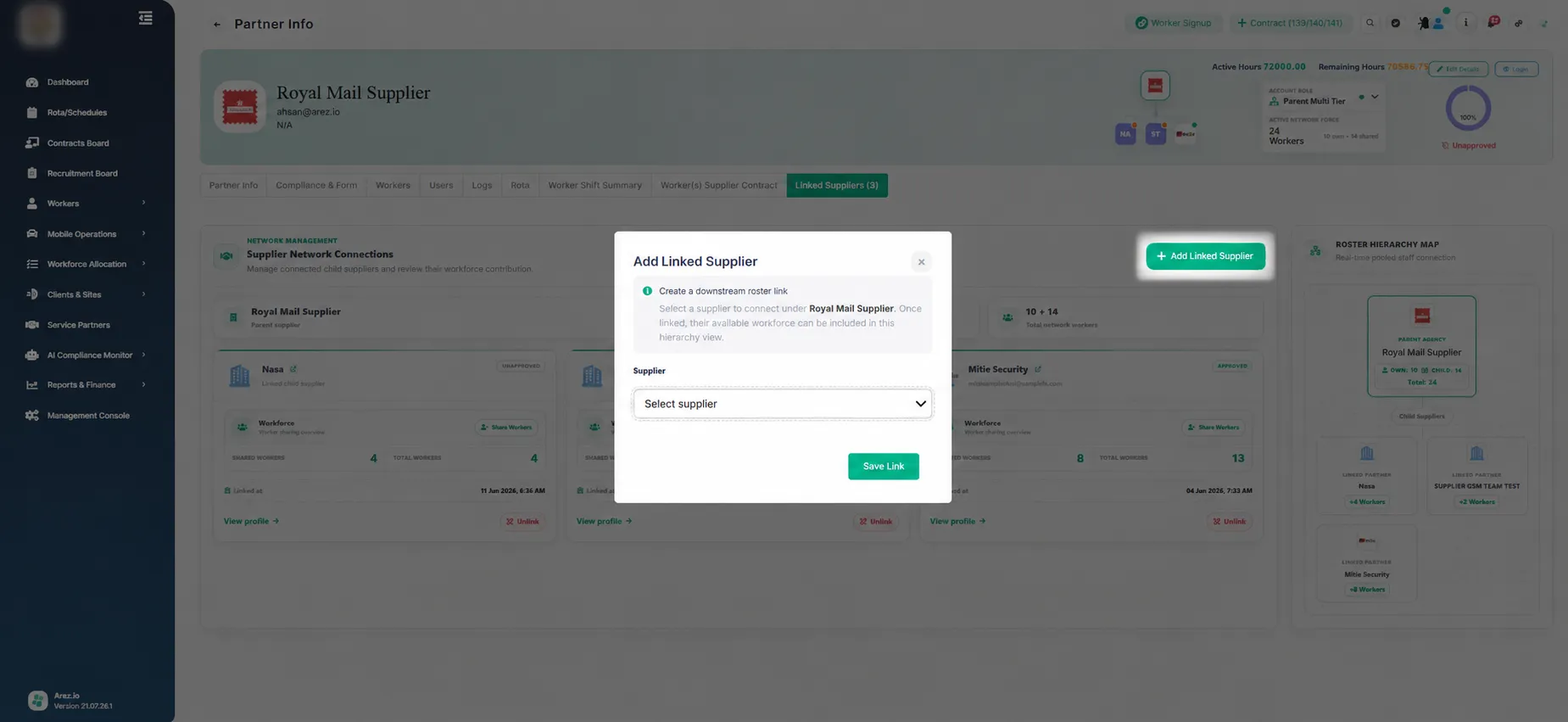
Sharing Workers with a Child Supplier
Each linked supplier card contains a Share Workers button.
To share workers:
Locate the linked supplier.
Click Share Workers.
The Share Workers window opens.
Search for workers using their name or email.
Select the workers you want to share.
Optionally click Select All Visible.
Click Share Workers to confirm.
Click Share Workers on the linked supplier card.
Select the workers to share and click Share Workers to grant access.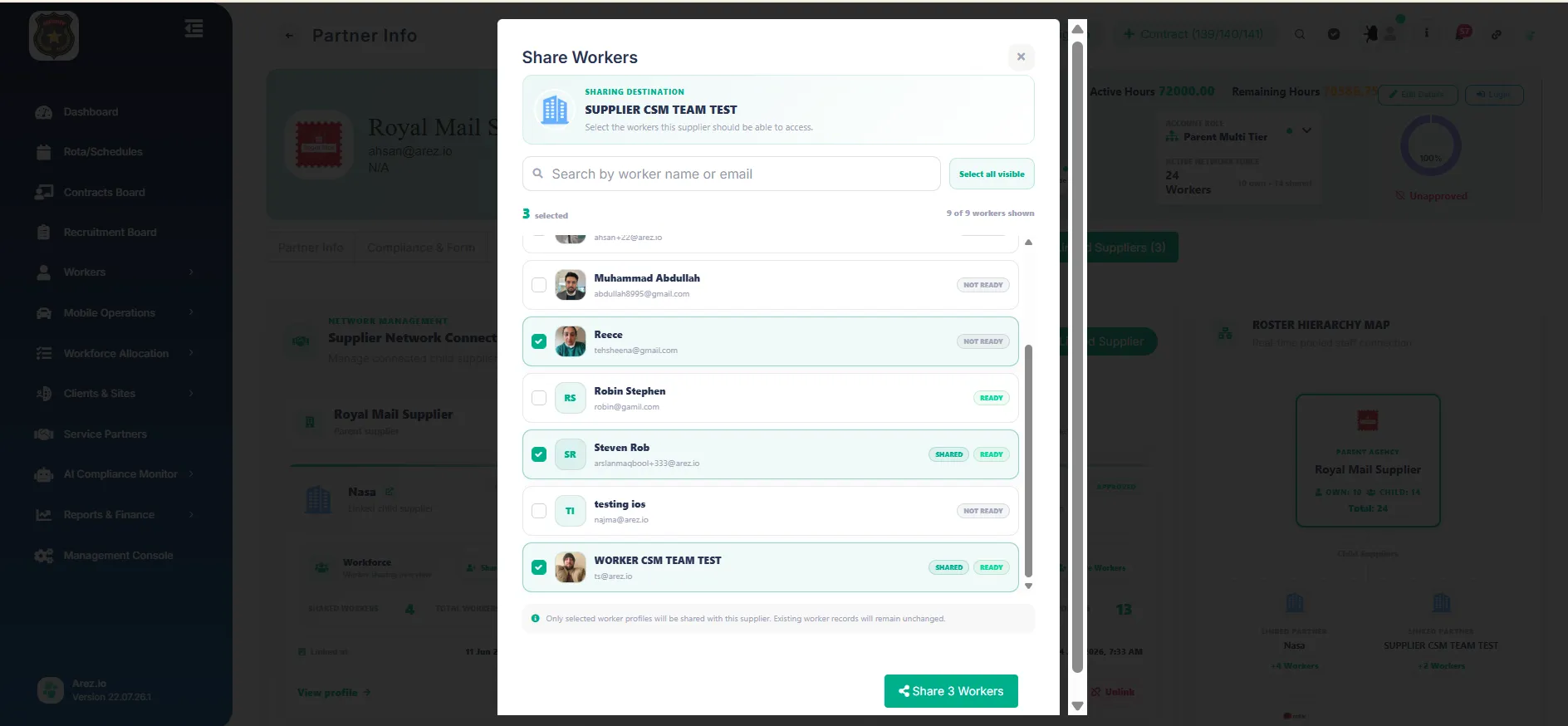
Example
In this example:
Total Workers = 24
Shared Workers = 14
After saving:
Only the selected 14 shared workers become available to the Parent Supplier.
The remaining workers stay private to the Child Supplier.
After sharing, the supplier card displays the updated Shared Workers count.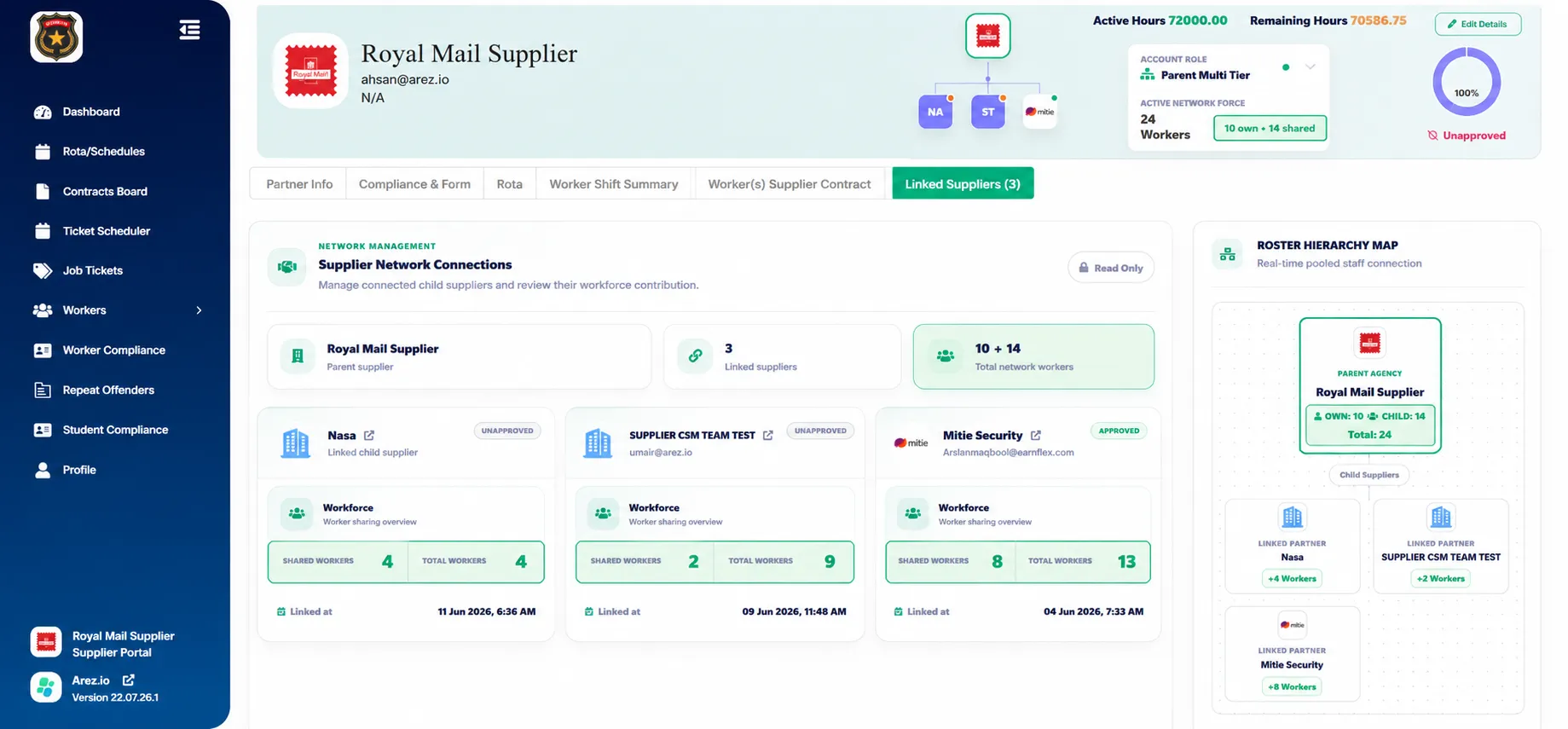
Understanding Worker Sharing
The Shared Workers counter indicates how many workers from a Child Supplier are available to the Parent Supplier.
Supplier | Total Workers | Shared Workers |
Supplier A | 20 | 14 |
This means the Parent Supplier can assign only those 14 shared workers.
Workers that have not been shared will never appear during worker assignment.
Assigning Shared Workers to Parent Shifts
After workers have been shared:
Open the required Fulfilment Ticket.
Navigate to Shift Schedule.
Click + Worker on the desired shift.
The Assign Worker window opens.
Search for the required worker.
Select the worker.
Click Save.
The worker search displays:
Parent Supplier workers
Shared workers from linked Child Suppliers
Only shared workers are available for selection.
Click + Worker to assign a worker to the shift.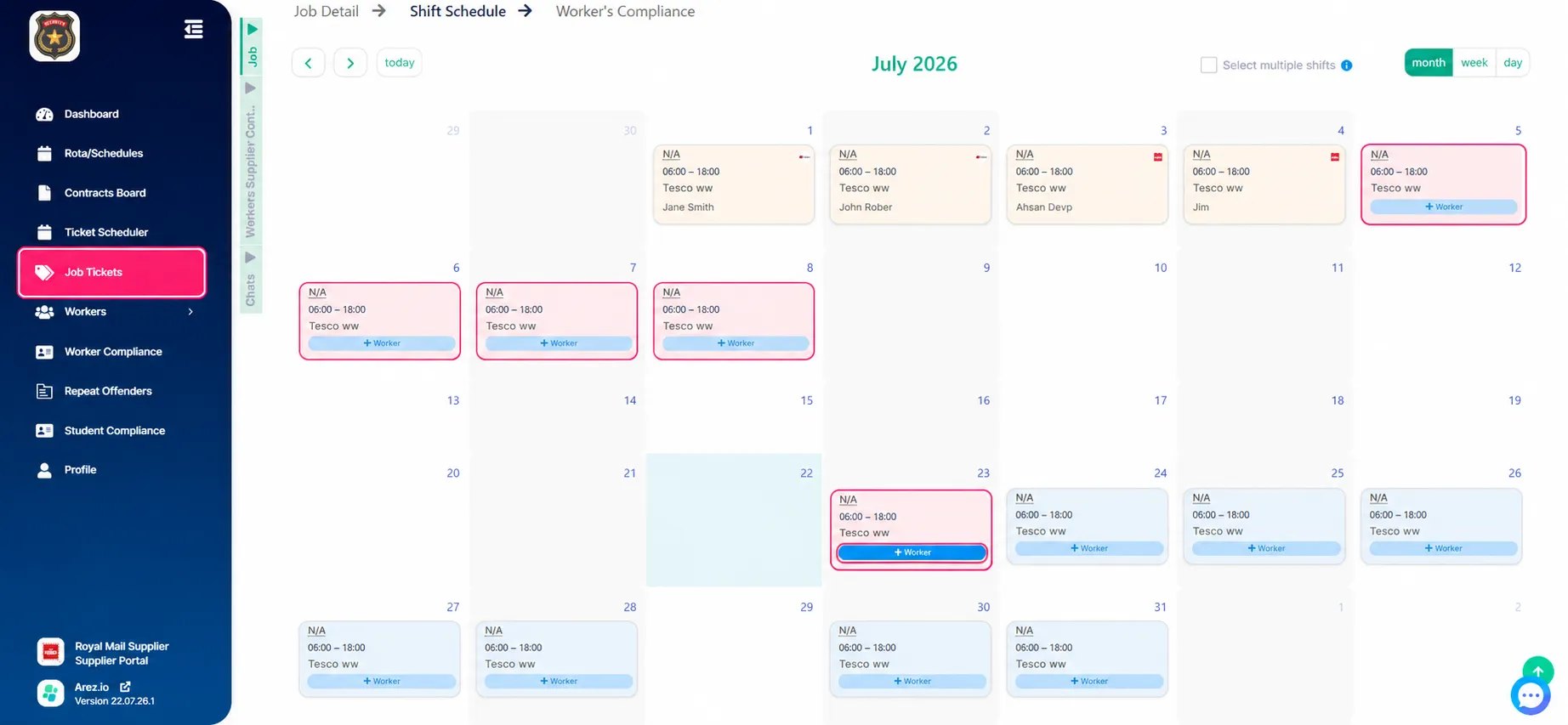
Only workers shared by Child Suppliers appear in the worker search.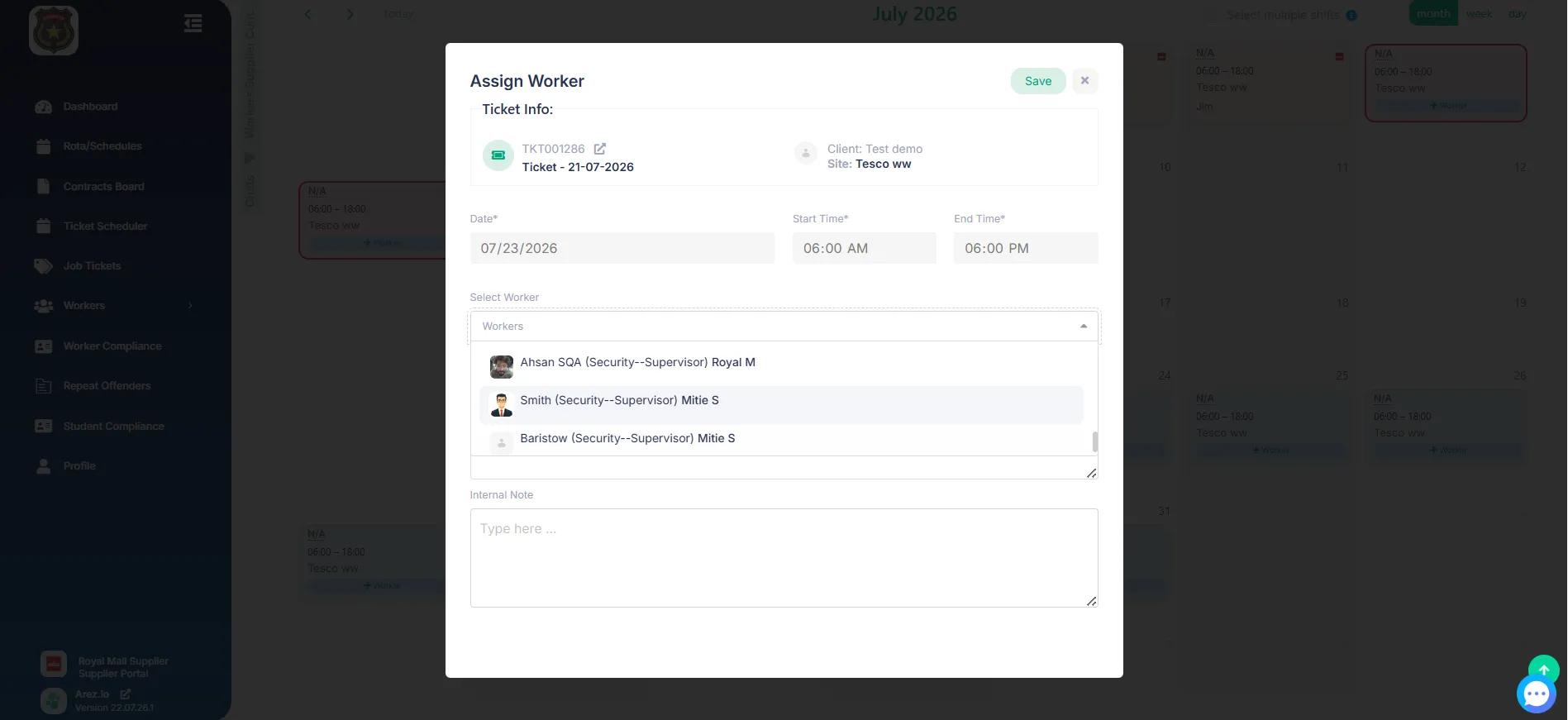
Worker Identification
When assigning shared workers:
The Parent Supplier schedules the worker.
Ownership remains with the Child Supplier.
The supplier name is displayed during worker selection.
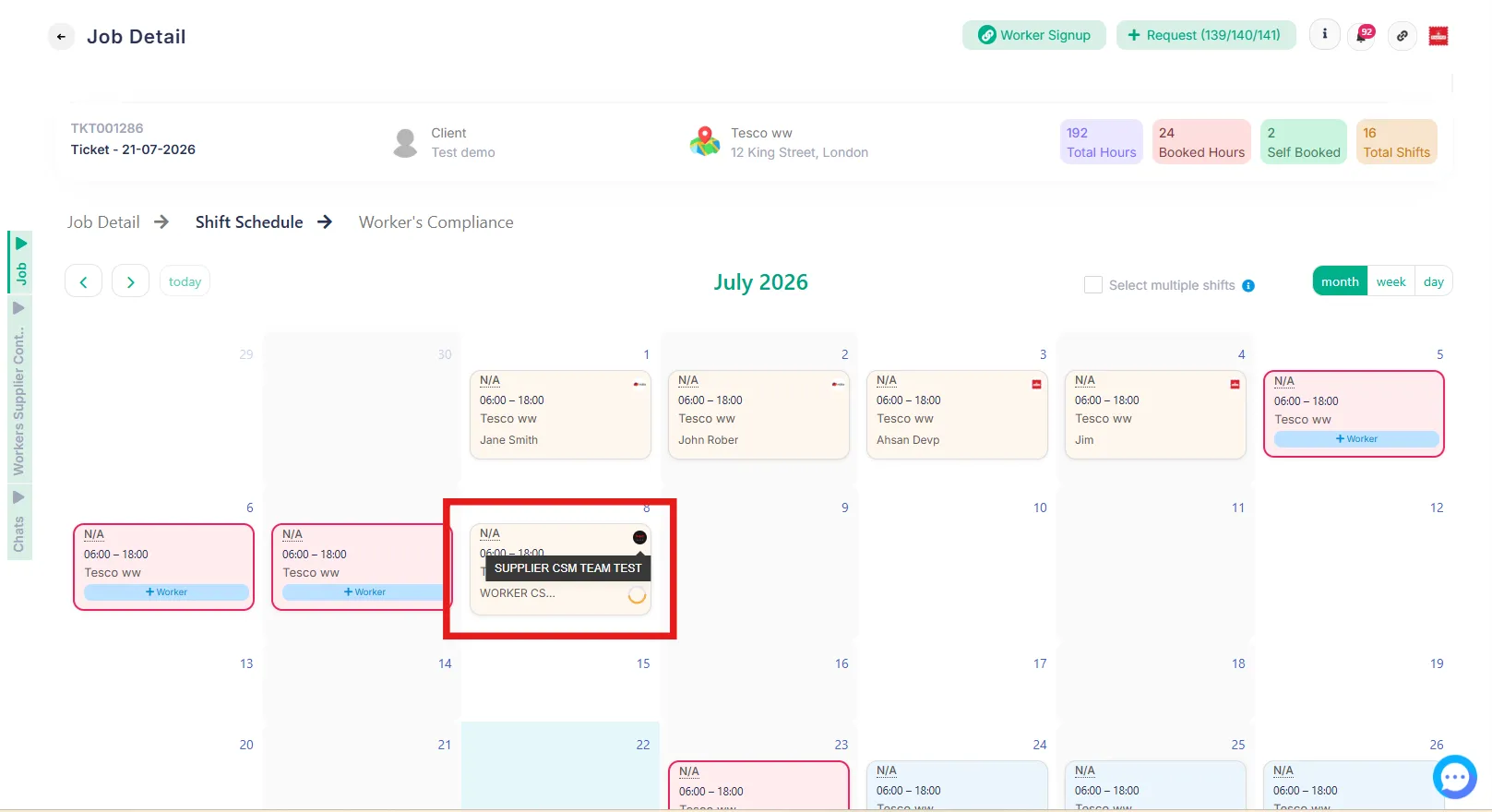
After assignment, the Child Supplier's logo is displayed on the shift.
This provides clear visibility of worker ownership.
Viewing Assigned Shared Workers
From the Parent Supplier schedule:
Assigned shared workers appear alongside internal workers.
The Child Supplier logo identifies the worker's owning supplier.
Clicking the shift opens the Shift Detail window displaying the assigned worker and supplier information.
The assigned worker appears on the Parent Supplier's schedule with the Child Supplier logo.
Roster Hierarchy Map
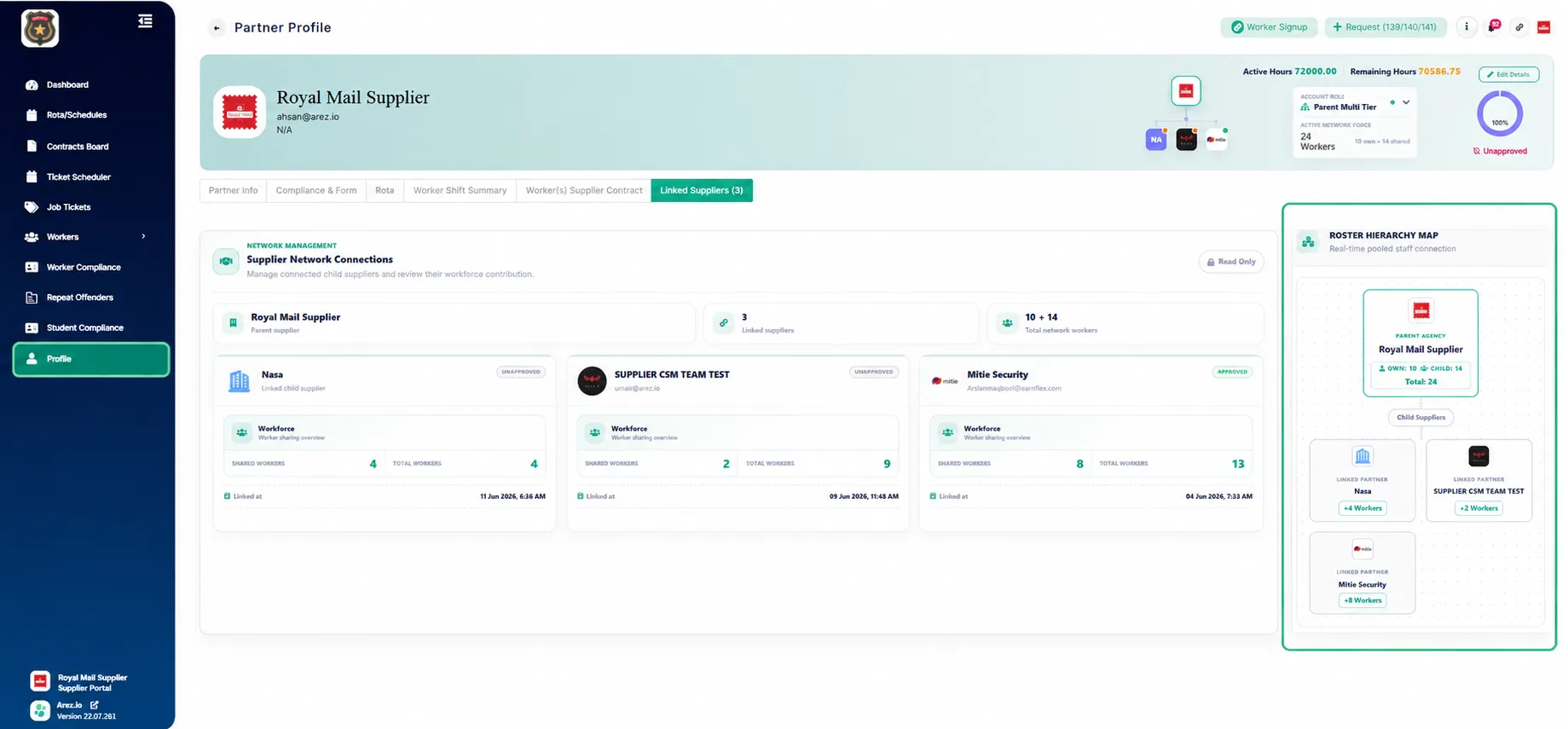
The Roster Hierarchy Map provides a live visual representation of the supplier network.
It displays:
Parent Supplier
Connected Child Suppliers
Workers contributed by each supplier
Total network workforce
This allows administrators to quickly understand workforce distribution across all linked suppliers.
Roster Hierarchy Map showing the Parent Supplier and linked Child Suppliers.
Key Notes
A Parent Supplier can link multiple Child Suppliers.
Child Suppliers retain ownership of their workers.
Only explicitly shared workers are visible to the Parent Supplier.
Non-shared workers cannot be searched or assigned.
Shared workers can be assigned like Parent Supplier workers.
Assigned shared workers always retain the branding and ownership of their original Child Supplier.
The Roster Hierarchy Map provides a live overview of the supplier network.