
 Facebook
  Twitter
  LinkedIn
 How to Generate Payroll in Arez
Introduction
The Payroll module allows payroll teams to generate payroll reports for selected periods, review employee pay details, verify deductions and holiday pay, and export payroll data for processing.
Navigate to:
Reports & Finance → Finance & Payroll → Payroll
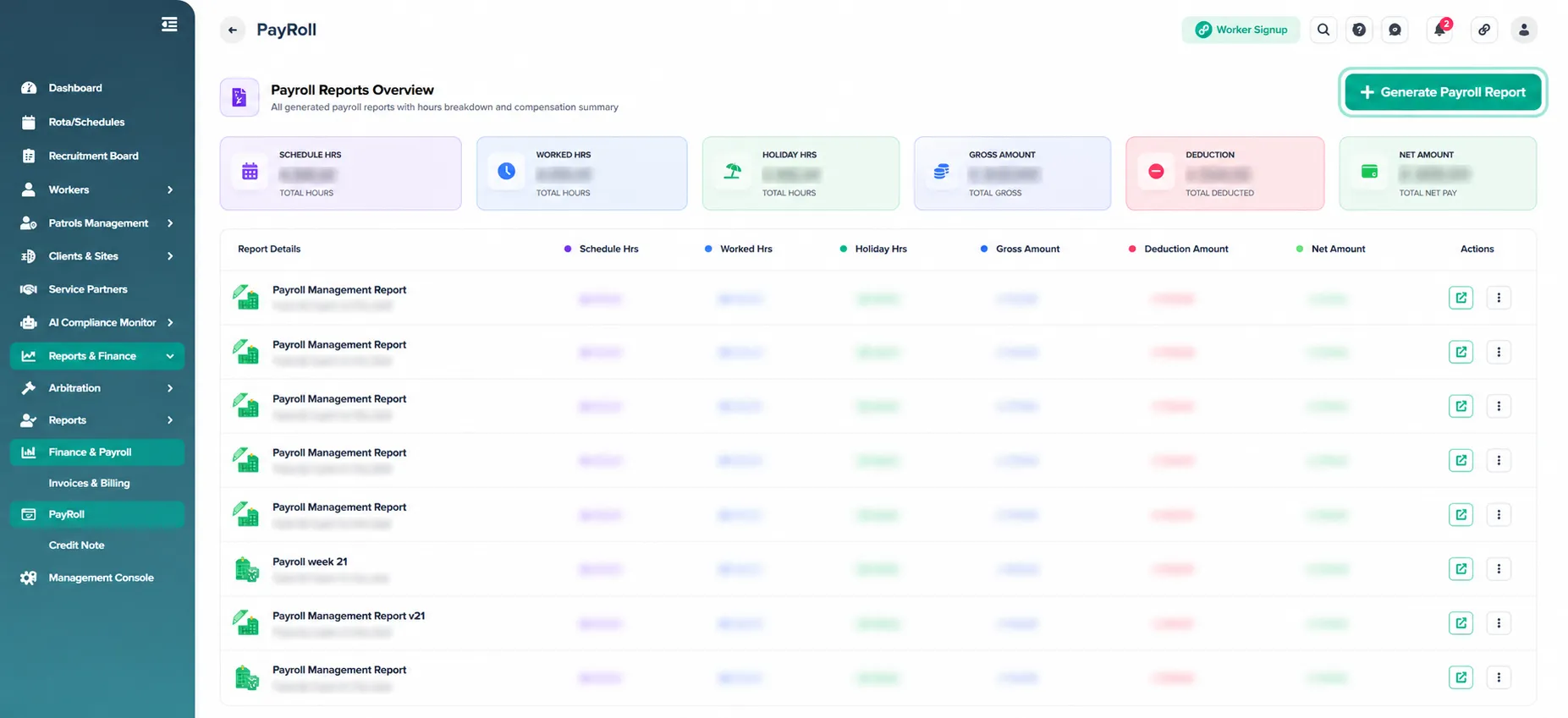
You will see the Payroll Reports Overview page displaying:
Scheduled Hours
Worked Hours
Holiday Hours
Gross Amount
Deduction Amount
Net Amount
Previously generated payroll reports
Step 1: Open Payroll Module
From the left menu click:
Reports & Finance → Finance & Payroll → Payroll
The Payroll Reports Overview page displays all generated payroll reports and payroll summaries.
Step 2: Generate a New Payroll Report
Click:
Generate Payroll Report (top right)
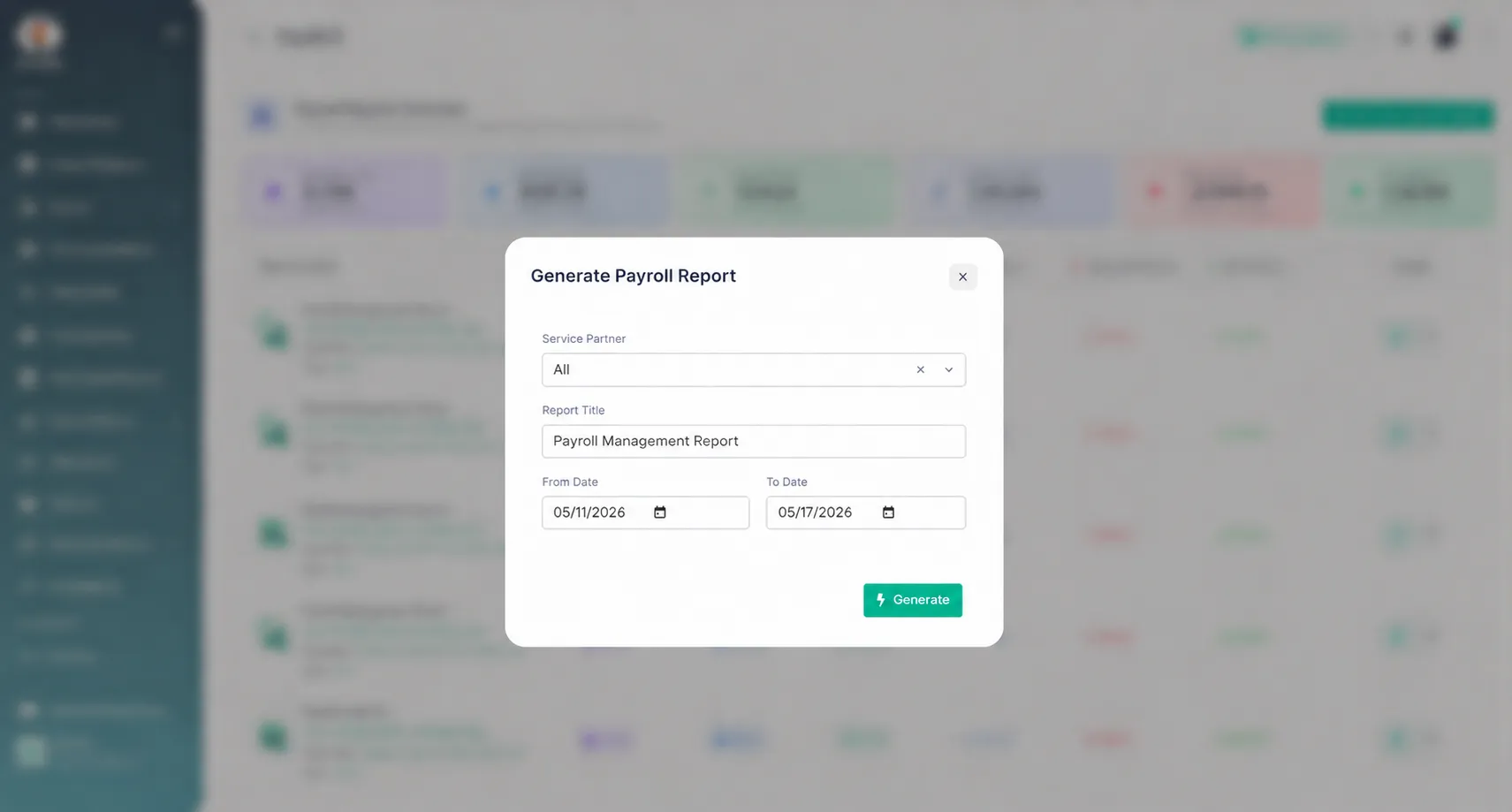
The Generate Payroll Report popup opens.
Fill in:
Service Partner
Select:
All service partners
orSpecific service partner
Report Title
Enter a payroll report name.
Example:
Payroll Management Report
Date Range
Select:
From Date → Payroll start date
To Date → Payroll end date
Example:
01 May 2026 → 31 May 2026
After entering details click:
Generate
The system generates the payroll report.
Step 3: Open Generated Payroll Report
After generation, the report appears in:
Payroll Reports Overview
Each report displays:
Scheduled hours
Worked hours
Holiday hours
Gross amount
Deductions
Net amount
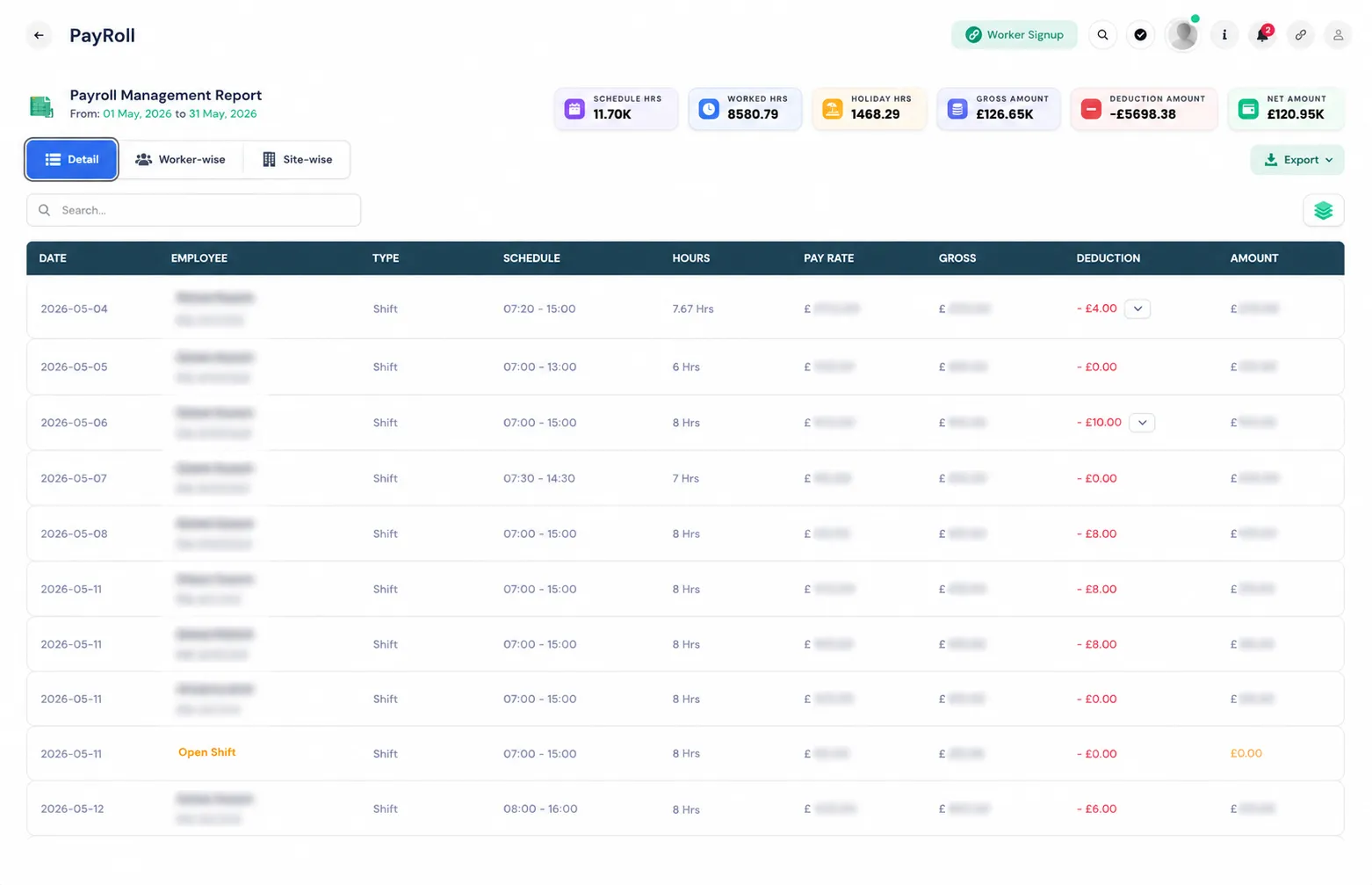
Detail View
Default tab:
Detail
Shows:
Employee name
NI number
PIN
Date
Shift type
Schedule
Worked hours
Pay rate
Gross amount
Deductions
Final payable amount
This gives a shift-by-shift payroll breakdown.
Overall Deductions Section
Scroll down to view:
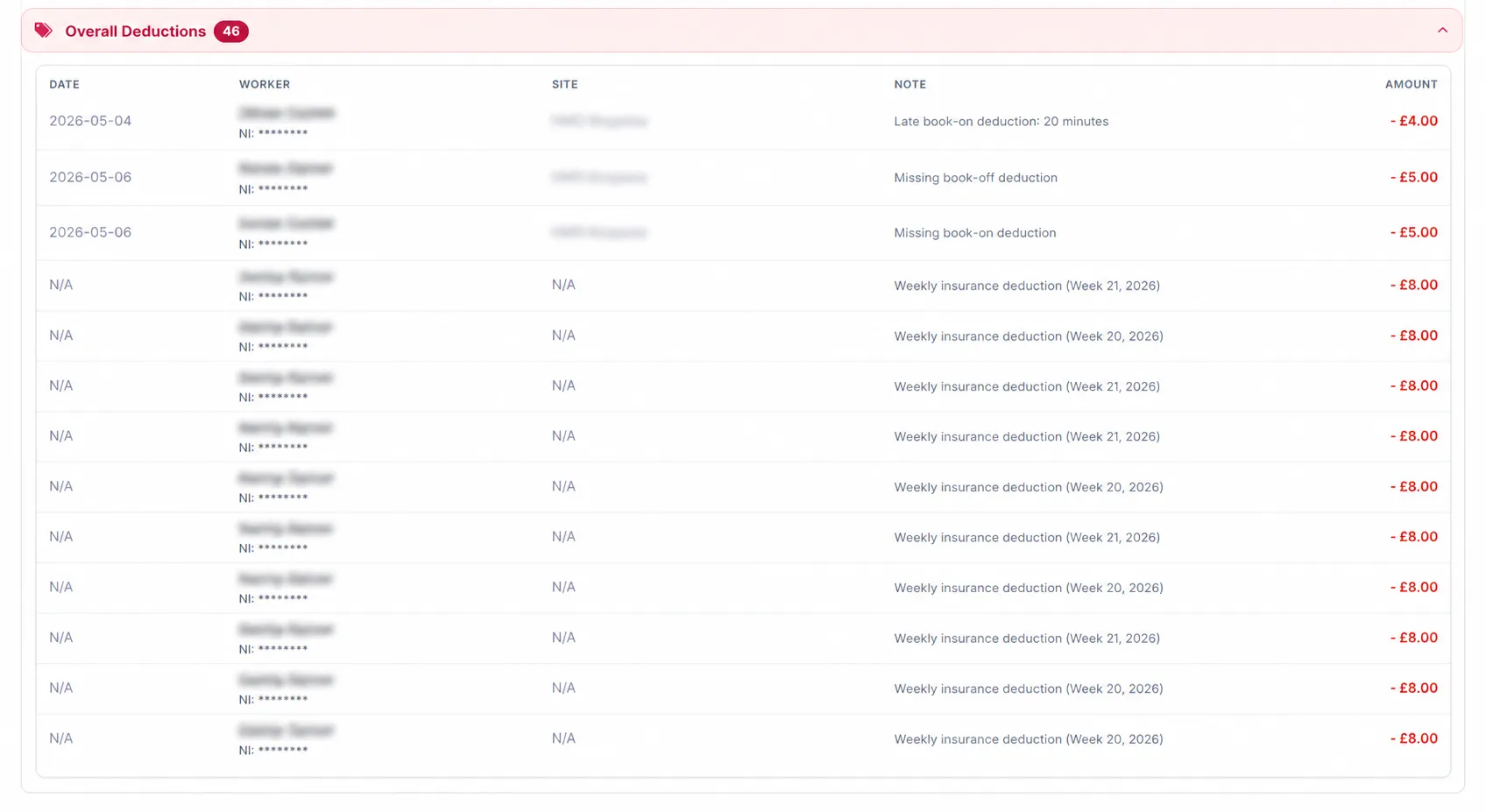
Overall Deductions
This section lists:
Worker
Date
Site
Deduction note
Deduction amount
Examples:
Missing book-on deduction
Missing book-off deduction
Weekly insurance deduction
Review deductions before payroll export.
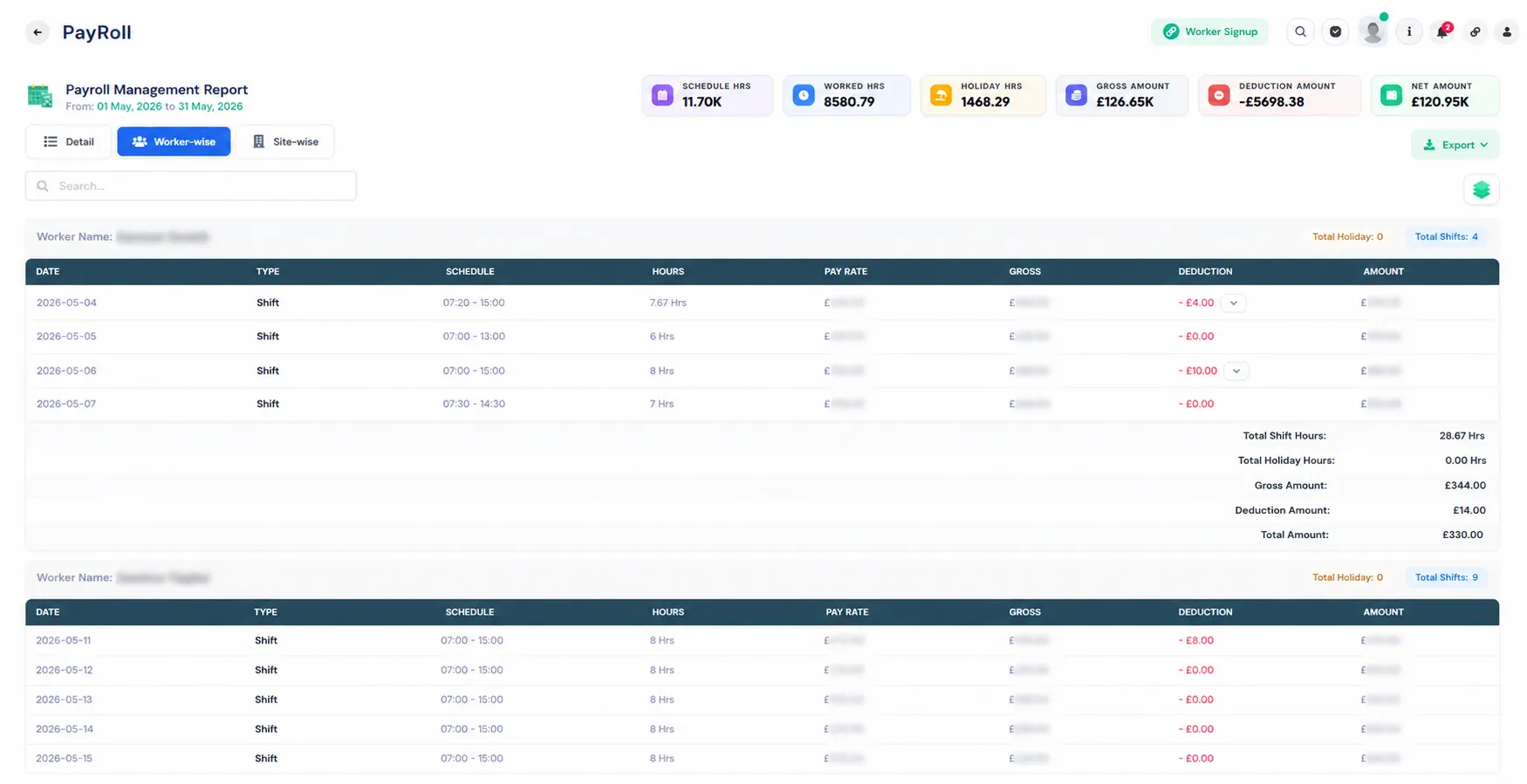
Worker-wise View
Click:
Worker-wise
Payroll information groups by employee.
Displays:
For each worker:
Dates worked
Shift schedule
Hours
Pay rate
Gross amount
Deductions
Final amount
Summary totals appear at bottom:
Total shift hours
Holiday hours
Gross amount
Deductions
Final payable amount
Use this view to review employee-specific payroll.
Site-wise View
Click:
Site-wise
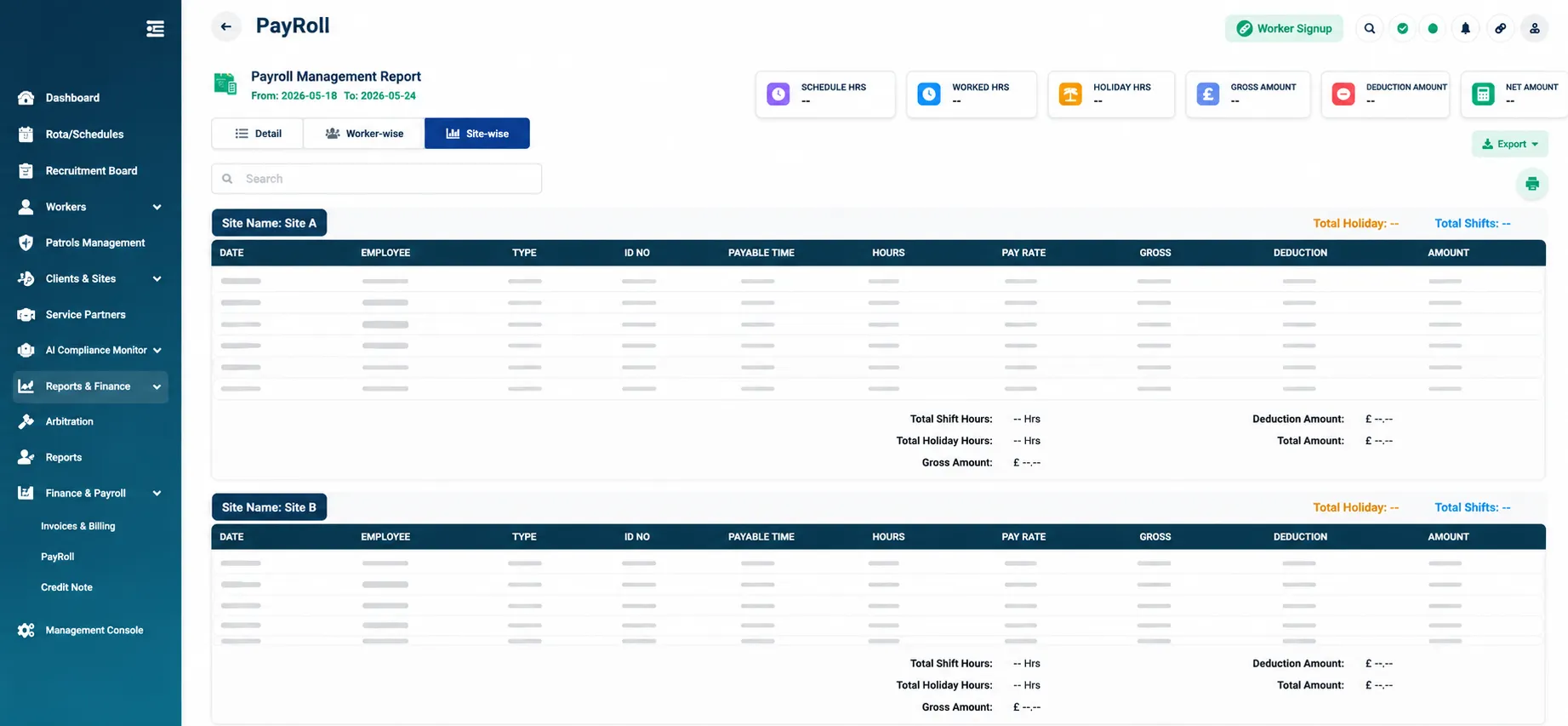
Payroll groups shift by site.
Displays:
Site name
Employees working on site
Hours
Pay rates
Deductions
Amounts
Site totals shown:
Total shifts
Holiday hours
Gross amount
Deductions
Total payable amount
Useful for site-level payroll analysis.
Export Payroll Report
Click:
Export (top right)
Export payroll data for further processing.
Use exported reports for:
Payroll submission
Finance records
Auditing
External payroll systems
Payroll Review Checklist
Before exporting payroll ensure:
✅ Payroll dates are correct
✅ Worked hours reviewed
✅ Deductions verified
✅ Holiday pay checked
✅ Gross amount validated
✅ Final net pay confirmed
Notes
Payroll reports are generated based on approved shift data and arbitration decisions.
Deductions applied in arbitration are reflected in payroll calculations.
Always review deductions before payroll processing.
Outcome
Once reviewed and exported, the payroll report can be used to process worker payments accurately.