
 Facebook
  Twitter
  LinkedIn
 Adding Notes and Attachments to Jobs, Quotes & RFQs
Add notes and attachments to Jobs, Quotes and RFQs, and control exactly who can see them.
Quick guide |
Add a note or attachment
1. Open the required Job, Quote or RFQ in Arez FieldIQ.
2. Go to the Notes area.
3. Enter your note and add an attachment if required.
4. Choose the visibility: Public, Supplier, or Private · Internal only.
5. Save the note. Its visibility label remains visible so it is always clear who can see it.
Choose who can see the note
Visibility | Who can see it | Best used for |
Public | Back office + client/customer | Information the client should see. |
Supplier | Back office + supplier users/workers | Instructions or updates for the assigned supplier. |
Private · Internal only | Back-office team only | Internal discussion or information. |
Important: Supplier visibility is separate from Public visibility. A Supplier note is not automatically shown to the client, and a Private note remains internal.
How visibility appears in Arez
The current visibility is displayed on each note. Open the note menu to change it when required.
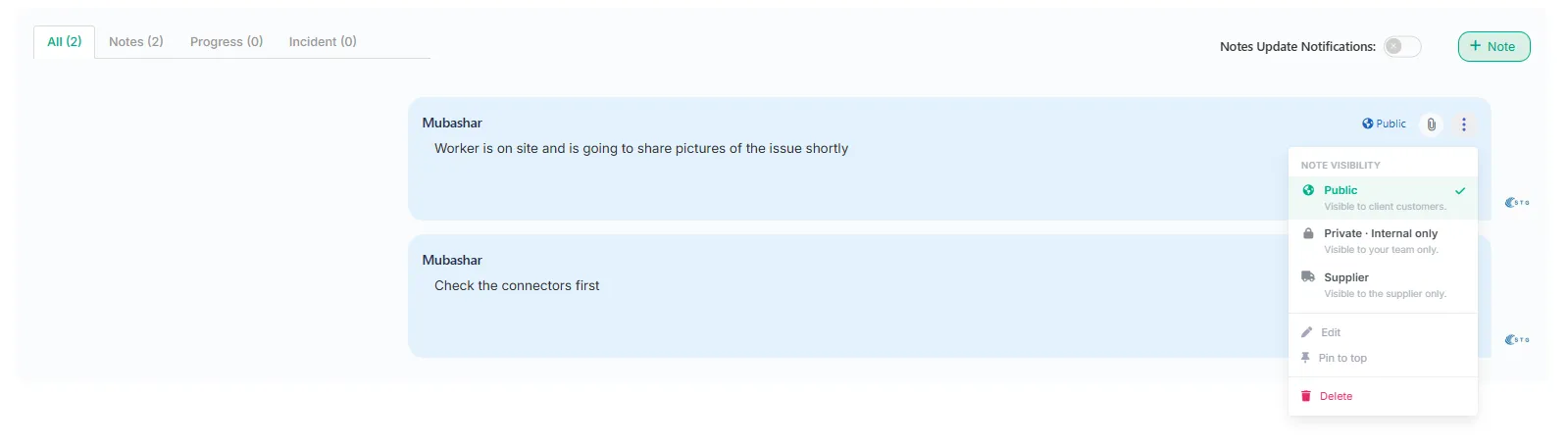
The three visibility levels
Public — Client/customer users can see the note.
Supplier — The assigned supplier users and workers can see the note.
Private · Internal only — Only your internal back-office team can see the note.
Good to know |
Notes on Quotes and RFQs
Quotes and RFQs use the same Notes & Comments experience as Jobs. You can add a note or attachment, see its current visibility, and change that visibility from the note menu.
Use the same simple rule: Public for the client/customer, Supplier for supplier users or workers where supplier access is enabled, and Private · Internal only for your back-office team.
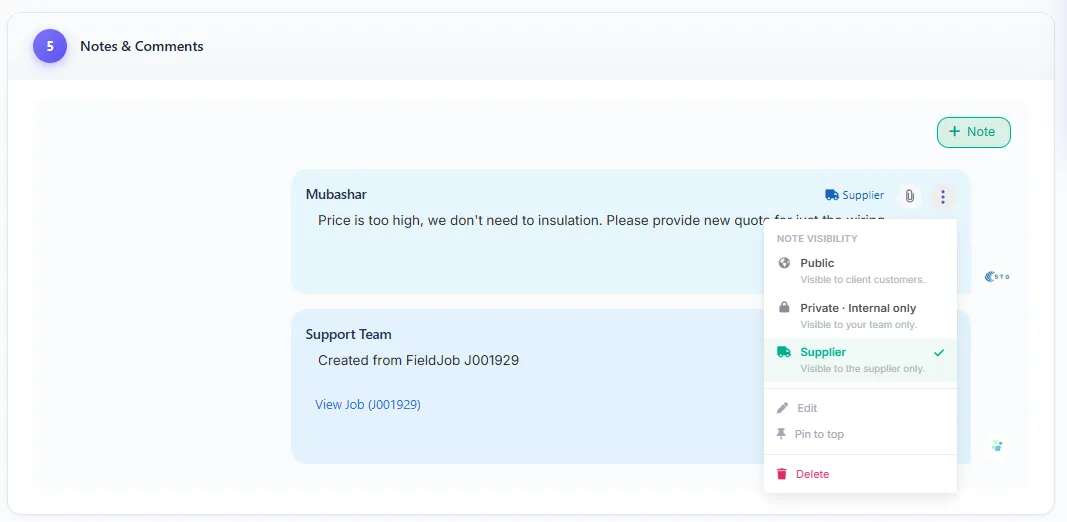
What suppliers can see
Where a Job, Quote or RFQ is shared with a supplier, the supplier only sees notes specifically set to Supplier visibility and only where supplier access is enabled for that area. They do not automatically see Public or Private notes.
A simple rule to remember
Client? Public • Supplier? Supplier • Your team only? Private |
Attachments: attachments added to a note follow that note’s visibility. Check the visibility before saving restricted information.