
 Facebook
  Twitter
  LinkedIn
 How to Copy and Paste Shifts in Arez
Overview
The Copy & Paste Shift feature allows you to duplicate one or multiple shifts and paste them to another date, either with or without worker assignments. This helps reduce manual scheduling and speeds up rota creation.
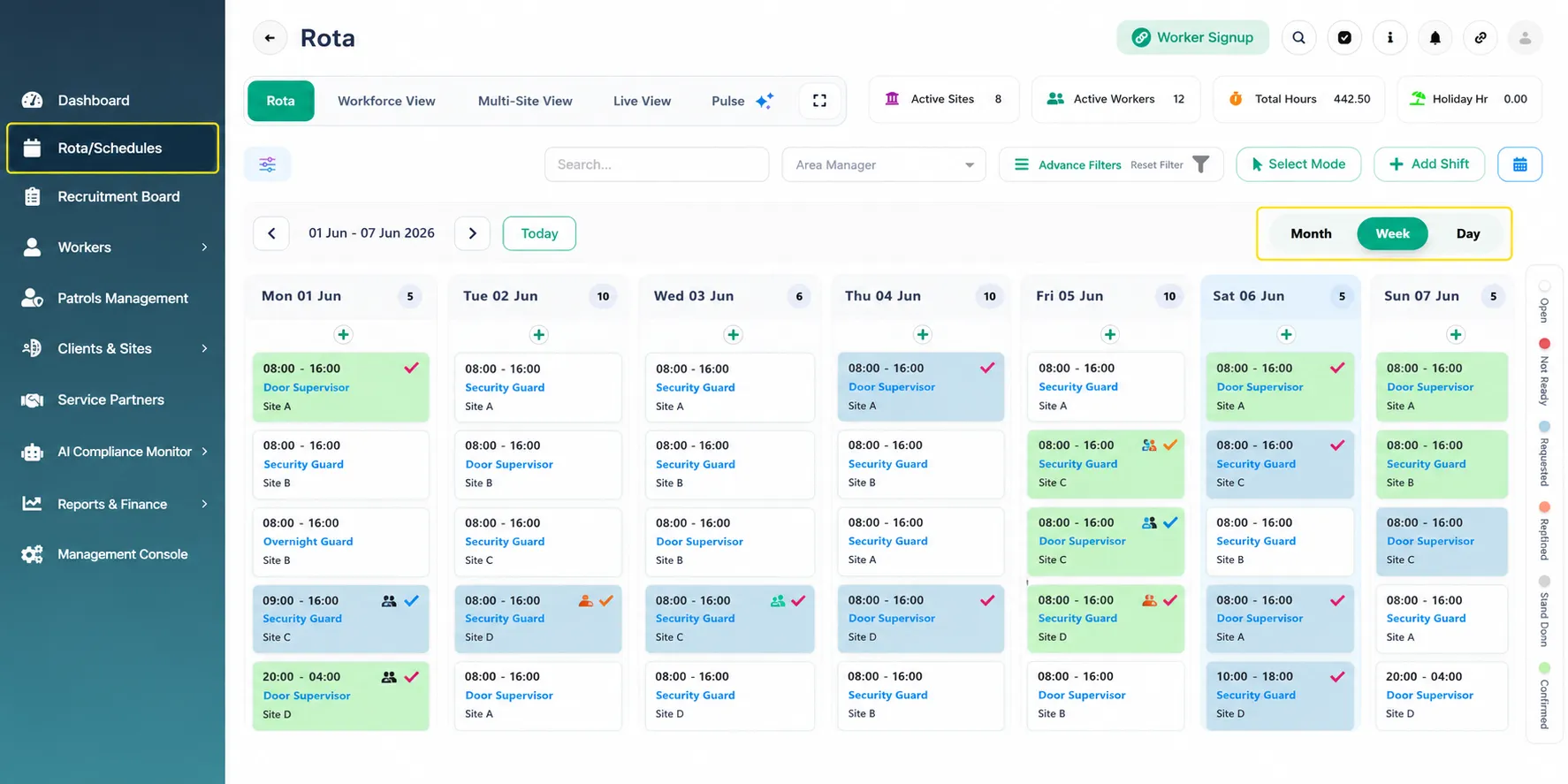
Step 1: Open the Rota
Navigate to Rota/Schedules from the left-hand menu.
The rota will open in Week View by default.
You can switch between:
Day View
Week View
Month View
Locate the shifts you would like to copy.
Step 2: Enable Select Mode
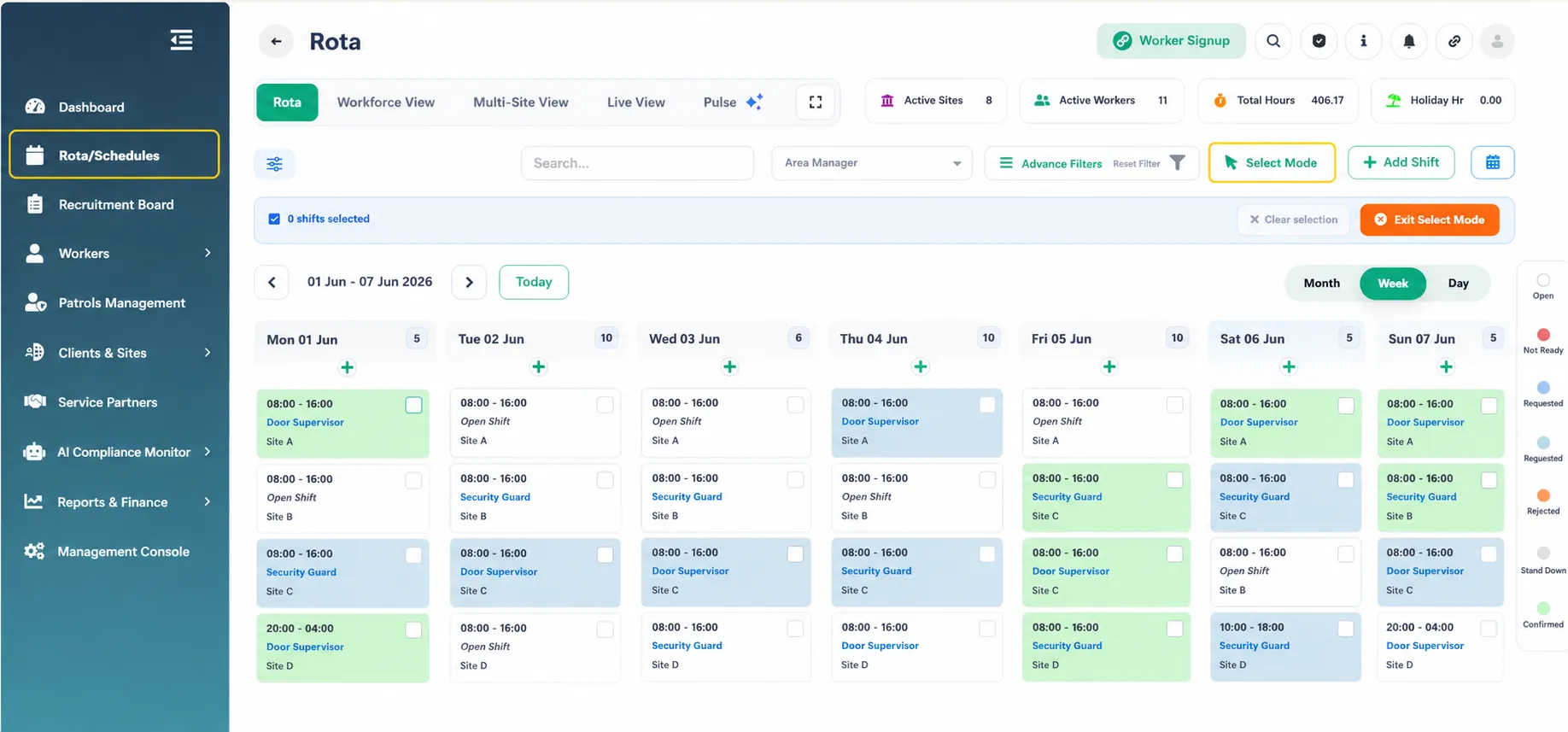
Click the Select Mode button located in the top-right corner of the rota.
Selection checkboxes will become visible throughout the rota.
Step 3: Select the Shifts
You can select shifts in two ways:
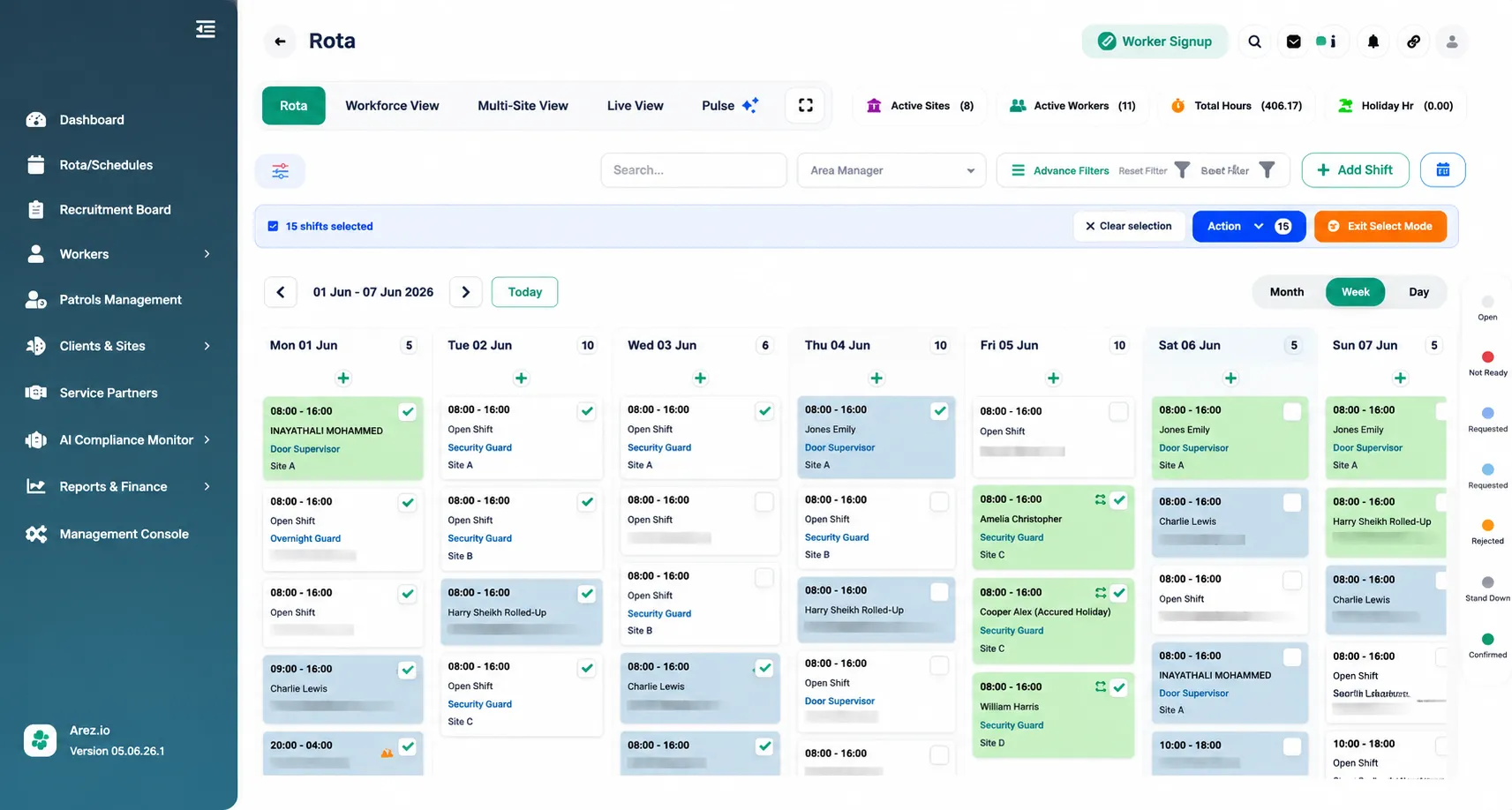
Select an Entire Day
Click the checkbox displayed at the top of a date column.
This will select all shifts scheduled for that day.
Select Individual Shifts
Click the checkbox on individual shifts.
Only the selected shifts will be included in the copy action.
The number of selected shifts will be displayed at the top of the screen.
Step 4: Copy the Selected Shifts
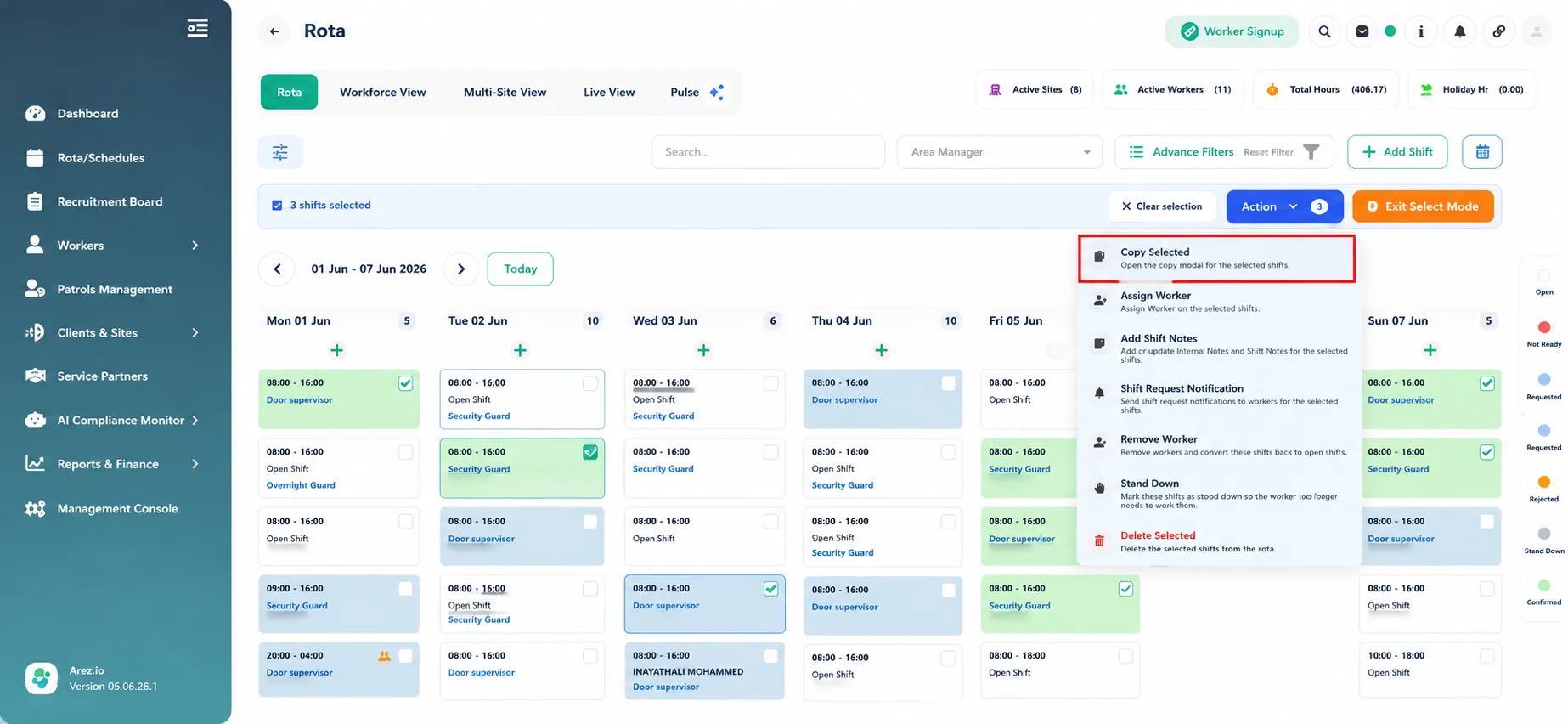
Click the Action button.
Select Copy Selected from the dropdown menu.
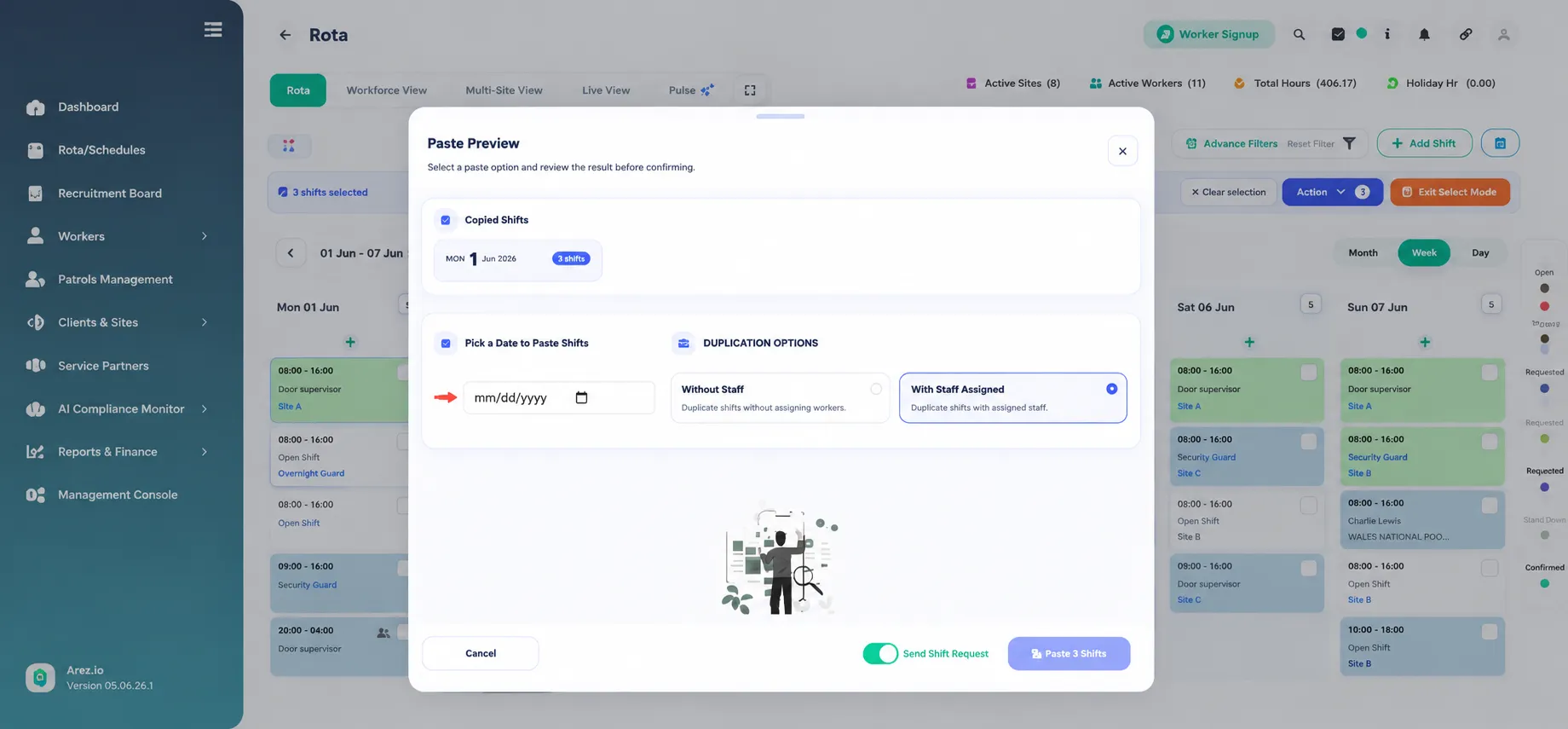
The Paste Preview window will open.
Step 5: Configure the Paste Options
Within the Paste Preview window:
Select the Paste Date
Enter or select the date where you would like the copied shifts to be created.
Choose a Duplication Option
Without Staff
Copies the shifts without assigning any workers.
With Staff Assignments
Copies the shifts along with their currently assigned workers.
Send Shift Request (Optional)
Enable the Send Shift Request toggle if you would like shift requests to be sent after the shifts are created.
Step 6: Paste the Shifts
Review the selected options.
Click Paste Shifts.
The selected shifts will be duplicated and created on the chosen date.
Result
The copied shifts will appear on the selected date with the same shift details as the original shifts.
Depending on the duplication option chosen:
Workers will either remain assigned to the copied shifts, or
The copied shifts will be created as open shifts without assigned staff.