
 Facebook
  Twitter
  LinkedIn
 How to Add a User in Arez
Step 1: Navigate to Management Console
Open the Management Console from the left-side menu.
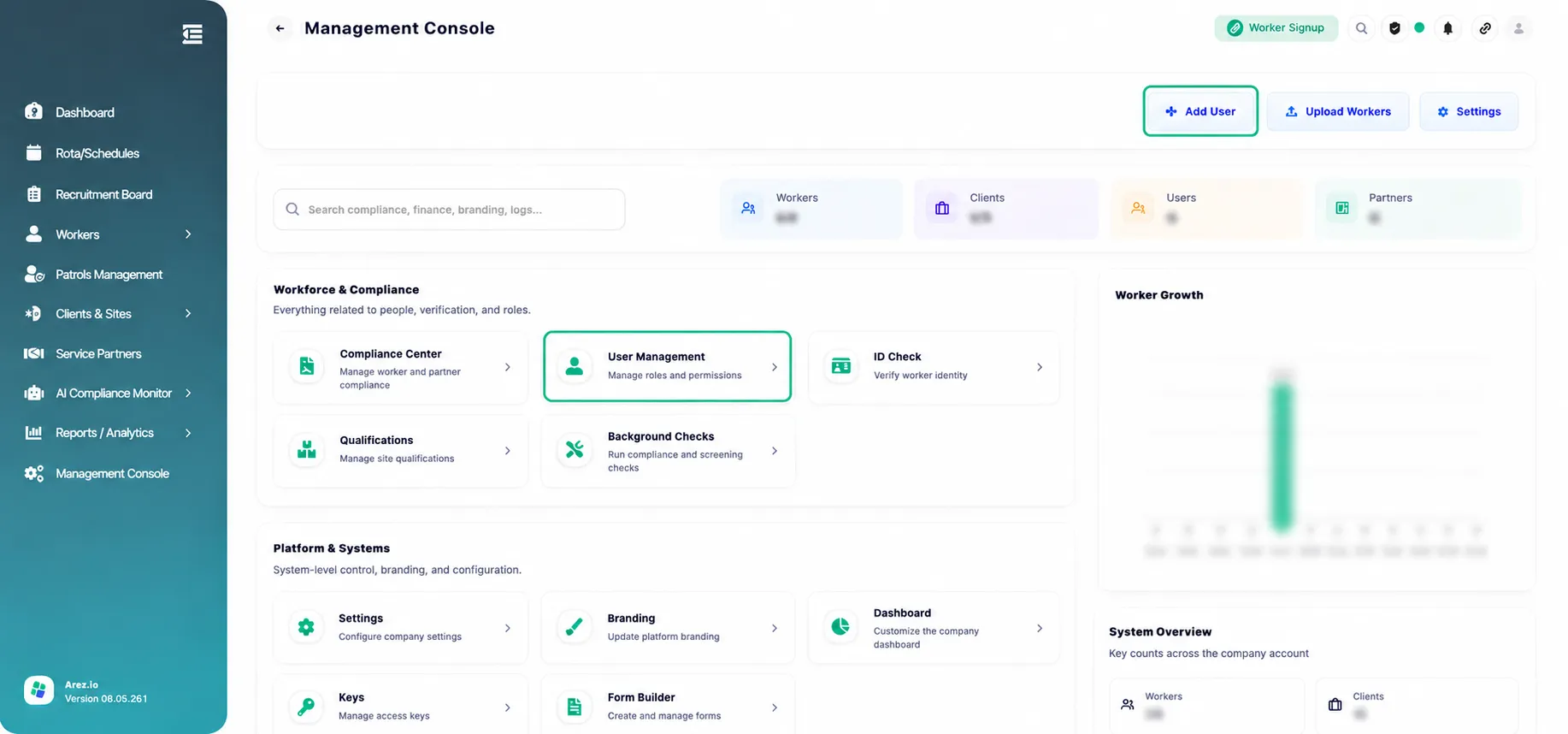
From there, you can either:
Click on User Management under the Workforce & Compliance section, or
Click on the “Add User” button located at the top-right corner.
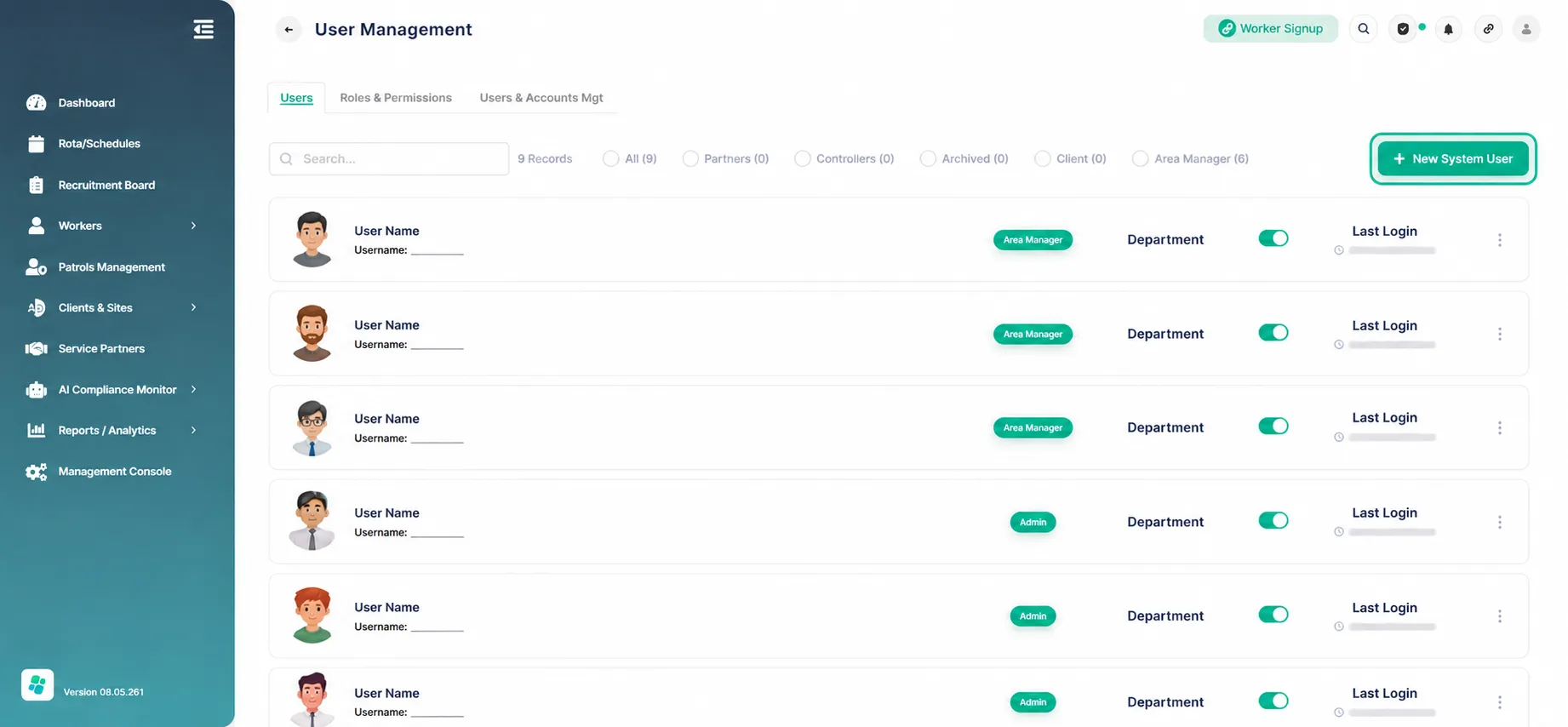
Both options will take you to the User Management page shown below.
Step 2: Add New System User
Click on the “+ New System User” button located at the top-right corner of the page.
A pop-up window will appear where you need to enter the user details such as:
First Name
Last Name
Username
Email Address
Department
Phone Number
Password
User Role
Profile Picture (optional)
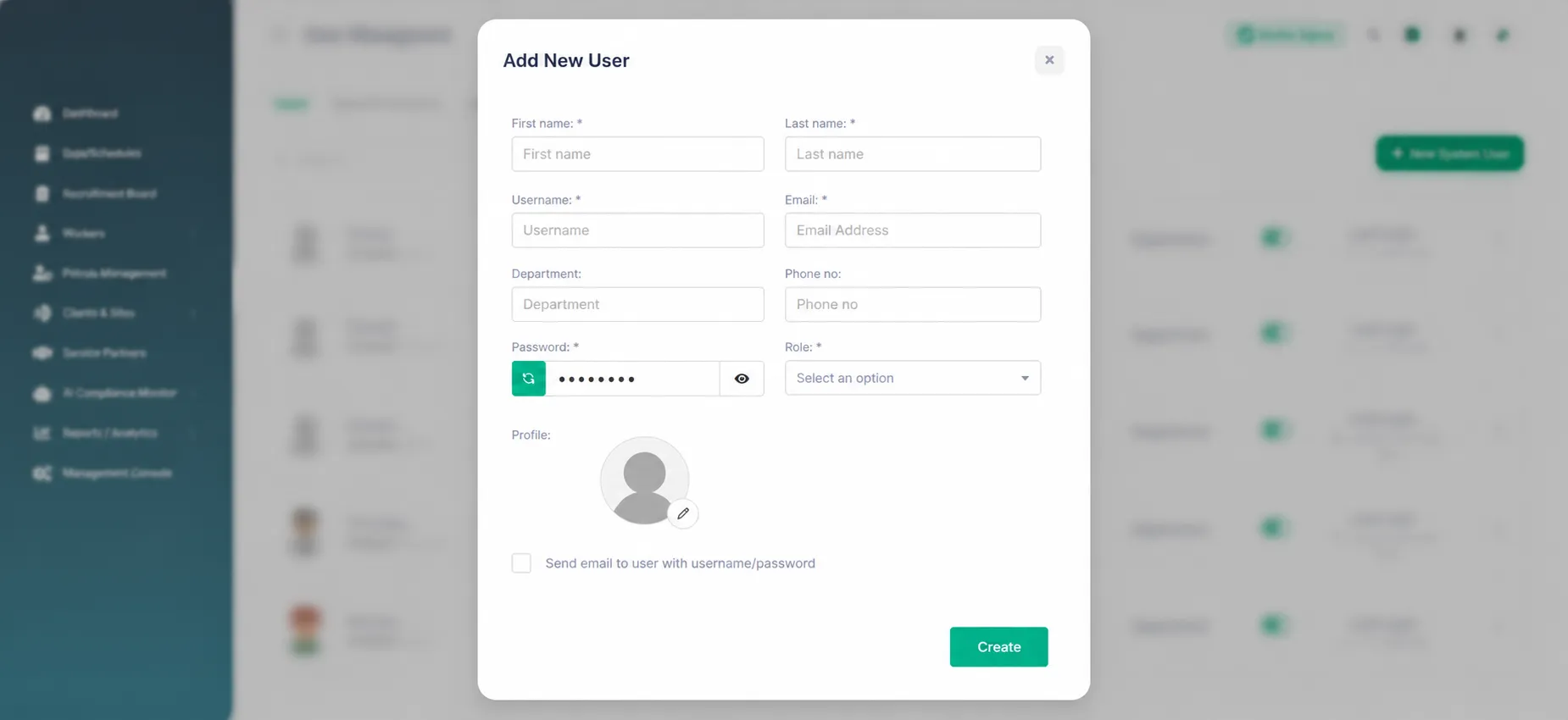
You can also tick the checkbox “Send email to user with username/password” if you want the login credentials to be emailed directly to the user.
Once all the required details have been added, click on the “Create” button to create the new user account.