
 Facebook
  Twitter
  LinkedIn
 Delegation in Arez
Temporarily allow another user to act on behalf of a colleague while keeping actions traceable.
Overview: The Delegation feature allows an authorised user to temporarily give another user access to act on behalf of a colleague who is unavailable. The delegate can work in the delegated user's context for the agreed period, while actions remain traceable through the activity and delegation logs. |
Example used in this guide
John Carey is an Area Manager who will be unavailable for 7 days. Jonathan, who is also an Area Manager, is assigned as John's delegate for that period. Once the delegation is active, Jonathan can switch into John's delegated context and work with the areas available to John, such as his rota, sites and workers.
Key points
A delegation can be created for up to 7 days initially.
An active delegation can be extended up to 14 days in total.
The delegation starts immediately after it is confirmed.
The delegate can switch between their own account and the delegated user context.
The delegation can be ended early if access is no longer required.
Actions performed through delegation remain traceable for audit purposes.
1. Open Management Console
From the main Arez dashboard, select Management Console from the left-hand navigation menu.
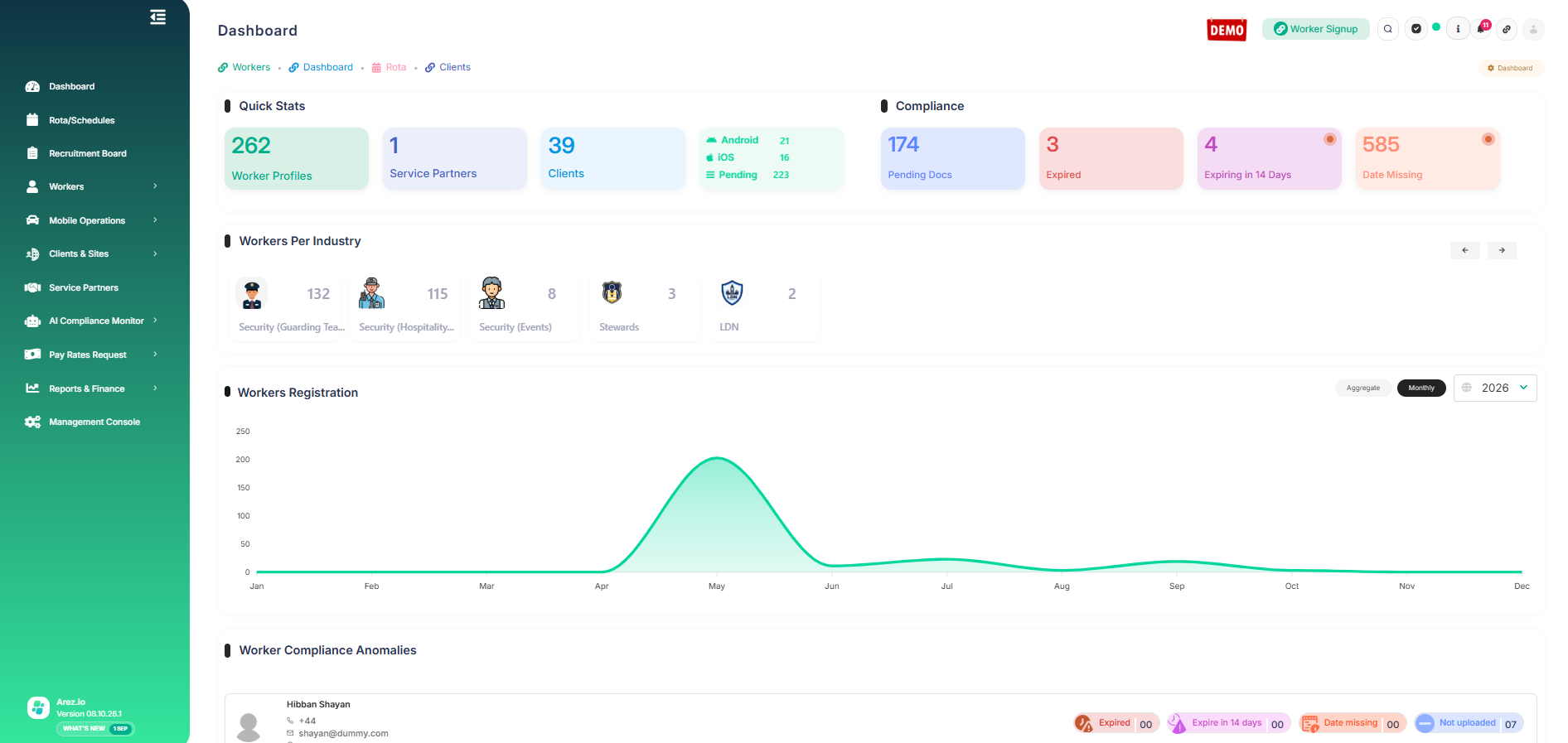
Open Management Console from the left-hand menu.
On the Management Console page, select User Management under Workforce & Compliance.
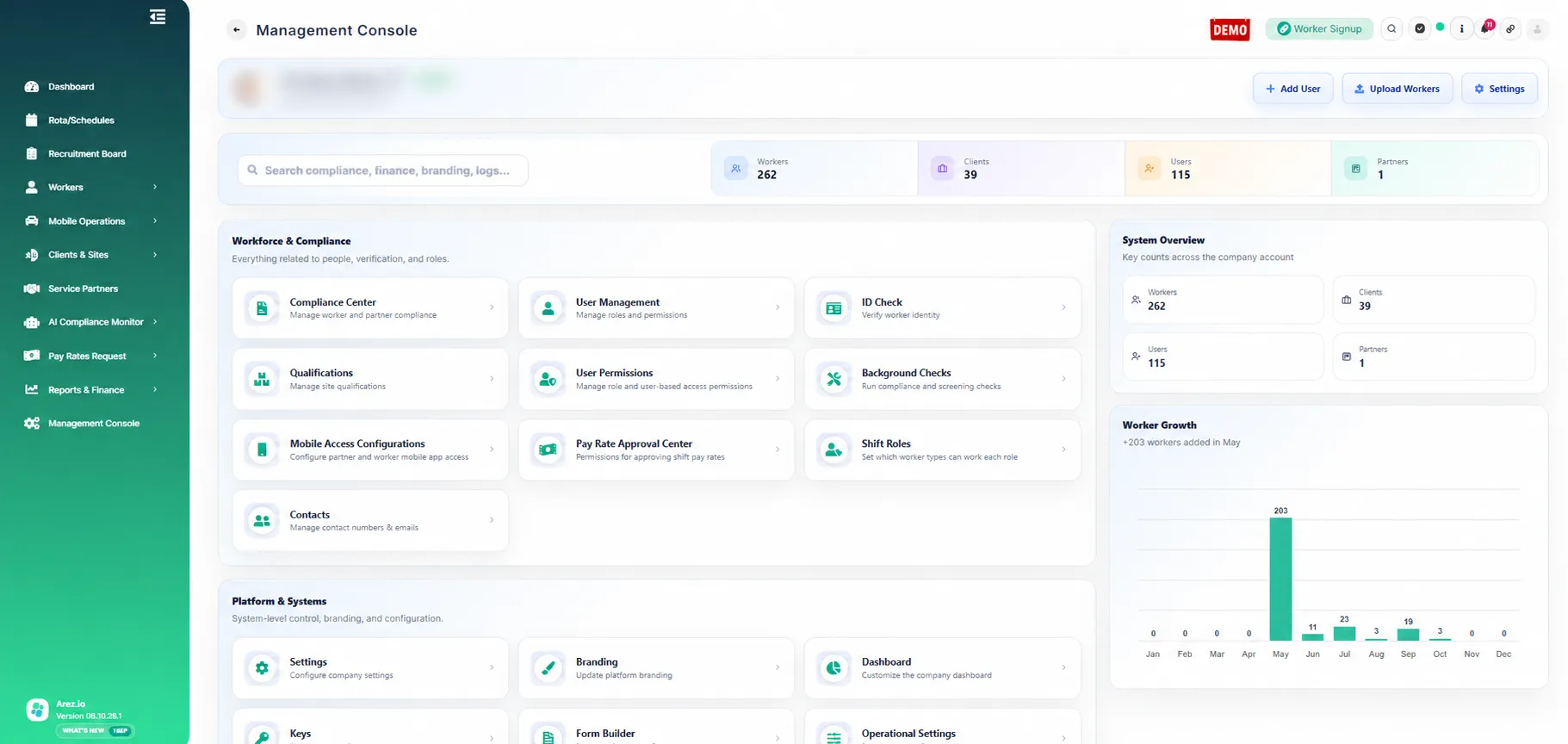
2. Find the user whose access you want to delegate
The User Management directory shows users across the available roles. Use the search box to find the person who will be unavailable.
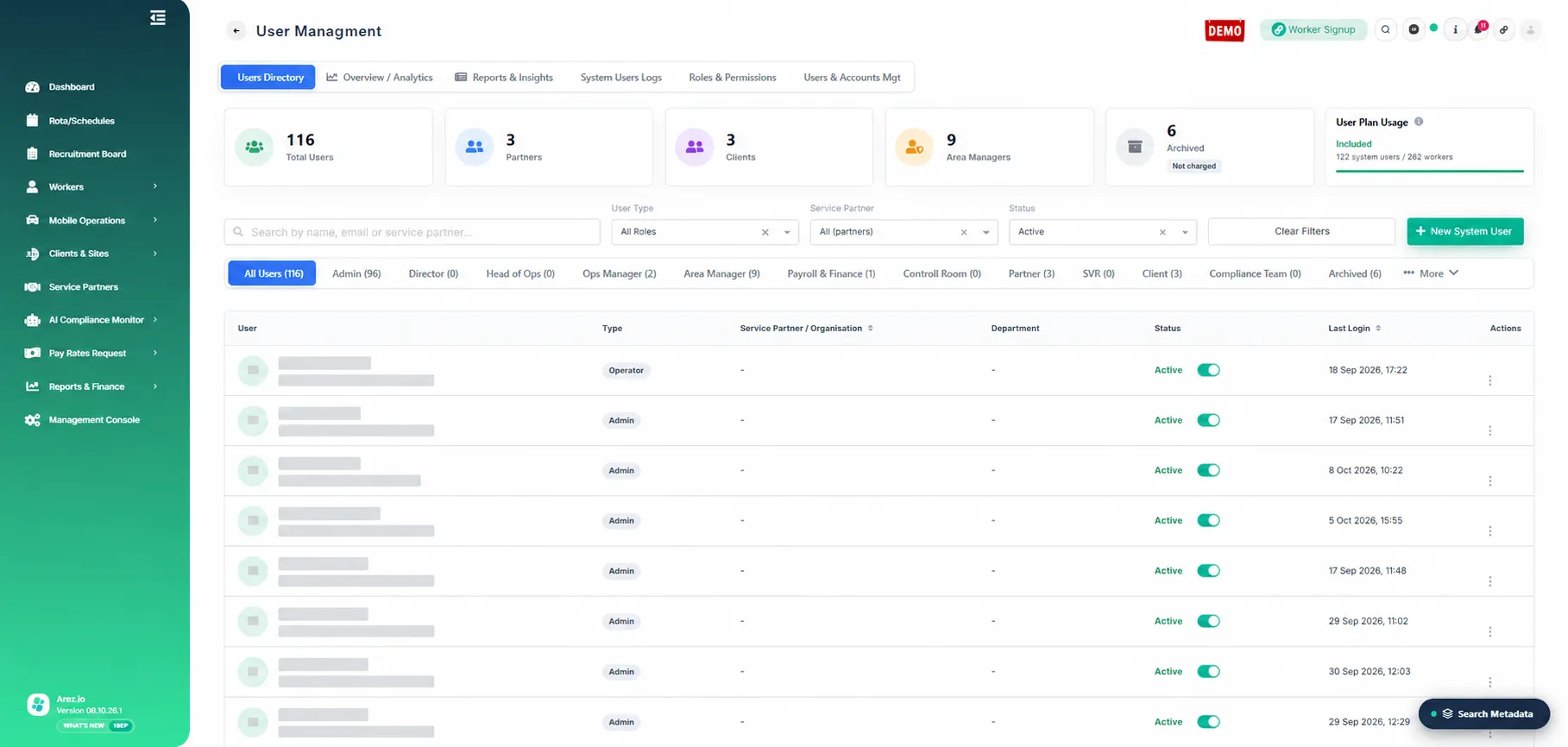
User Management displays the system user directory and role filters.
In this example, search for John Carey and open his user profile.
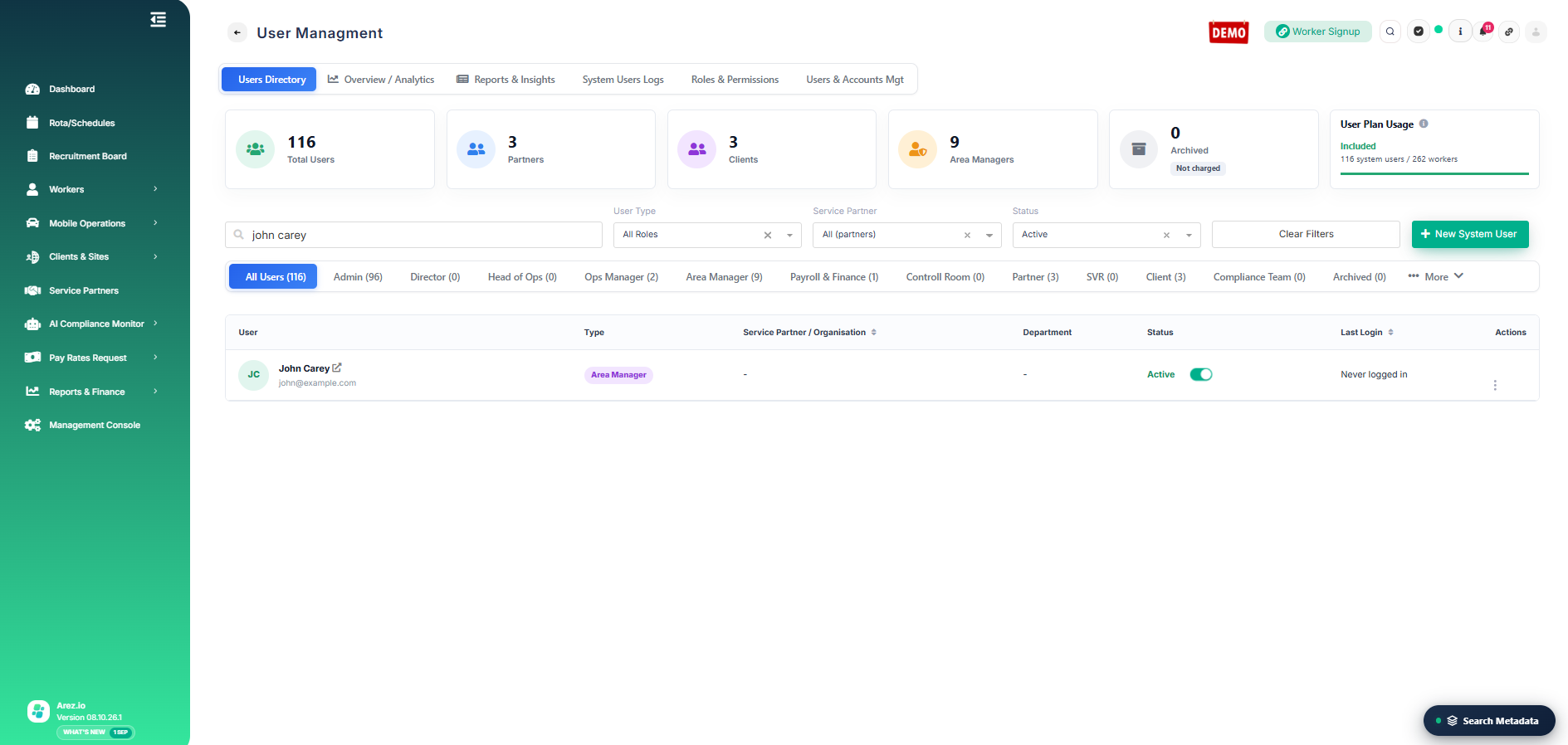
3. Open Delegate Access and choose a delegate
From the user profile, open the Delegate Access tab. The Assign a delegate section lets you search for and select the colleague who will act on behalf of this user.
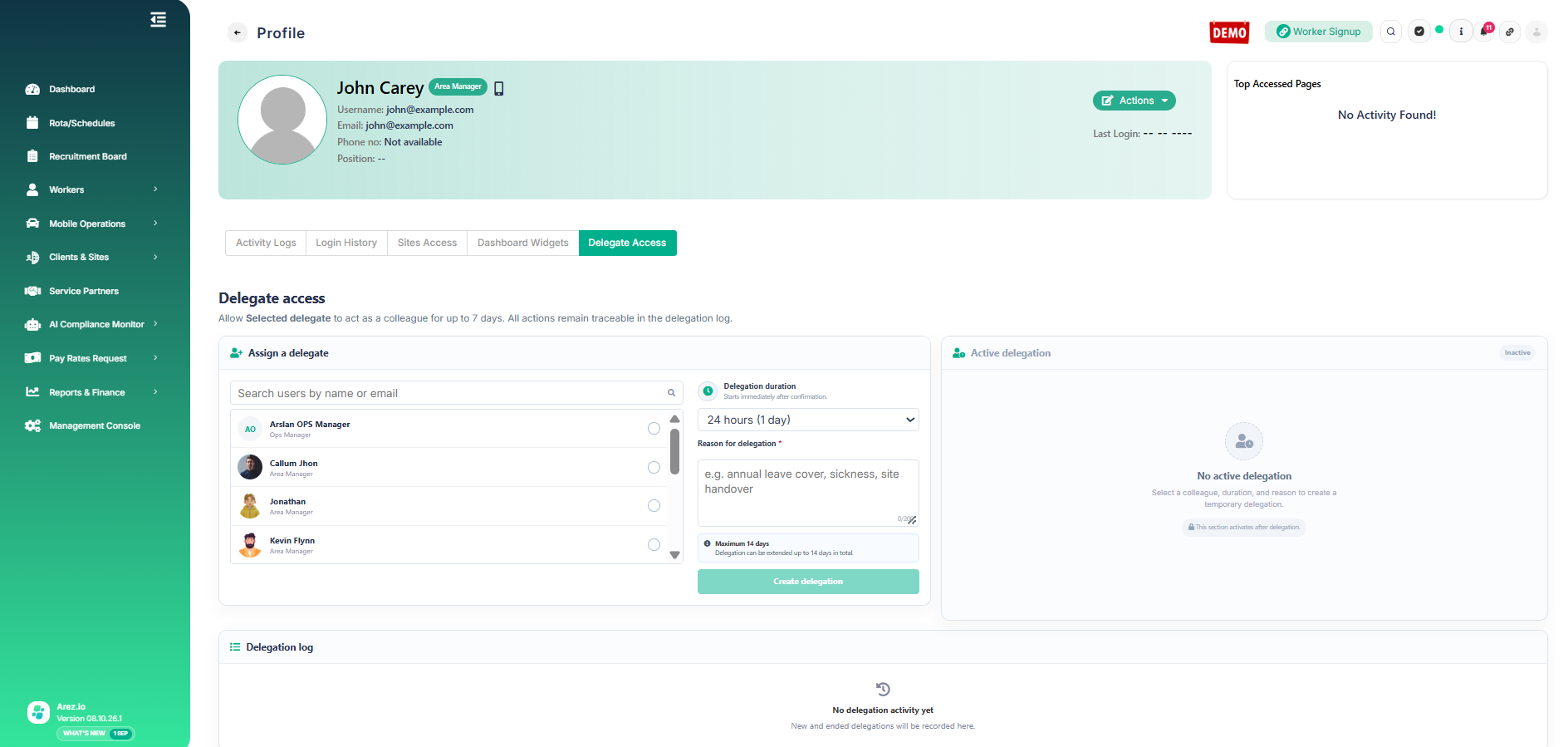
The Delegate Access tab shows delegate selection, duration and the active delegation area.
Search for the required delegate and select them. In this example, Jonathan is selected as John Carey's delegate.
Set the Delegation duration and enter a Reason for delegation. The example uses 168 hours (7 days).
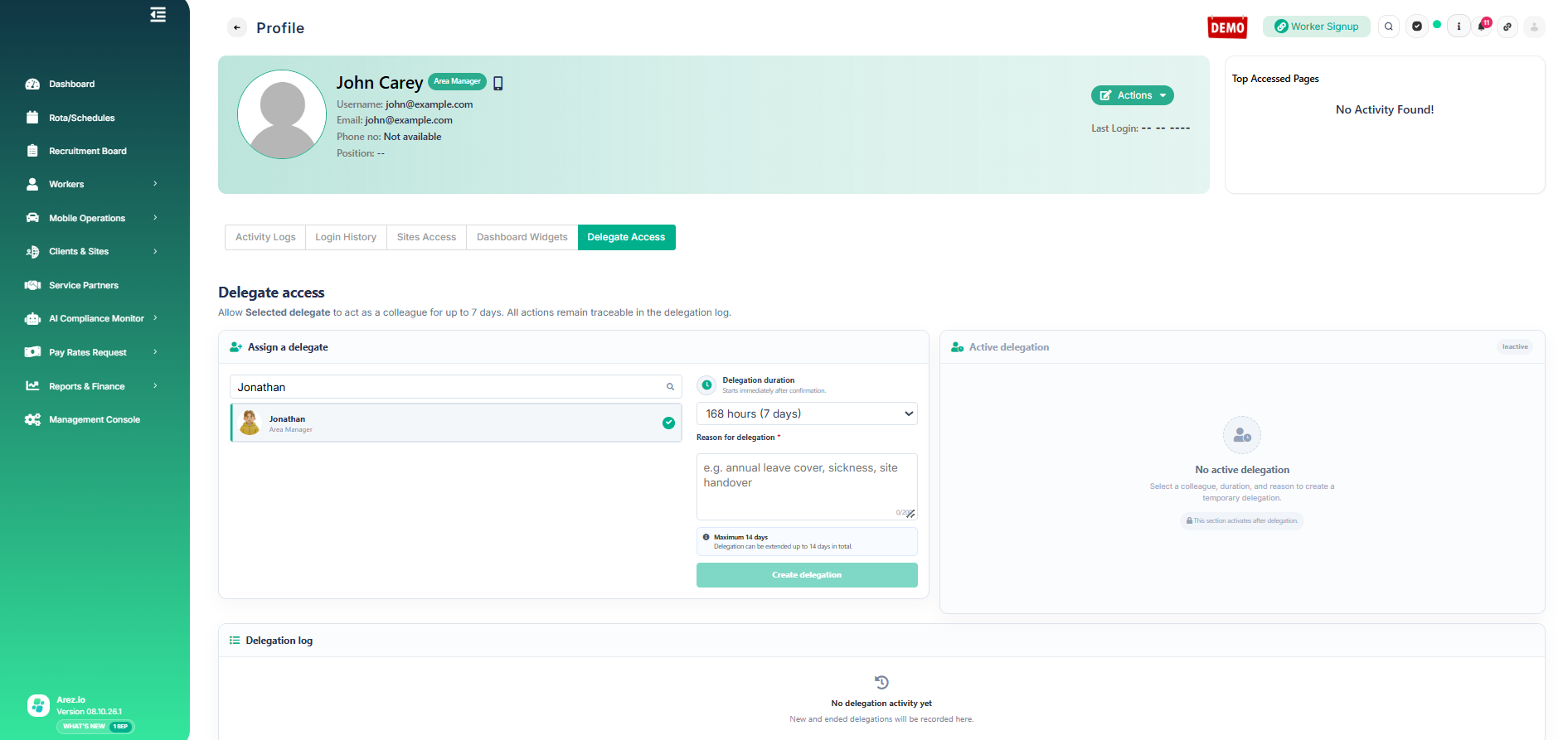
Jonathan selected as the delegate for 168 hours (7 days).
Duration: The initial delegation can be set for up to 7 days. It can later be extended, up to a maximum of 14 days in total. |
4. Review and confirm the delegation
Click Create delegation. Arez opens a confirmation window so you can review the delegate, the user they will act as, the duration, start and end time, and the reason before access is granted.
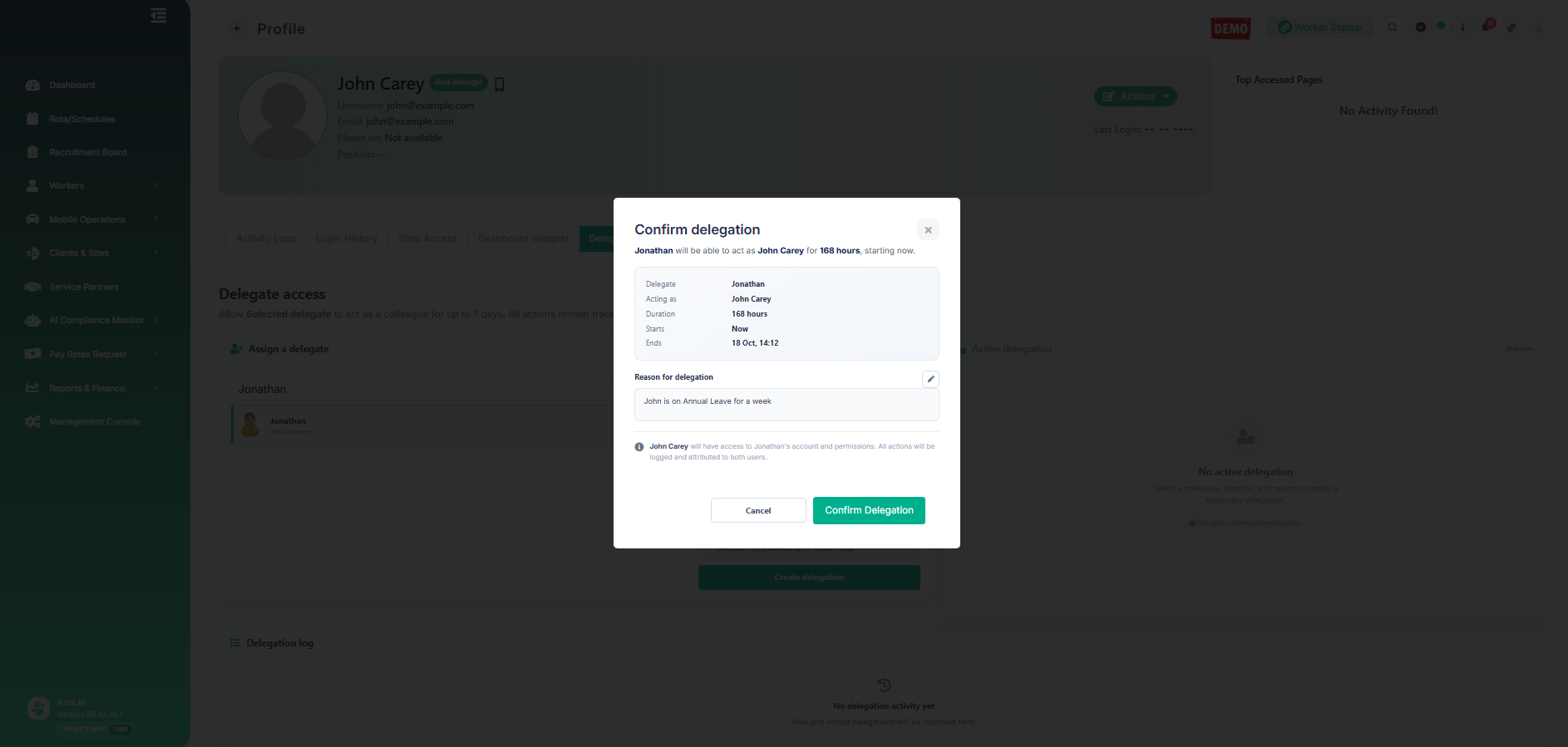
Review the delegation details and click Confirm Delegation.
Check before confirming: The confirmation window shows that the delegation starts now. Check the details carefully before confirming. |
5. Review the active delegation
After confirmation, the Active delegation panel shows who is acting as the user, the reason for delegation, the start and end time, and the remaining duration.
The Delegation log below the panel records the delegate, who they are acting as, who granted the access, the start and expiry time, and the current status.
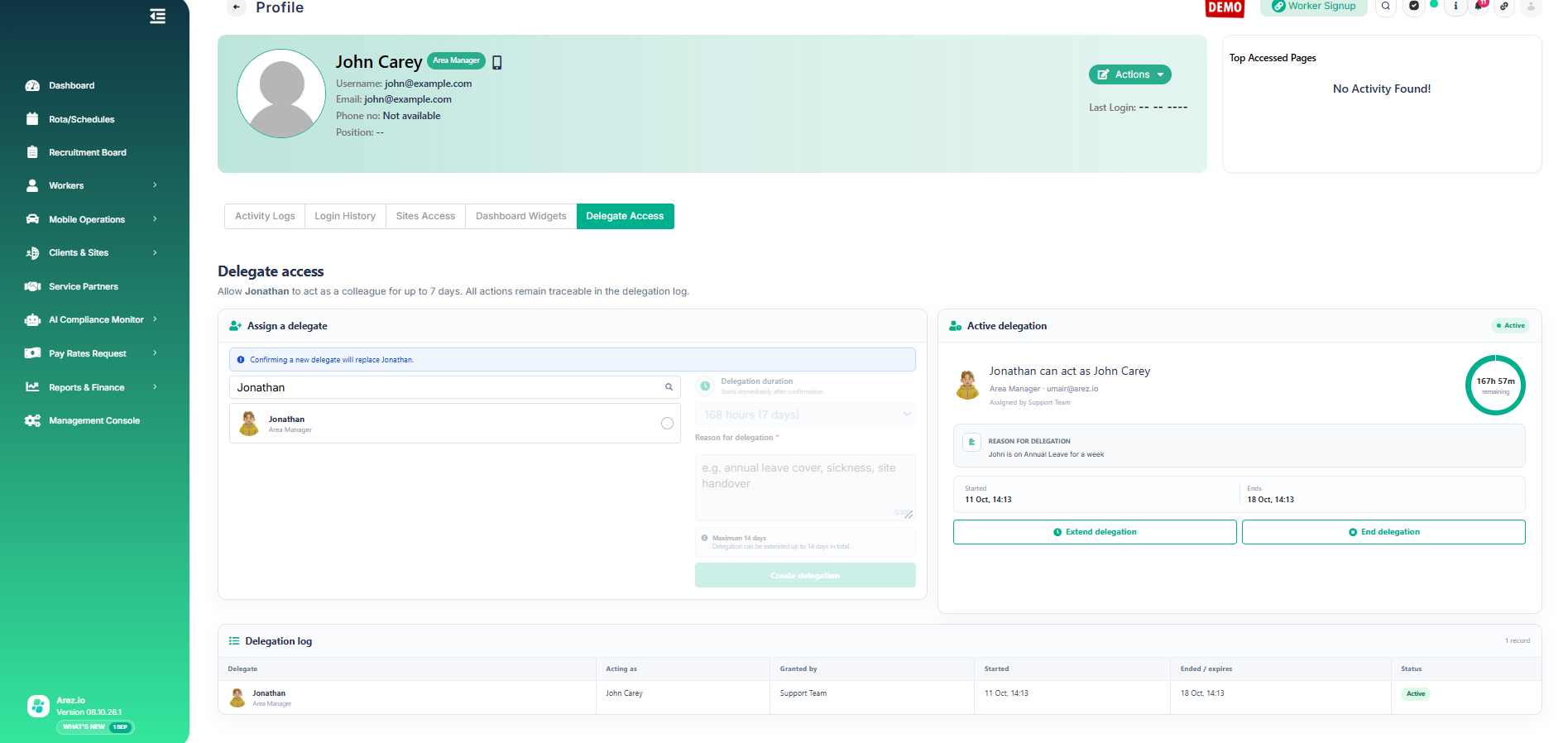
Active delegation details and the delegation log.
If more cover is required, use Extend delegation. The delegation can be extended up to 14 days in total. If access is no longer required, click End delegation to remove the delegate's access early.
6. How the delegate switches into the delegated user context
When Jonathan signs in, Arez shows a delegation control at the top of the screen indicating that he can act as John Carey.
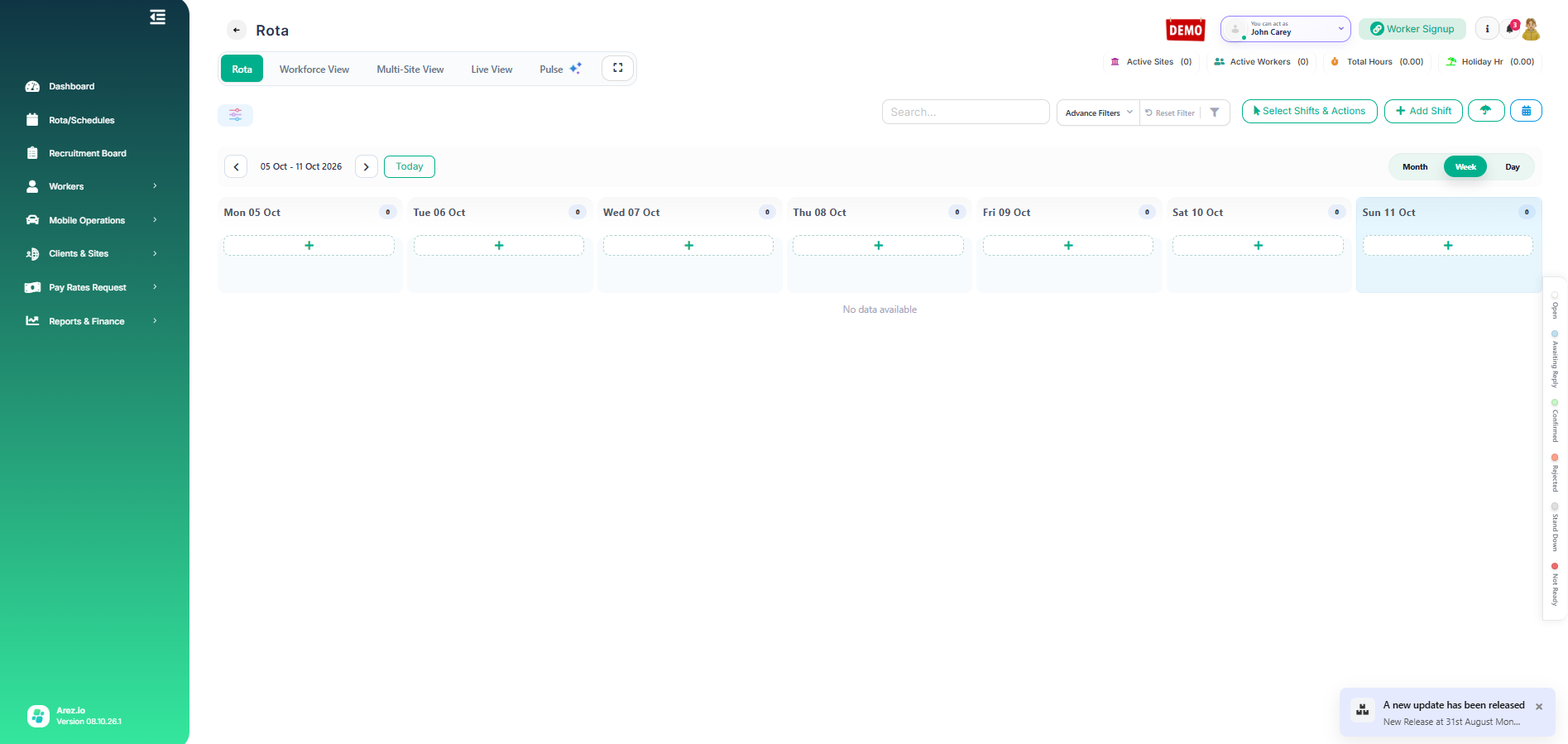
The top bar shows that Jonathan can act as John Carey.
Open the delegation control and click Switch to John Carey.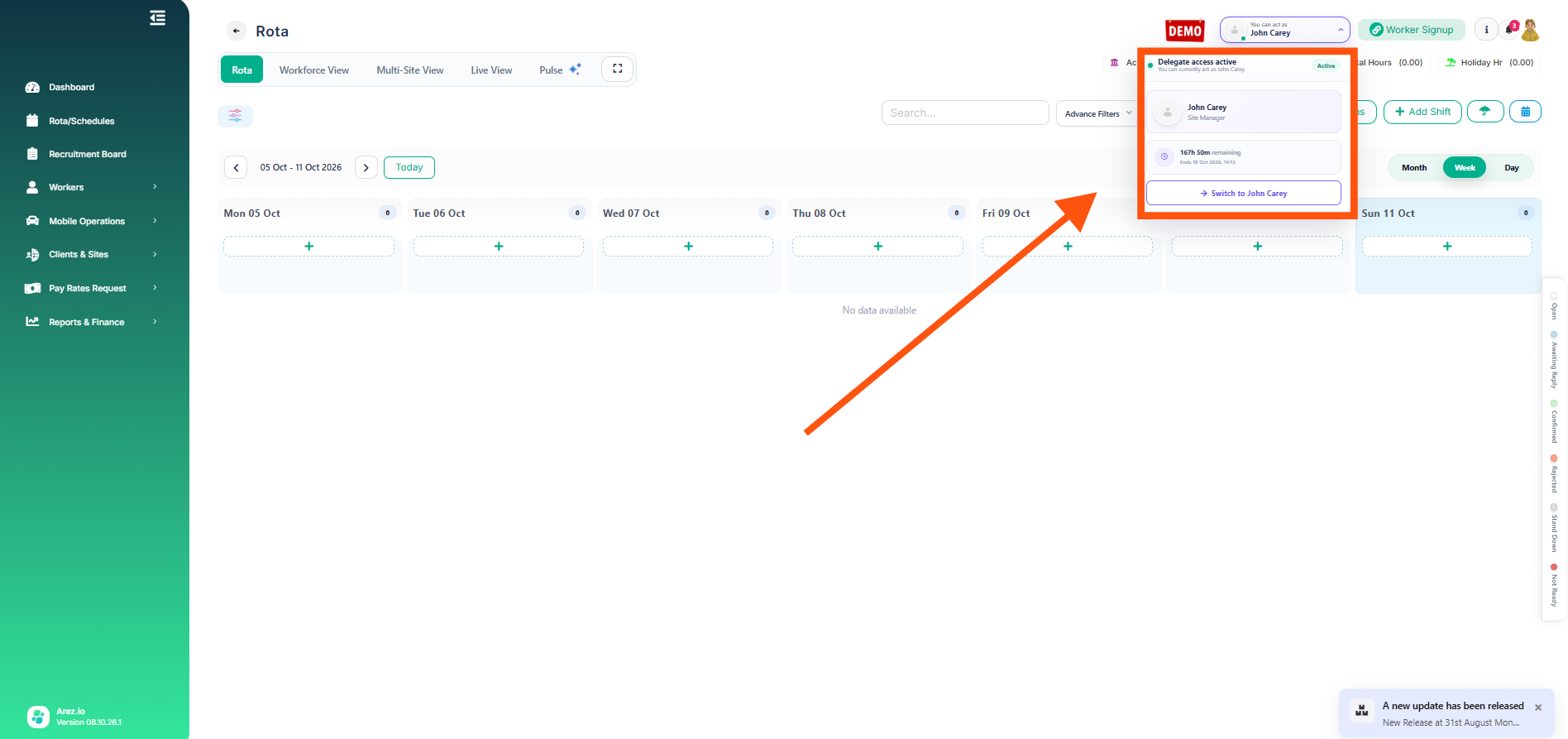
Open the active delegation menu and select Switch to John Carey.
7. Switch into the delegated account context
Arez begins switching the session into John Carey's delegated context. Once complete, Jonathan can work with the areas available to John for the duration of the delegation.
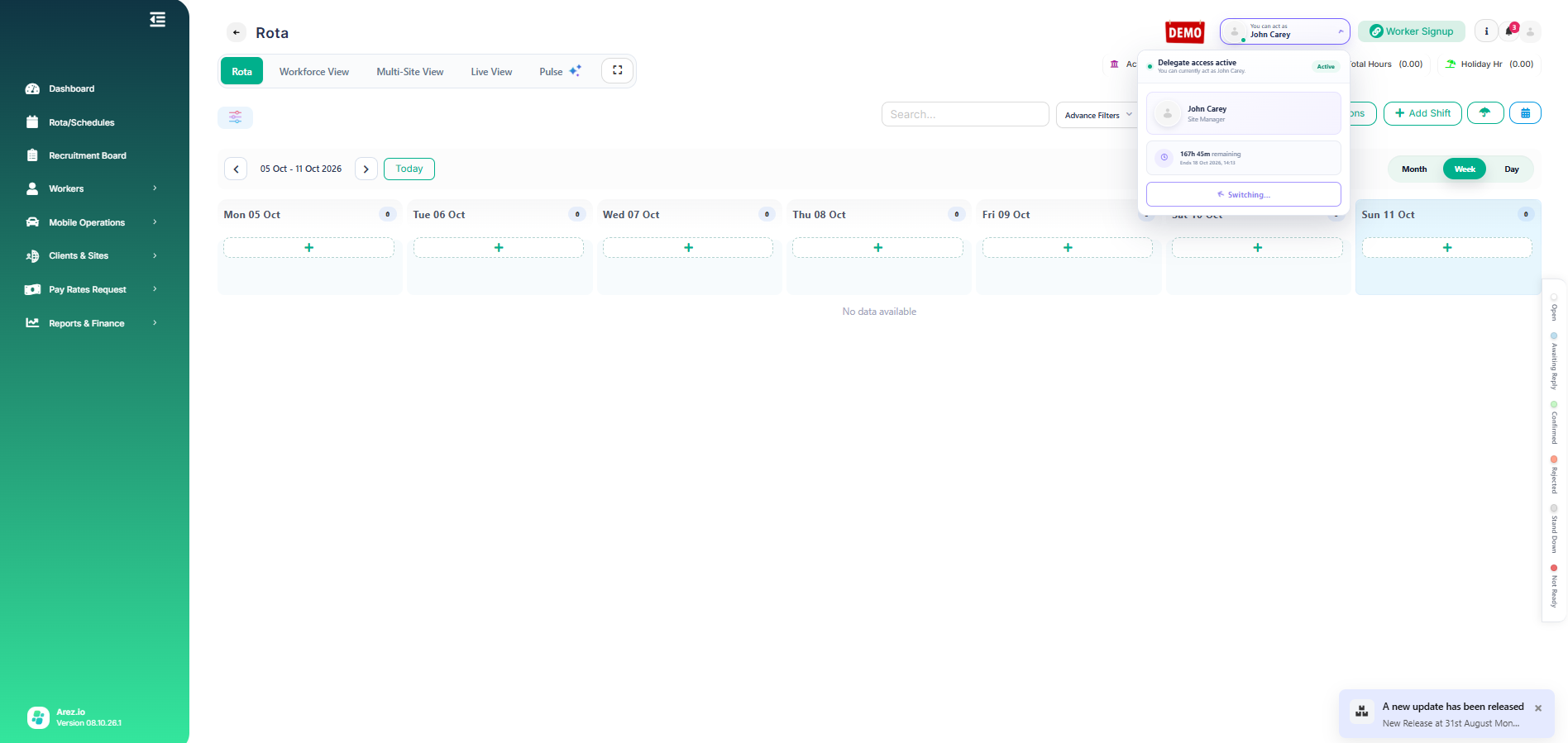
Arez switching into John Carey's delegated context.
Account context: When acting as John, the top bar shows an option to return to Jonathan's own account. This makes it clear which account context is currently being used. |
8. Work using the delegated access
While acting as John Carey, Jonathan can access the areas available through John's delegated context. For example, the screenshots below show access to John's Sites & Groups and Workers views.
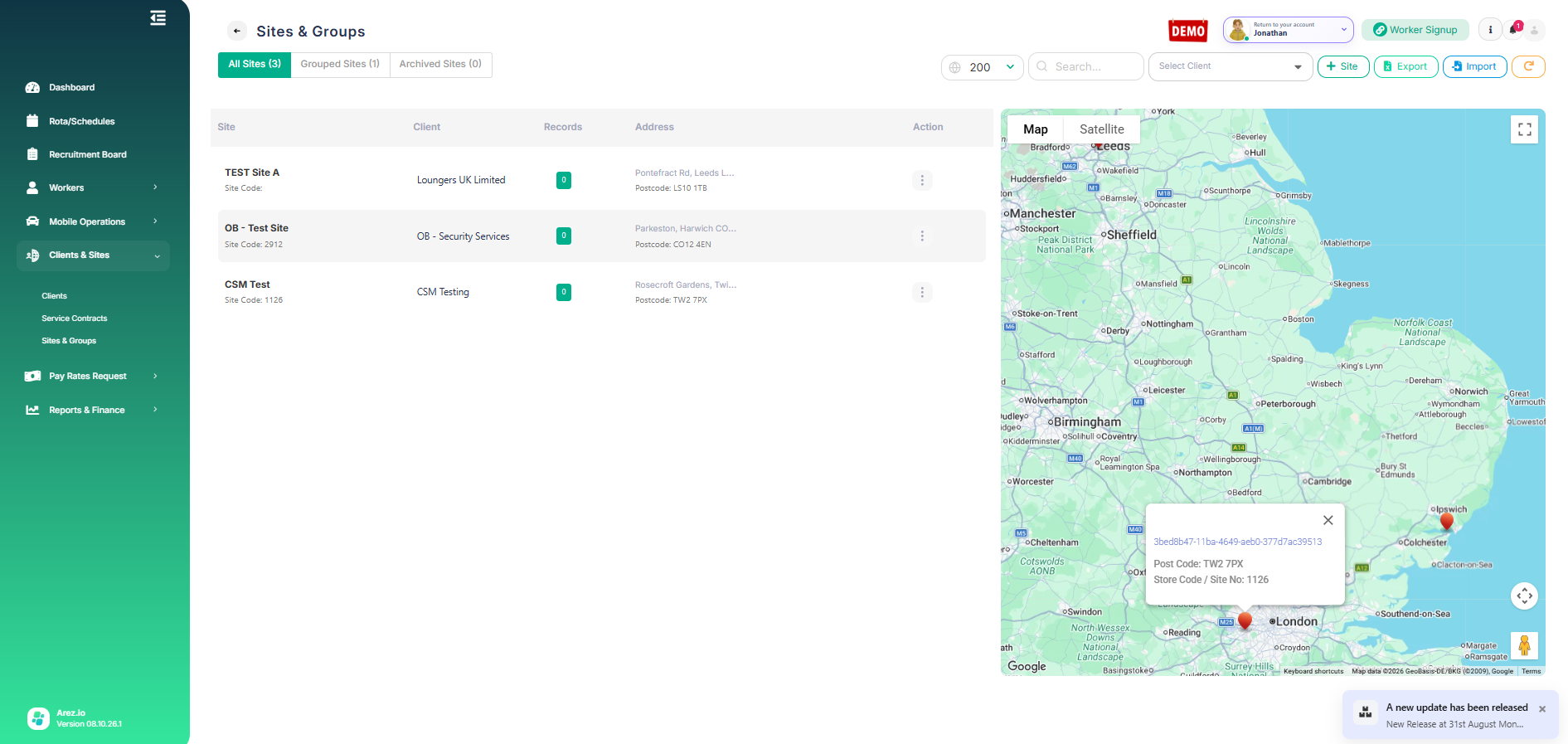
Sites & Groups while Jonathan is acting as John Carey.
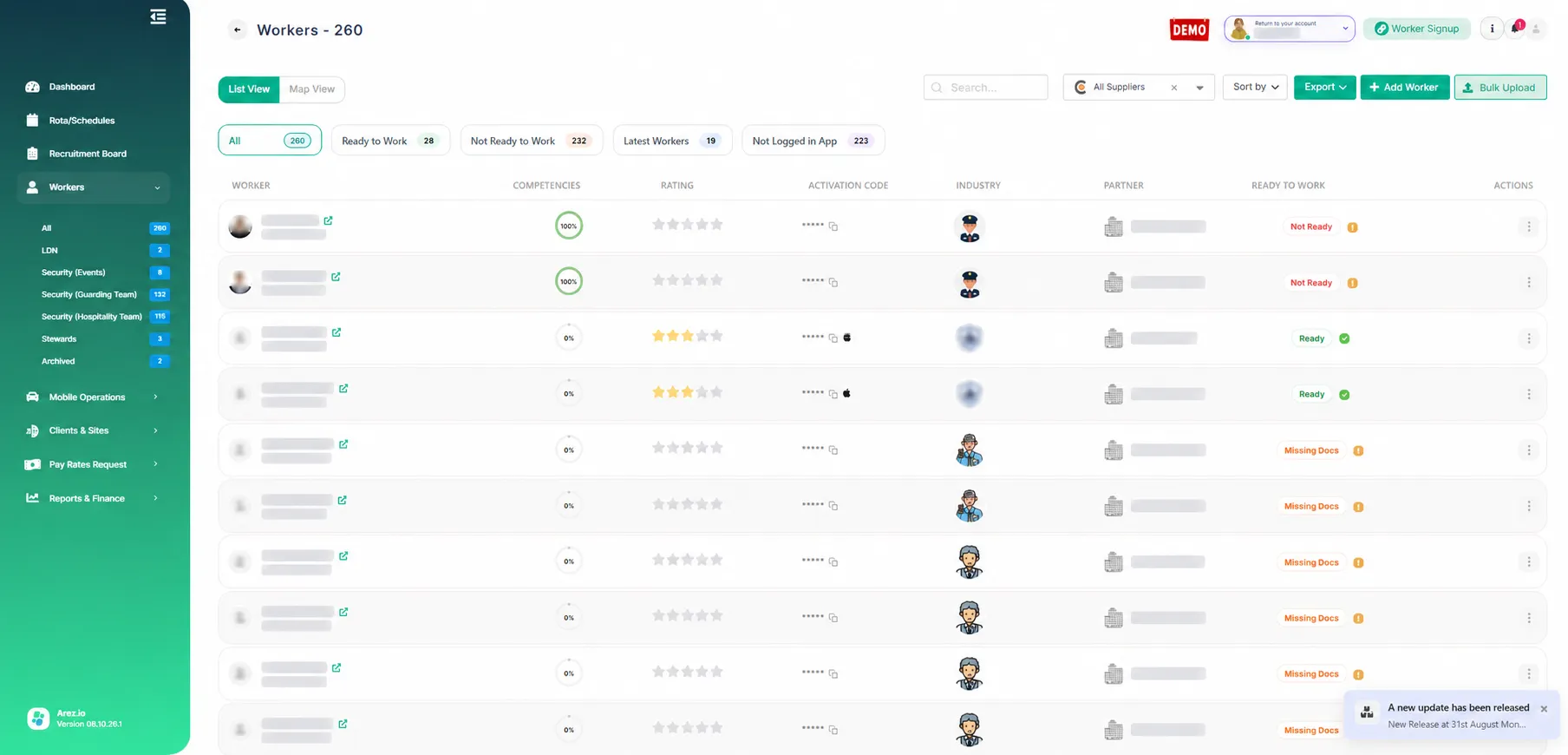
Workers view while Jonathan is acting as John Carey.
The top-right account control shows Return to your account - Jonathan, confirming that Jonathan is currently working in the delegated context rather than his own account.
9. Audit and trace delegated actions
Actions performed through the delegated access are recorded in the Activity Logs. The log identifies the account being acted as and records the delegated user where the action was performed through delegation.
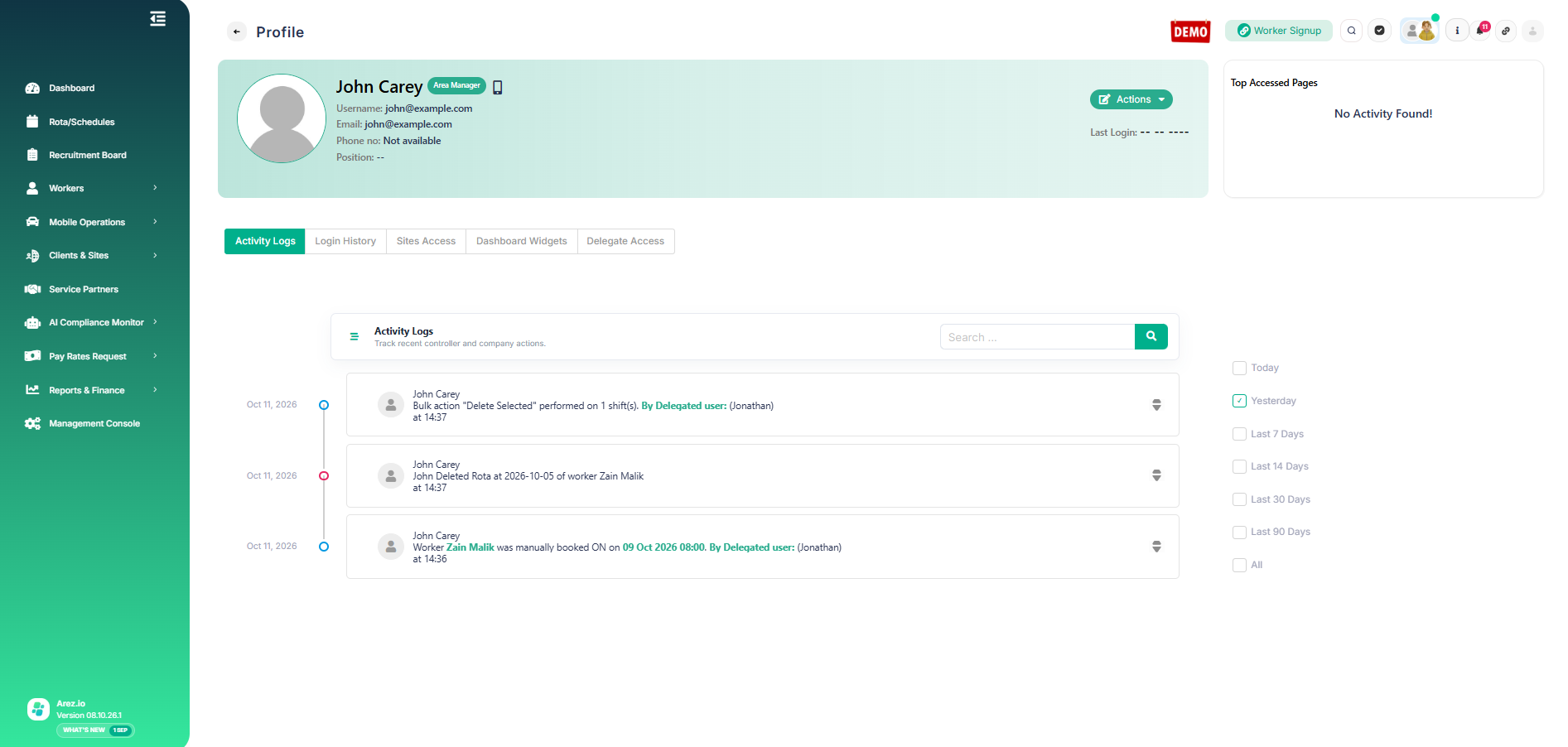
Activity Logs showing actions performed while acting as John Carey, including attribution to delegated user Jonathan.
In this example, the log shows actions under John Carey's account and identifies Jonathan as the delegated user for delegated activity. This provides a clear audit trail of who actually performed the action.
Ending the delegation
The delegation ends automatically at the configured end time. It can also be ended manually from the Active delegation panel. Once ended, Jonathan can no longer act as John Carey through that delegation.
Result: Delegation provides temporary operational cover without losing accountability: the delegate can work in the required account context, while the system keeps the delegation period and delegated activity traceable. |