
 Facebook
  Twitter
  LinkedIn
 The Sales Pipeline (CRM) module helps users manage leads from initial enquiry through to qualification and conversion. It provides a clear visual board showing the status of each lead and offers tools for communication, activity tracking, quoting, and lead management.
Lead Statuses
The Sales Pipeline is organised into the following statuses:
New Lead
A newly created lead that has not yet been contacted.
Attempted Contact
An attempt has been made to contact the lead, but communication has not yet been established.
Contacted
Communication has been established with the lead.
Qualified
The lead has been qualified as a potential customer and is ready to progress to the next stage.
Hold Lead
The lead has been placed on hold and is not currently being progressed.
Creating a New Lead
Users can create a lead directly from the Sales Pipeline board.
Step 1 – Add a New Lead
Navigate to Sales Pipeline
Locate the New Lead column
Click the + icon
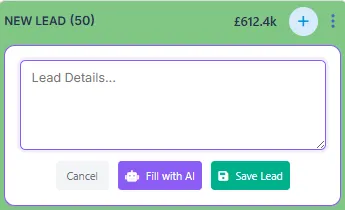
Step 2 – Enter Lead Information
Enter the available lead details.
Step 3 – Save or Use AI
Users have two options:
Save
Creates the lead using the information entered.
Fill with AI
The AI assistant will automatically:
Generate a lead title
Populate opportunity details
Identify the location
Extract relevant information from the provided text
Generate an estimated lead value
This helps reduce manual data entry and improves lead consistency.
Receiving Leads from External Sources
The Sales Pipeline can also receive leads through:
Integration with your company website
A dedicated landing page provided by Arez
Customers can submit enquiries directly, which are then added to the Sales Pipeline as new leads.
Viewing a Lead
To view a lead:
Open the Sales Pipeline
Click on the required lead card
The lead record will open, providing access to all lead information and activity.
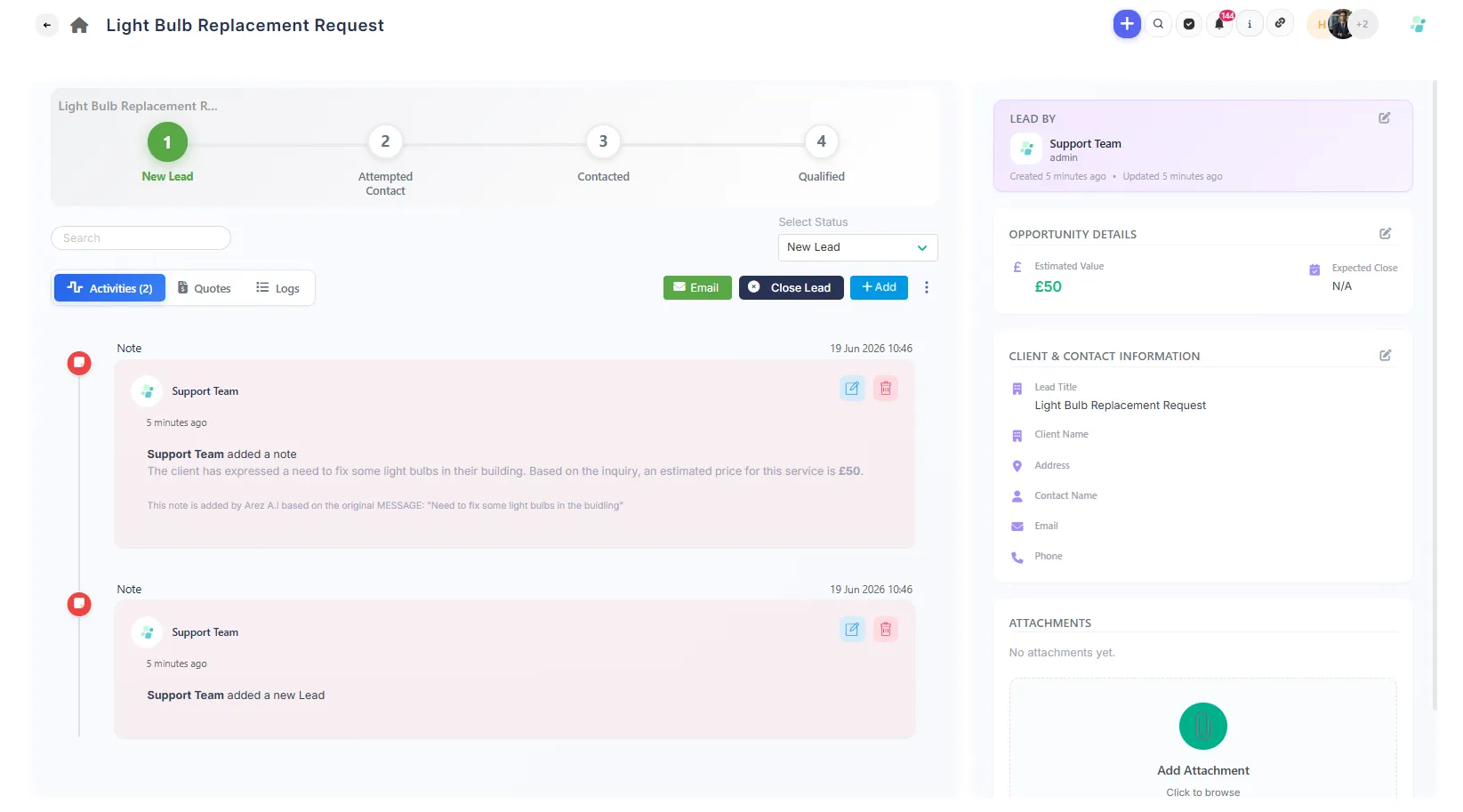
Lead Information Panel
The right-hand side of the lead page contains key lead information.
Users can view and edit:
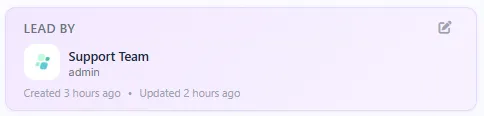
Lead By
Information about who created or owns the lead.
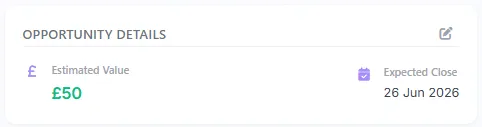
Opportunity Details
Information regarding the opportunity, requirements, and estimated value.
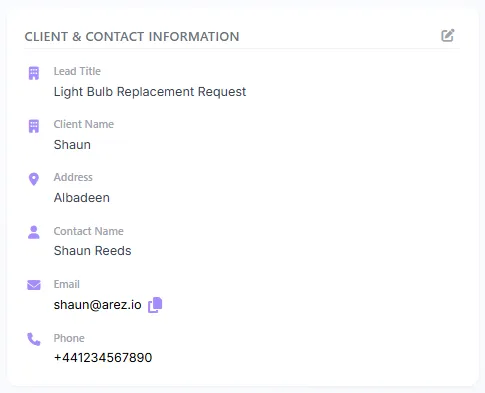
Client & Contact Information
Customer and contact details associated with the lead.
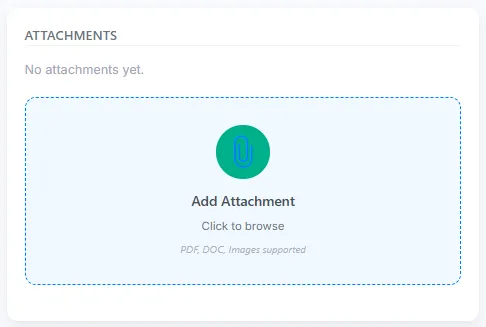
Attachments
Files and supporting documents related to the opportunity.
Lead Management Area
The main section of the page provides tools for managing the lead.
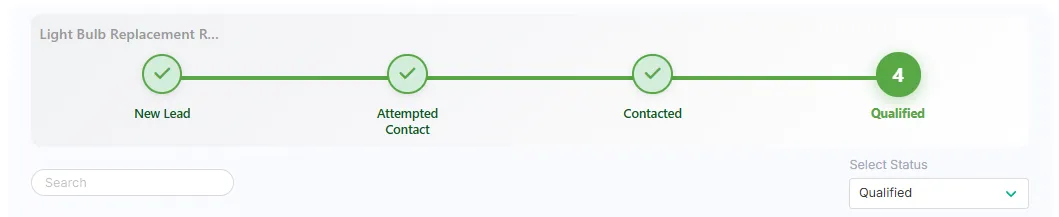
Current Status & Dropdown
Displays the current lead status and allows users to update the lead status as it progresses through the sales process.
Action Buttons
Users can perform several actions directly from the lead record.

Send an email to the customer directly from the lead.
Close Lead
Close the lead when it is no longer active.
+ Add
Add additional information and activities, including:
Schedule a Meeting
Log a Meeting
Add a Call Summary
Add a Note
Create a New Quote
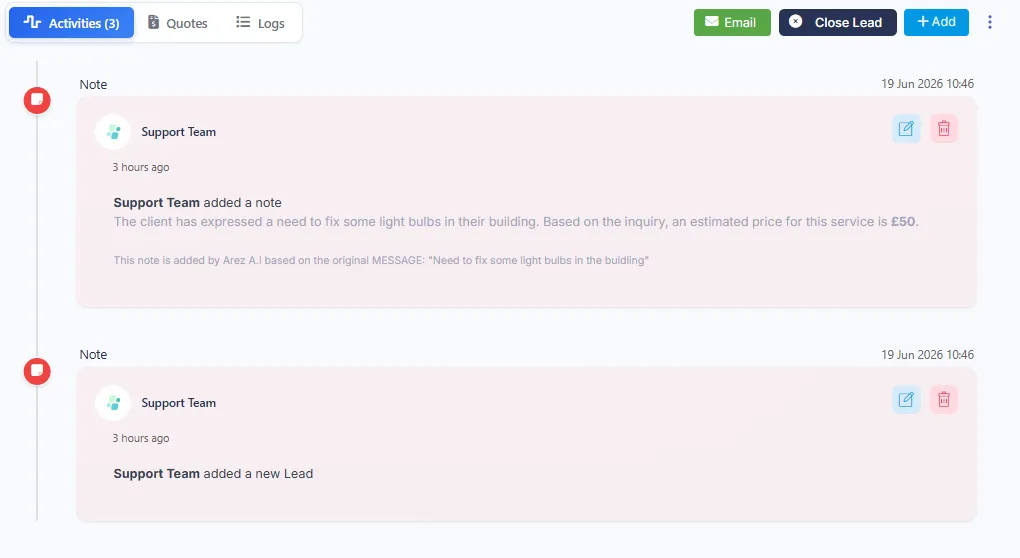
Activities Section
The Activities section provides a complete history of lead activity.
Users can view:
Notes
Progress updates
Communications
Meetings
Call summaries
Other lead-related activity
This provides a complete record of engagement with the prospect.
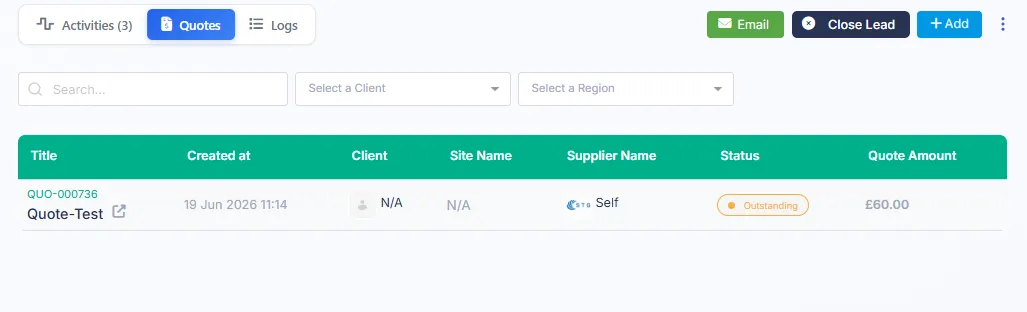
Quotes Section
The Quotes section displays all quotations associated with the lead.
Users can:
Create new quotes for qualified leads
View quotes
Track quote progress
Review quotation history
Approved quotes can be used by an Admin to create jobs within the system.
Logs Section
The Logs section contains a full audit trail of activity performed on the lead.
This includes:
Status changes
Updates
User actions
System-generated activity
Progressing a Qualified Lead
As the sales process progresses, users can update the lead status accordingly.
Once a lead reaches Qualified status:
A quote can be raised against the lead
The quote will appear in the Quotes module
An Admin can review and approve the quote
Once approved, a job can be raised directly from the quote
The customer can then be added as a client within the system if required
This process ensures that all opportunities follow the correct sales and approval workflow before progressing to operational delivery.
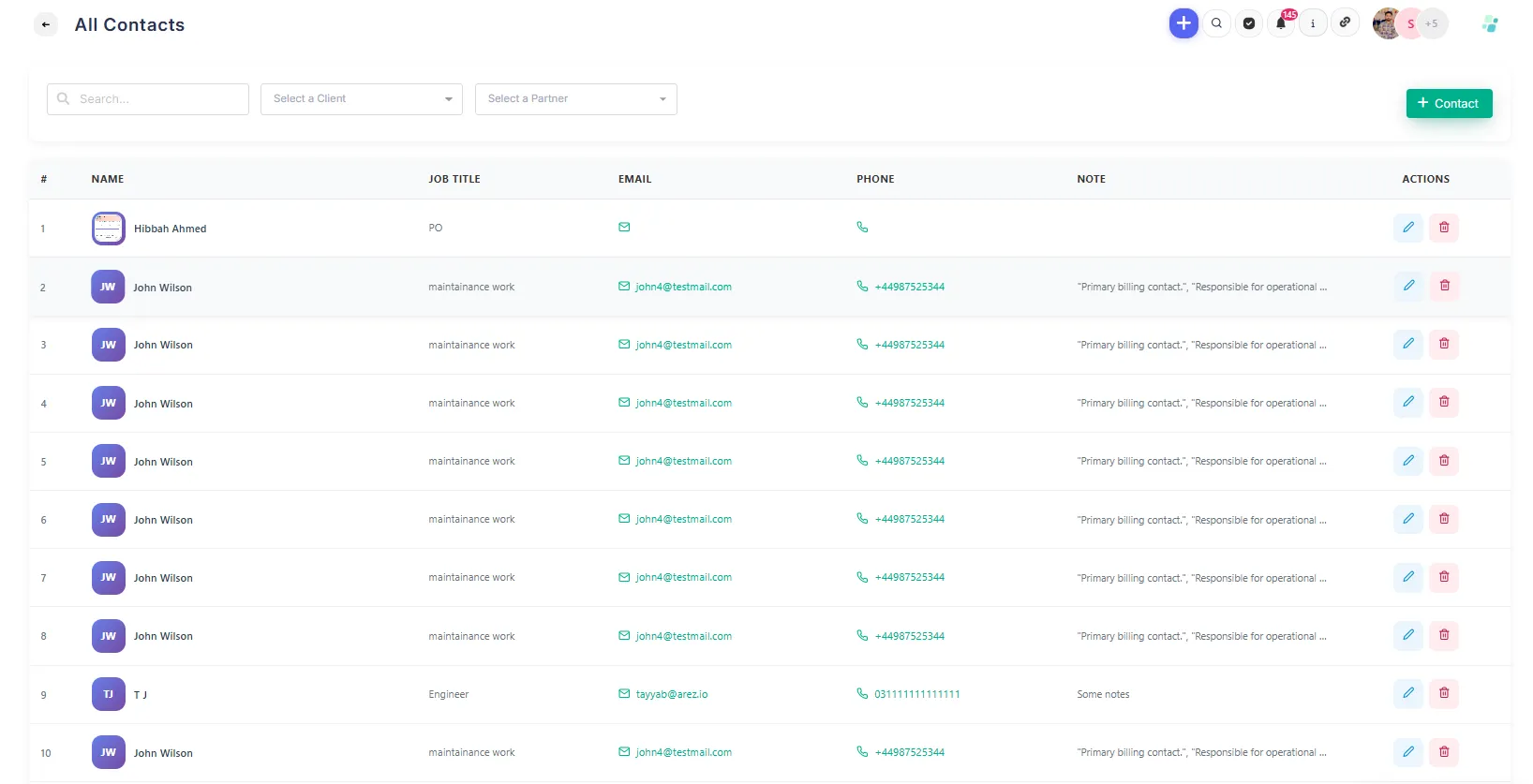
Contacts Management
The Contacts section within the Sales Pipeline stores customer information collected during the sales process.
This allows users to:
Maintain customer records
Access contact details
Manage ongoing relationships
Reuse customer information for future opportunities
Best Practices
Keep lead information up to date
Log all customer interactions and meetings
Use AI to speed up lead creation
Update statuses promptly to maintain pipeline visibility
Attach relevant documents and communications
Regularly review qualified and held leads
Use quotes and activities to maintain a complete sales history
The Sales Pipeline provides a complete view of your sales opportunities, helping teams track progress, manage customer communications, and convert leads into active clients and jobs.
This reflects the actual workflow:
Lead → Qualified → Quote Raised → Quote Approved → Job Raised.