
 Facebook
  Twitter
  LinkedIn
 Managing Notes in Arez.io
Notes in Arez.io help teams communicate, track work progress, report incidents, and maintain a clear record of activity on both reactive and planned preventative maintenance (PPM) work orders.
What Are Notes Used For?
Notes are used to:
Keep track of work carried out on a job
Report incidents or issues
Share updates and progress with relevant parties
Maintain an audit trail for reactive and PPM work orders
Note Categories
When adding a note to a work order, users can categorize it as one of the following:
Notes – General updates or communication
Progress – Updates related to work progress
Incident – Used for reporting incidents or issues
Notes & Progress Section Overview
Within the Notes & Progress section, you will find the following features:
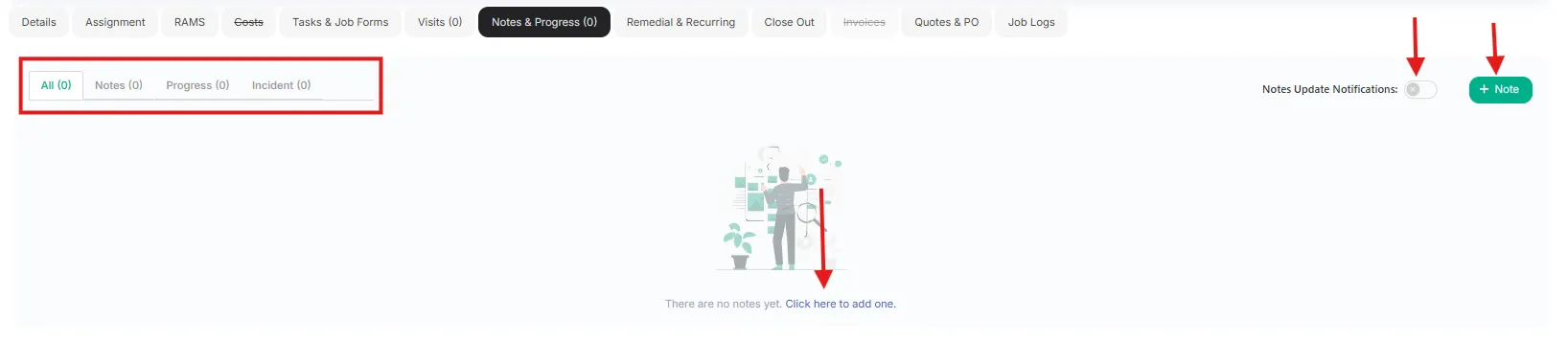
Tabs for Note Categories
Use the tabs at the top of the section to switch between:
Notes
Progress
Incident
This helps organize updates and makes it easier to filter information related to the job.
Notes Update Notifications
A Notes Update Notification toggle is available within the section.
When enabled, notifications will be sent whenever a new note is added to the job.
Notifications are sent to:
Assigned Worker
Service Partner
Admin involved in the job
Adding a New Note
You can add a new note by:
Clicking the + Note icon in the top-right corner
Clicking the link at the bottom of the section that says:
“Click here to add one”
New Note Popup Options
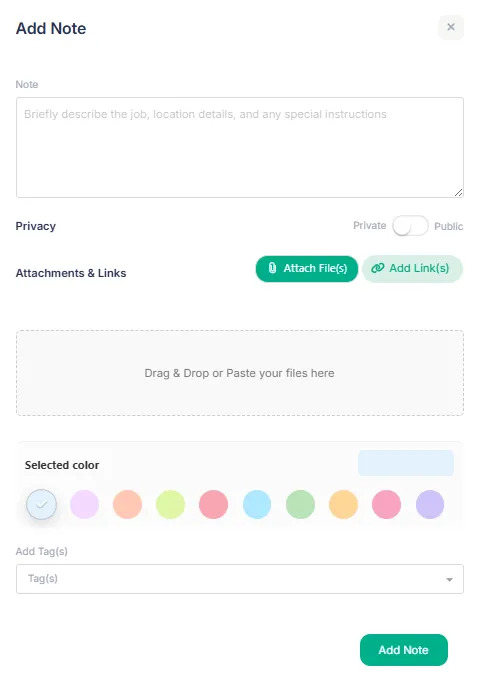
Adding a new note opens a popup window with the following options:
Note Text Box
Enter the details of the note, update, or incident.
Privacy Setting (Admins Only)
Admins can select the visibility of the note by choosing:
Public
Private
Attachments & Links
You can attach files or add links related to the note or job.
This section also supports:
Drag and drop uploads
File attachments
URL links
Note Color Selection
Each note can be color-coded for easier identification.
By default, note colors are automatically assigned based on the user type, such as:
Worker
Service Partner
Admin
Client
Admins can also manually change the color if required.
Add Tags
Use the Add Tag(s) dropdown to assign relevant tags to the note or job for easier tracking and filtering.
Who Can Add Notes?
All user types can add notes to a job, including:
Admin
Client
Service Partners
Workers
Note Privacy Settings
There are two privacy settings available for notes:
Public Notes
Public notes are visible to all parties involved in the job, including:
Admin
Clients
Service Partners
Workers
Use public notes when the information should be shared with everyone involved in the work order.
Private Notes
Private notes are only visible to the person who created the note and the admin.
Examples
If a service partner leaves a private note, only the service partner and admin can view it.
If an admin leaves a private note, the note will be visible to the admin and the assigned worker or service partner.
Private notes are useful for internal communication or sensitive information that should not be shared publicly.
Note Visibility Rules
Different user types have different permissions when creating notes.
User Type | Can Create Public Notes | Can Create Private Notes |
Admin | Yes | Yes |
Client | Yes | No |
Service Partner | No | Yes |
Worker | No | Yes |
Important Rules
Admins have full control over note privacy settings.
Suppliers and workers can only create private notes.
Clients can only create public notes.
Setting Default Note Visibility
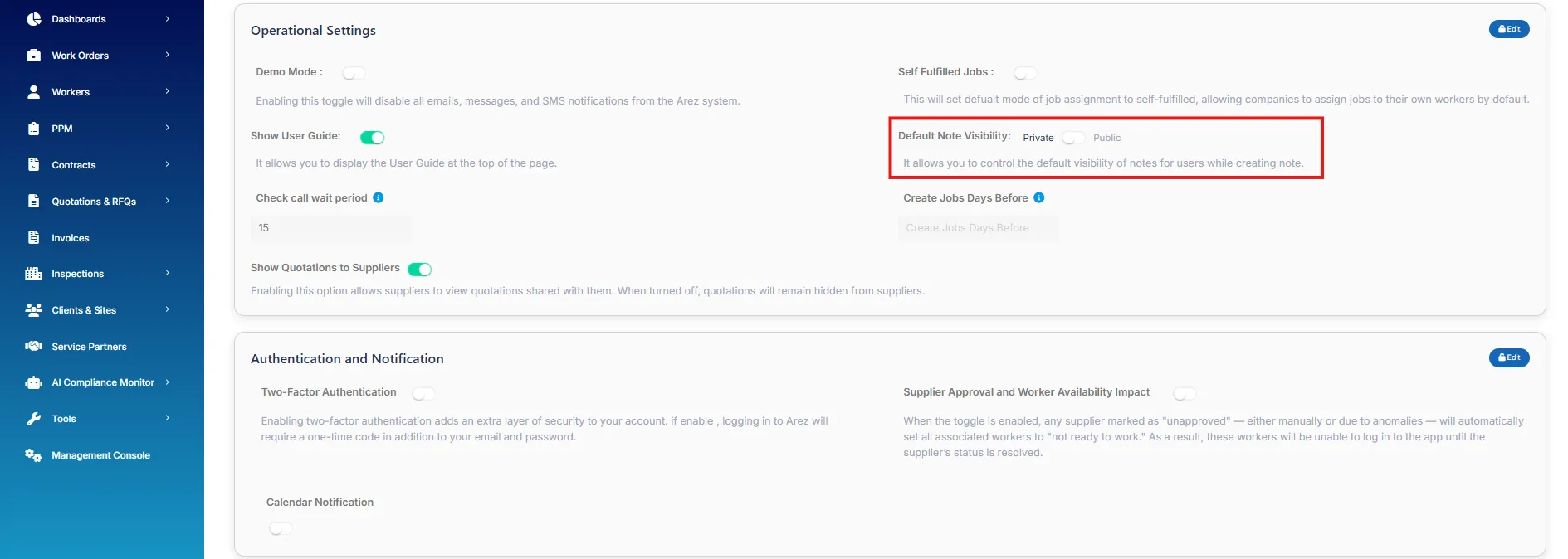
Admins can configure the default visibility setting for notes.
Navigate To
Management Console → System Settings → Operational Settings
Within this section, you will find the Default Note Visibility option.
This setting allows admins to define whether newly created notes default to:
Public
Private
Important
This setting only applies to admins and their internal team members.
It does not apply to:
Clients
Service Partners
Workers
Changing Privacy When Adding a Note
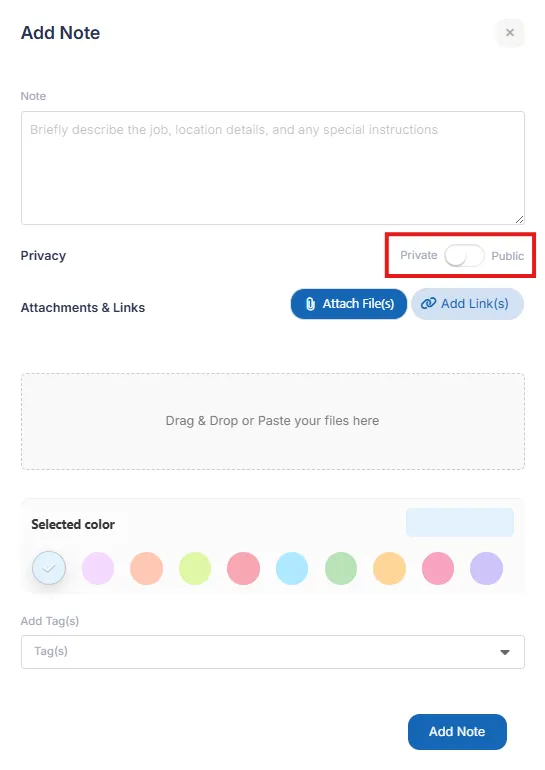
When adding a new note to a job, a note popup window will appear.
Within this popup:
The note visibility toggle will automatically follow the default note visibility setting.
Admins can manually override the visibility setting for that specific note by switching the toggle between:
Public
Private
 Managing Existing Notes
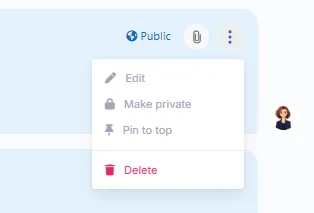
Admins can manage notes using the Options menu (3 dots) beside each note.
The following actions are available:
Edit
Allows the admin to reopen and modify the note.
Make Public / Private
Instantly changes the note’s visibility setting.
Pin to Top
Pins the note to the top of the notes section for better visibility and quicker access.
Delete
Permanently removes the note from the job.
 Best Practices
Use Progress notes to keep stakeholders updated on ongoing work.
Use Incident notes to record issues or unexpected events.
Keep sensitive internal communication as Private notes.
Pin important notes so they remain easily visible to the team.
Review note visibility before saving to ensure the correct audience can view the information.